
Debriefing
By default, debriefing is controlled using the debriefing app on the SIMStation Remote Tablet. The debriefing app includes all the control options and information that the instructor needs to perform the debriefing. However, unlike the recording app, the debriefing app does not contain a video pane. The videos are not displayed on the tablet but on the debriefing screen(s) for all participants (including the trainer!). The debriefing app, therefore, only contains a control and tool pane.
Media files used during simulation or debriefing, including images, videos, PDFs, and PowerPoint presentations, are uploaded in advance by simulation lab staff.
All debrief rooms are set up in advance by simulation lab staff, including screen configuration, audio routing, and system connections.
Click on the Debriefing dashboard tile or follow the menu path.
Follow the steps in the debriefing wizard:
- Go to the desired debriefing room with the SIMStation Remote Tablet. You will see the name/number of the debriefing player displayed on the screen.
- SIMStation Remote Tablet: Click on the Debriefing dashboard tile and follow the steps in the "Debriefing Wizard".
- Connect to the debriefing player (Select Room) – Only rooms that are registered in the system as debriefing rooms will be offered. This will be configured in advance by the Simulation Lab staff
- Enter a predicted duration of the debriefing (optional).
- Select the session run.
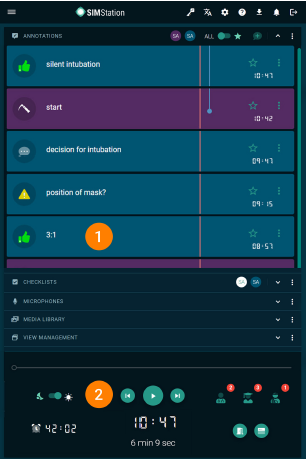
1. Control Pane
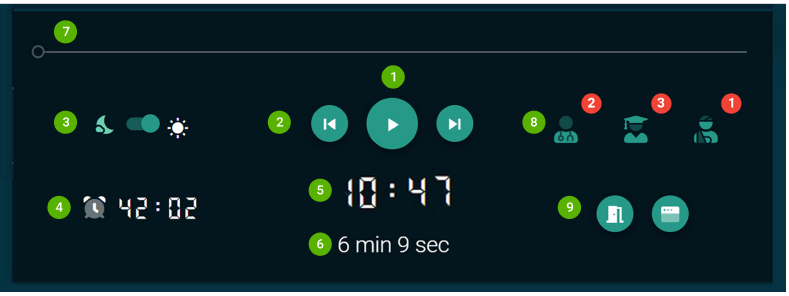
- Play/Pause Button
Play or pause the video: If paused, the freeze frame is fully dimmed, directing viewers' focus to the trainer. - Jump Marker
Jump ten seconds forward or backward in the video. - Dim/Bright
To analyze a freeze frame, the dim function can be deactivated manually with this toggle switch. - Debriefing Timer
Countdown for the predicted duration of your debriefing. This is only a visual help! Five minutes before the time expires, the countdown is yellow; after the time expires, it turns red. You can continue debriefing unhindered. - Time Code
The current time code of the video – displayed in minutes and seconds. - Recording Time
Total duration of the recording material – displayed in minutes and seconds. - Timeline
The cursor can be used to navigate the video's timeline manually. - Training Participants
Display of registered participants assigned to the training. - App Menu
Exit debriefing and show/hide tool panels.
2. Tool Pane
The entire tool panels for your debriefing are available in this pane, grouped thematically and functionally in expandable and collapsible panels. Depending on your needs, these tool panels can also be hidden or shown (via the 3-point menu).
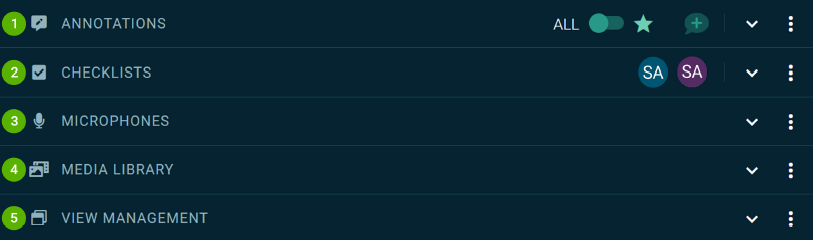
- ANNOTATIONS
This tool panel contains all annotations added during training using the various control devices. When you click an annotation, the recording starts 15 seconds before the annotation's time code. This gives the viewers some lead time/context for the annotated event to better
classify and understand it. - CHECKLISTS
For the debriefing, all checklists of the simulation are available in the same form as for the recording, but can no longer be edited. - MICROPHONES
Real-time control of the microphones: The microphone panel provides an overview and control options for all recorded microphones (room microphones, headsets, etc.) – but not for the conference microphone(s) in the control room. - MEDIA LIBRARY
The media library contains all media files that were assigned to the scenario to be played on the media screens in the simulation room. These media files can also be played during the debriefing. The way the media files are displayed depends on the number of available screens. If the debriefing is performed in 1-screen mode, the media file is superimposed on the video streams on the screen. When the media file is closed again, the view switches back to the video streams. If two screens are available during the debriefing, the video streams can be played simultaneously: by default, the video streams on the left screen, and the media file on the right. - VIEW MANAGEMENT
In view management, the arrangement of the video streams on the debriefing screen can be changed. Individual buttons make it easy to switch from multi-screen (i.e., up to nine video screens simultaneously on the screen) to a single screen (i.e., one video stream in full-screen format).
Note: The SIMStation Remote Tablet can be used in Portrait Mode or Landscape Mode. In most cases, debriefing with the SIMStation Remote Tablet is more user-friendly in portrait mode than in landscape mode since you can see significantly more entries in the annotation list. However, in portrait mode, only one panel can be open at a time. In the rare case that you would like to have two or more panels open, switch to landscape mode and drag and drop the desired panels from the tool pane.