Retrieving Print Job from Printer
After sending your print job to the printer with your PIN, you will need to retrieve the job form the printer.
NOTE: your print job WILL NOT print until you are in front of the printer and retrieve your job
Retrieve your PIN Configured Print Job
|
1. Go to the shared office printer in your department’s common area.
|
|
| 2. Press on the printer monitor and select Print. | 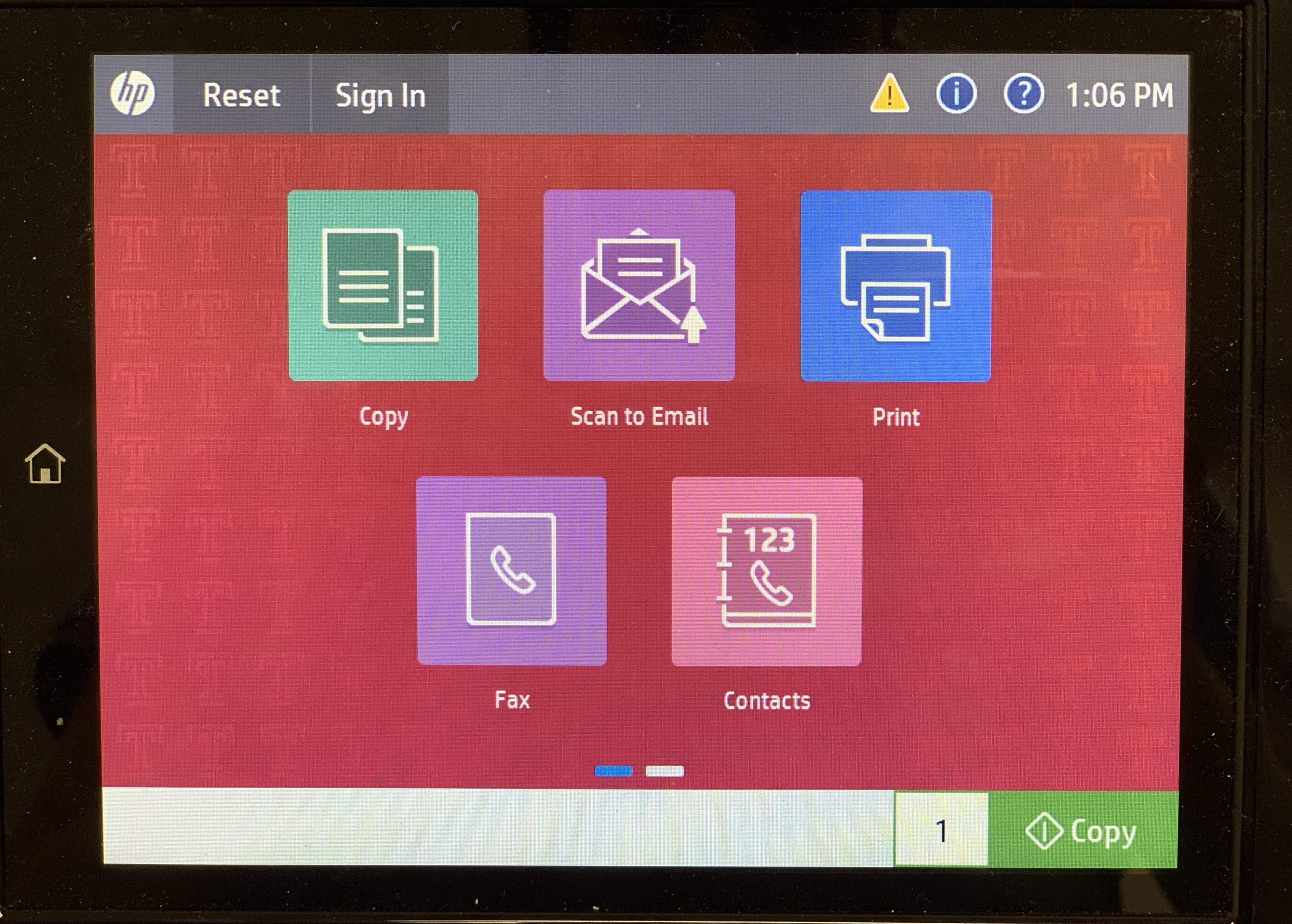 |
|
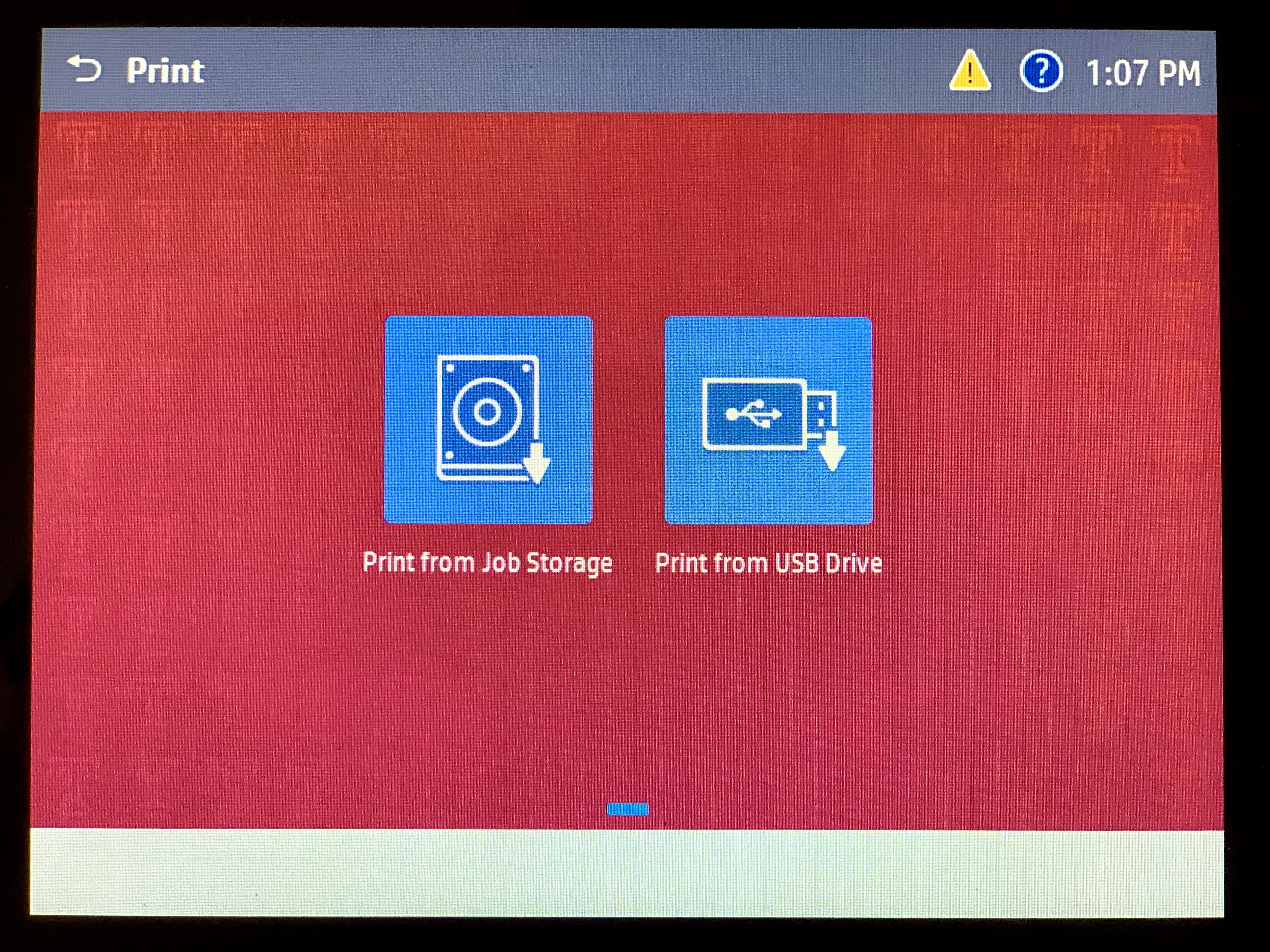
3. Press Print from Job Storage.
|
 |
|
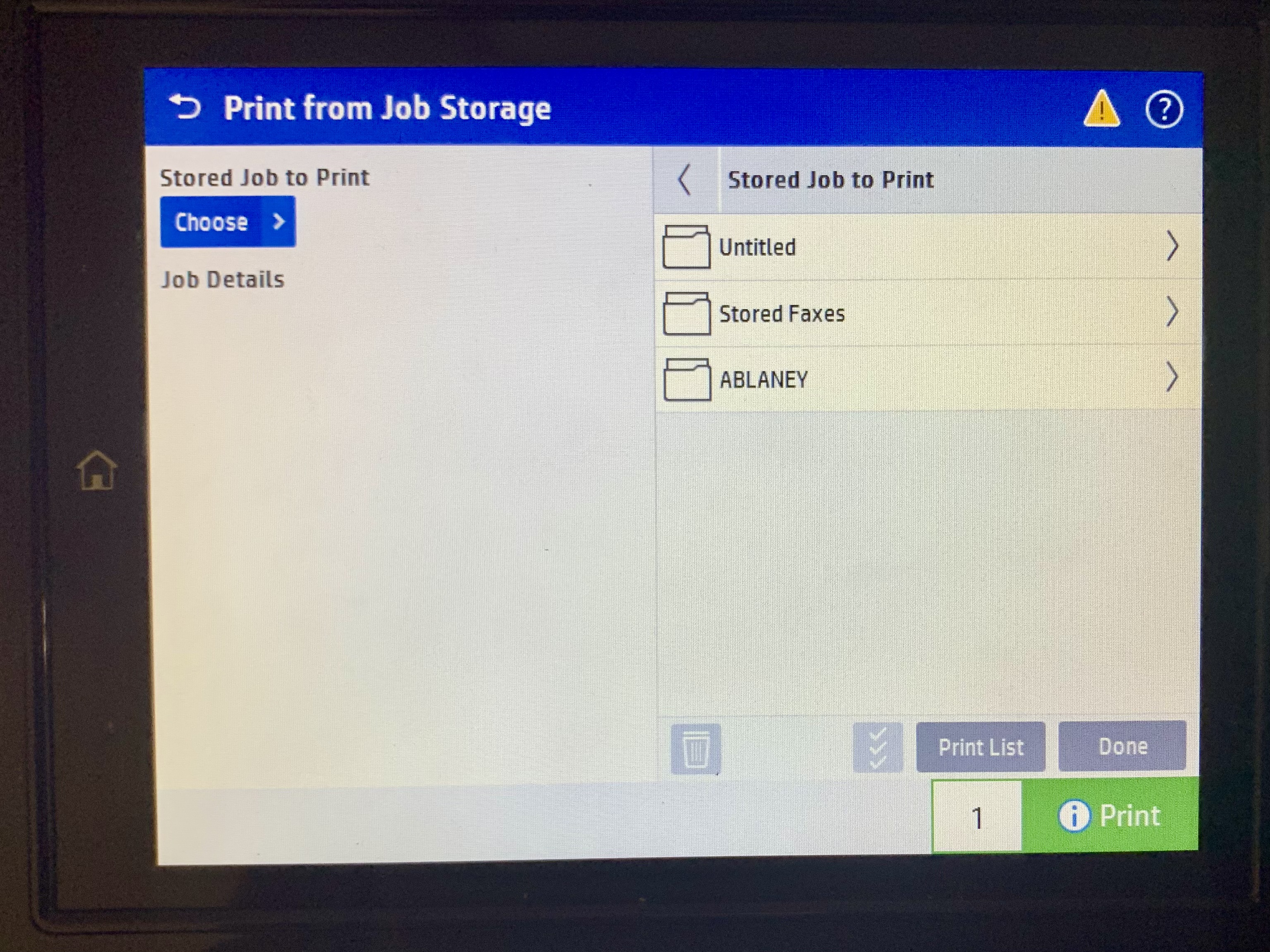
4. Press the folder icon with your designated name or accessnet name.
This name was set when you set up the stored print job function.
|
 |
| 5. Press Unlock Print Jobs. | 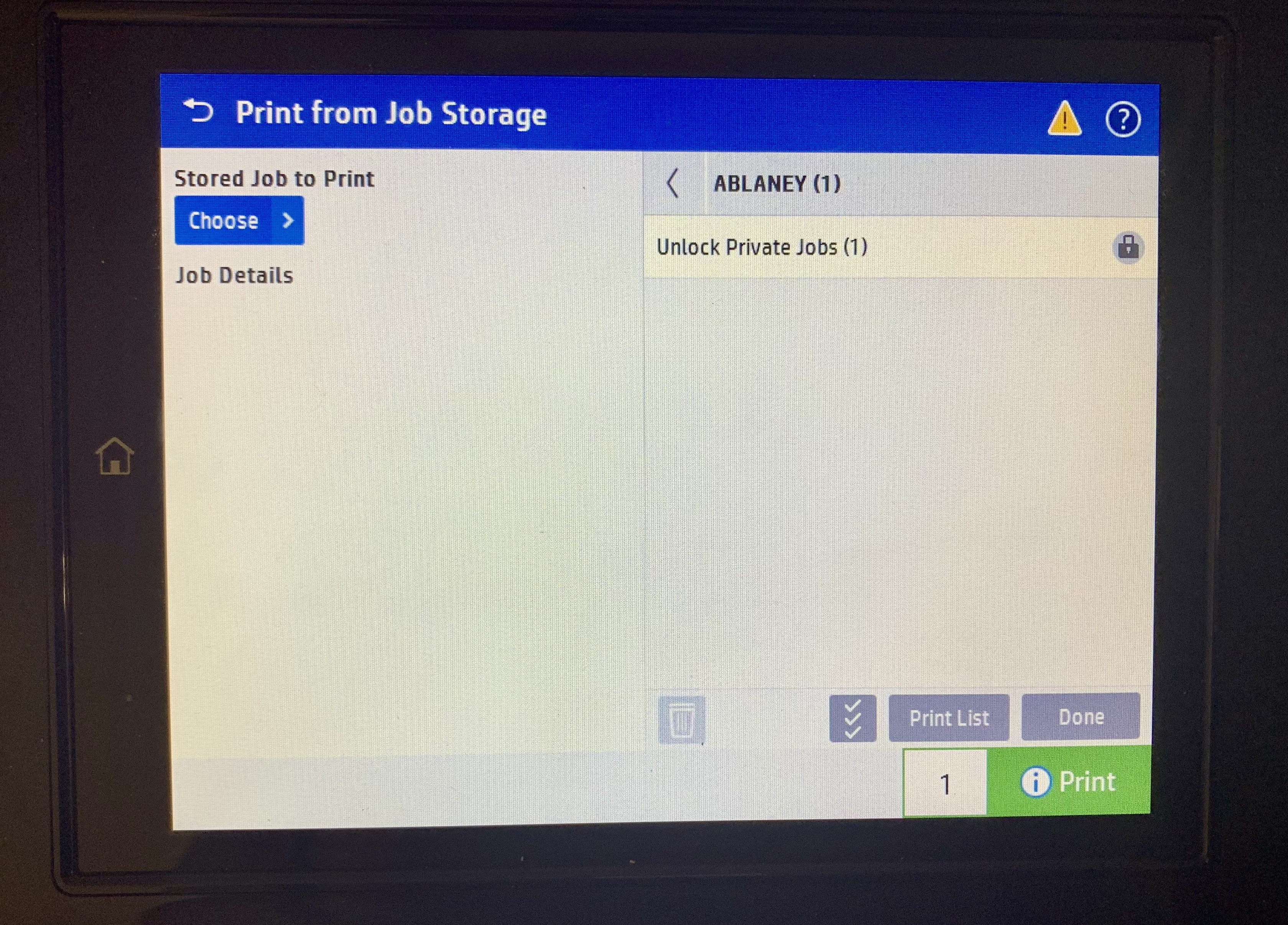 |
| 6. Enter the password you set when setting up the job storage within the print settings. | 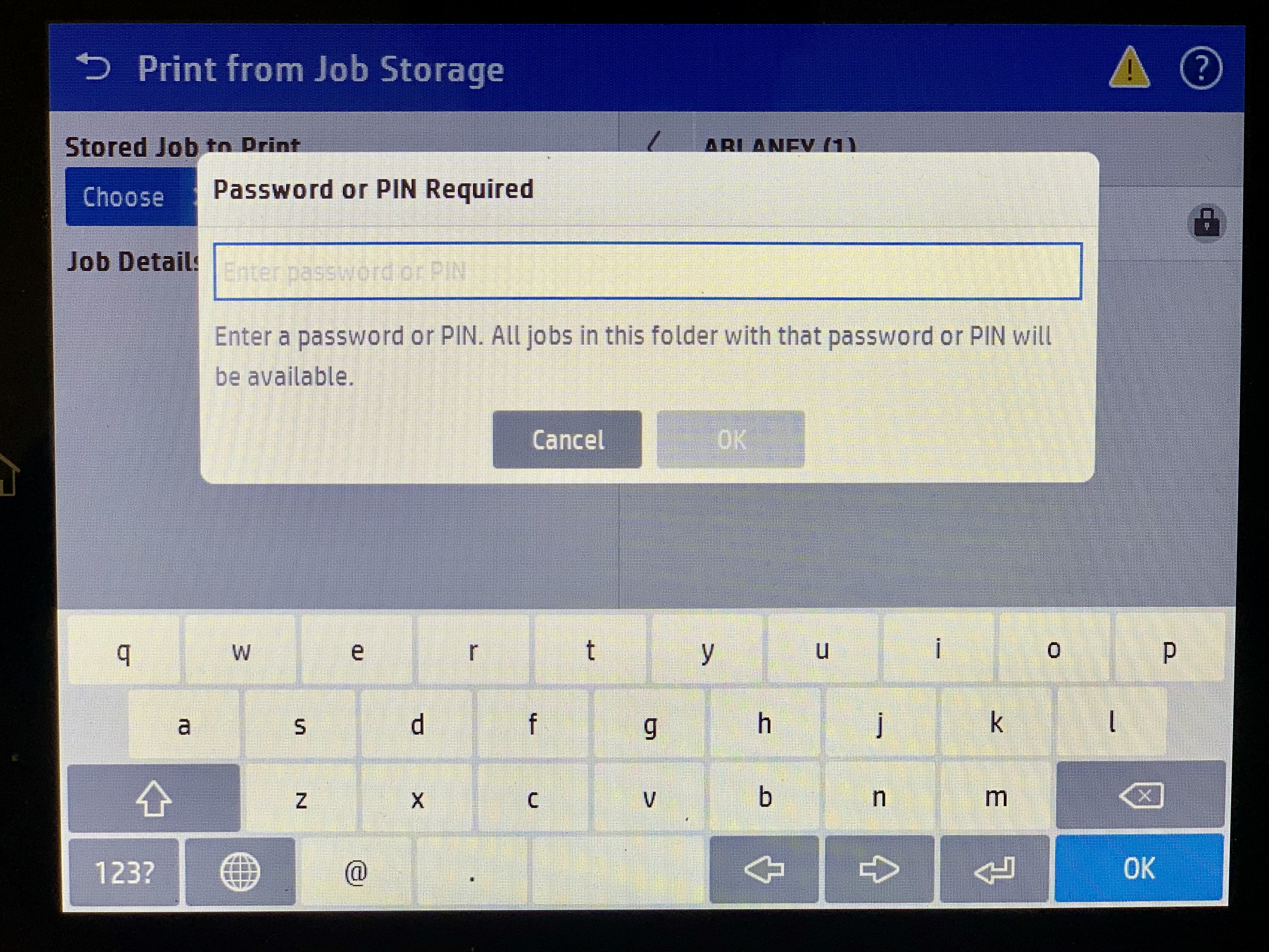 |
| 7. Press OK. | 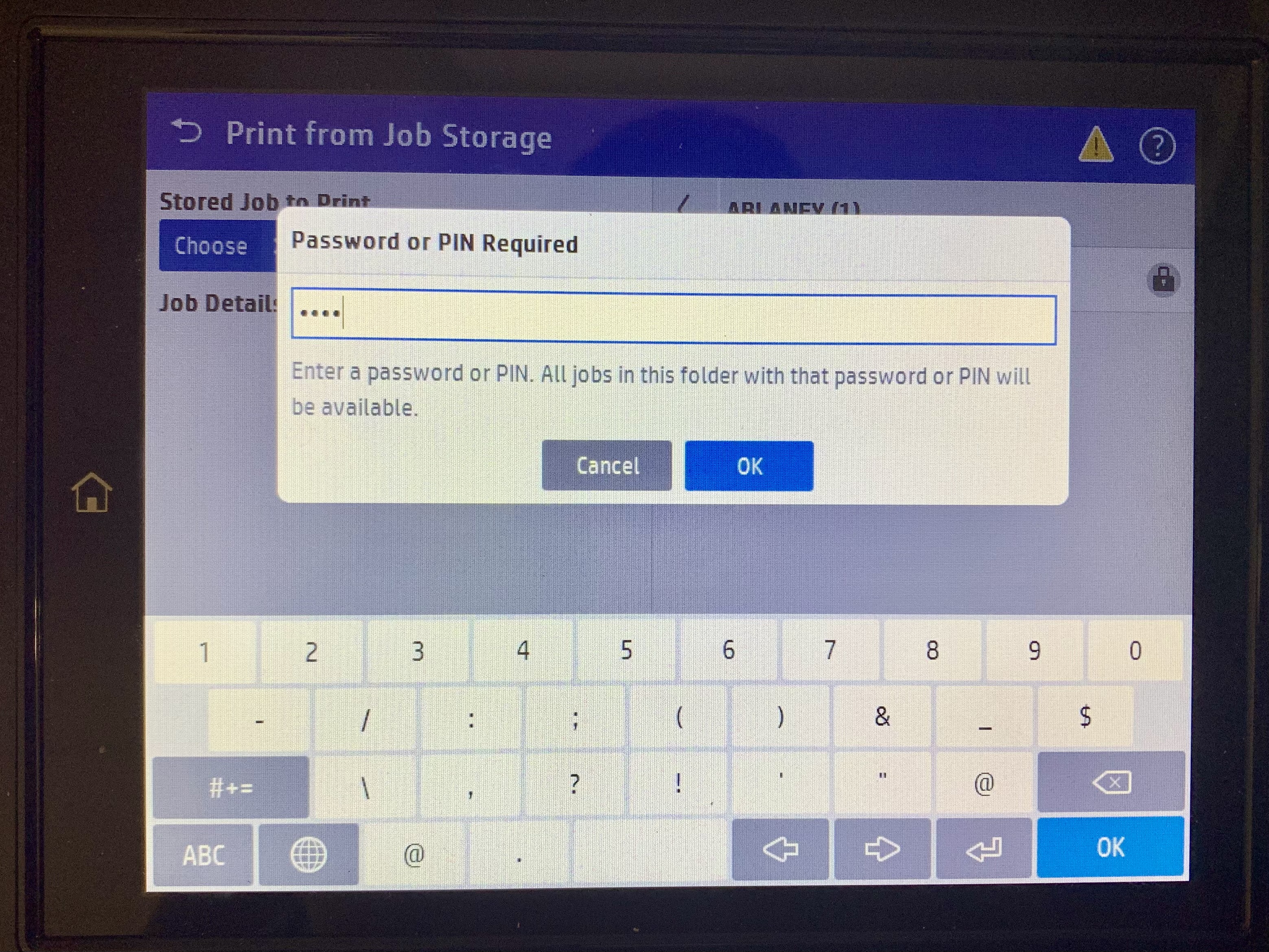 |
|
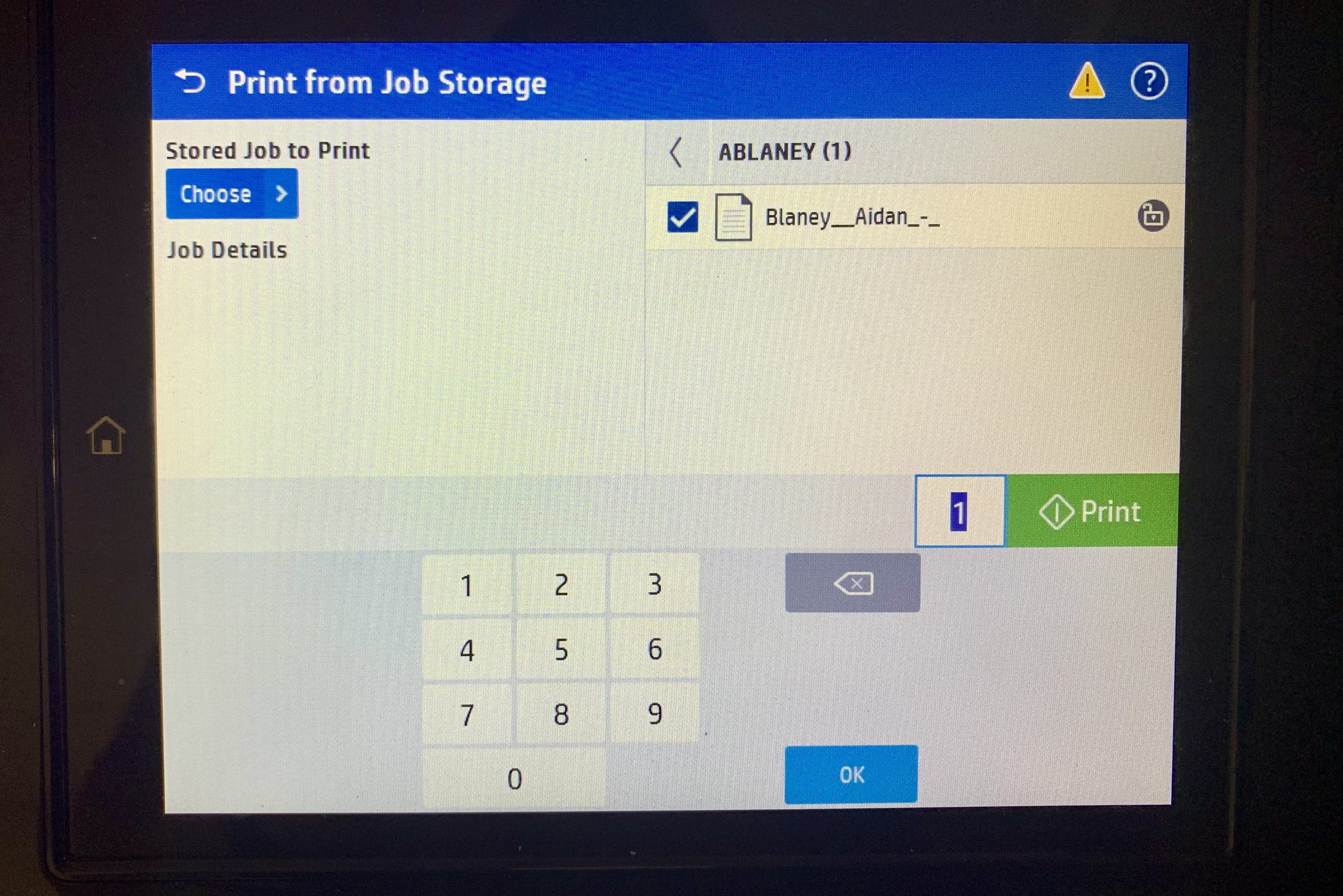
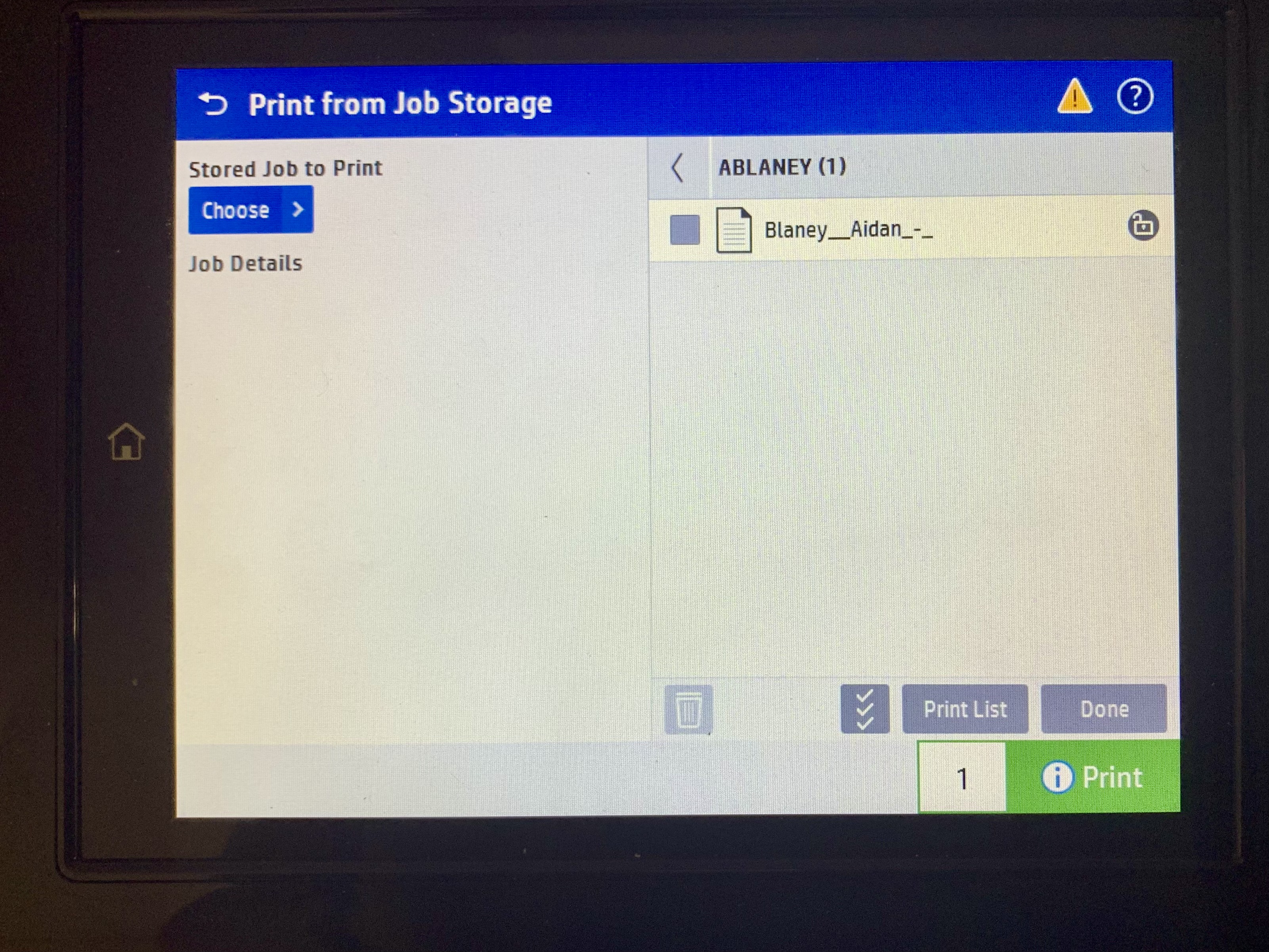
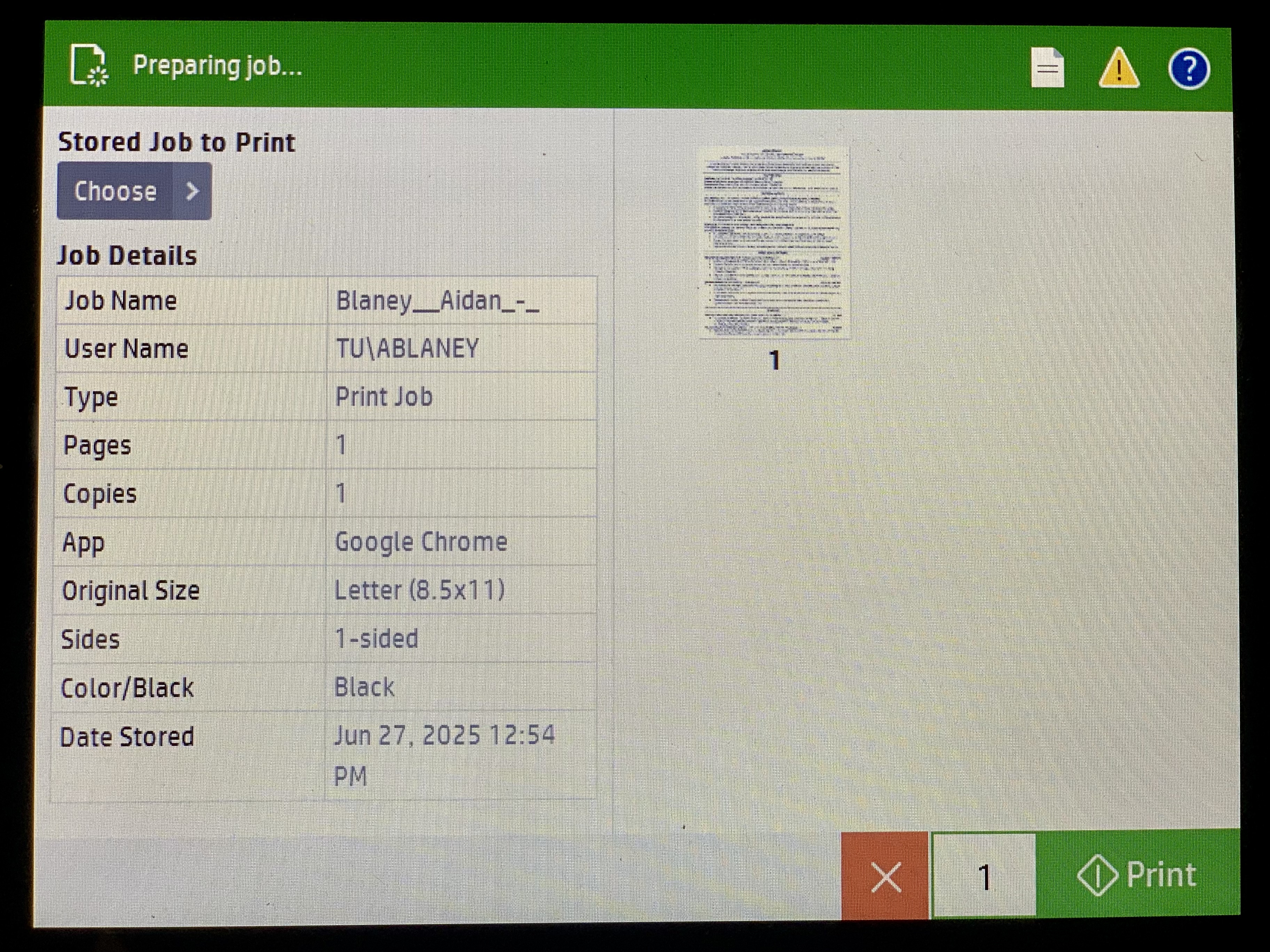
8. Press the checkbox next to the print job you want to print.
If you wish to print more than one copy, press the 1 next to the green print button to add more copies. |
|
| 9. Press the green Print button. |
 |
|
10. The boarder will turn green and your job will now print.
|
 |