
Printer Support
This document is meant to provide the College of Public Health (CPH) printer support information.
Printers
-
CPH IT will only provide limited support for local printers
-
Limited support will include attempting to reinstall printer software to resolve issues
-
Hardware support will not be provided by CPH IT
-
-
Each user will be added to the department HP network printer
-
Black & White with double-sided printing will be the default configuration
-
Color and single sided printing will be an option on supported printer models
-
Local printers will not be provided or purchased by IT unless there is a specific business purpose
-
If an existing local printer needs replacing, the process is to remove the local printer and connect the computer to the department HP network printer
-
If a local printer is still desired, it will be the responsibility of the department to purchase using the department budget
-
If there is a problem with a local printer in which it needs to be repaired, it will be the responsibility of the department to contact the printer manufacturer for repair
-
HP Network Printer Information
Contacts
- Josh Harmon (cphithelp@temple.edu) is our CPH IT Support for HP related information.
- Stephen Lombardi (stephen.lombardi1@hp.com) is our HP representative
Toner Returns / Disposal
You should be able to send the used toner with your outgoing intercampus mail to the Sustainability Office. In addition, you can reach out to Warren Warshaw (warren.warshaw@hp.com) going forward with any other toner issues. Let me know if you have any questions.
Printer Installation
PC
For HP department printers, the printer should install automatically after a restart. If you do not see it when trying to print, please check your desktop for a shortcut named "CPH Printers".
Double clicking that shortcut will install the correct printer for your department. If you are still not able to access the printer, please email cphithelp@temple.edu for assistance.
For Legacy Xerox printers, if the printer is not available, please put in a help desk ticket or email cphhelp@temple.edu and we will assist you in getting it installed.
Mac
To install the new HP printers on a Mac you will have to open the Self Service app. It should be in your applications folder or you can search for it with spotlight. If your mac does not have the Self Service app please put in a ticket at tuhelp.temple.edu or email cphithelp@temple.edu and we can get your system updated.
-
Once Self service is open, click on the printers section and select the printer for your department. Installation can take about 5 minutes as it has to install the full HP driver suite. Once the install completes, you should see the printer under system preferences/printers.
-
Double click the printer to bring up the print queue and go to the printer menu, and choose test print
-
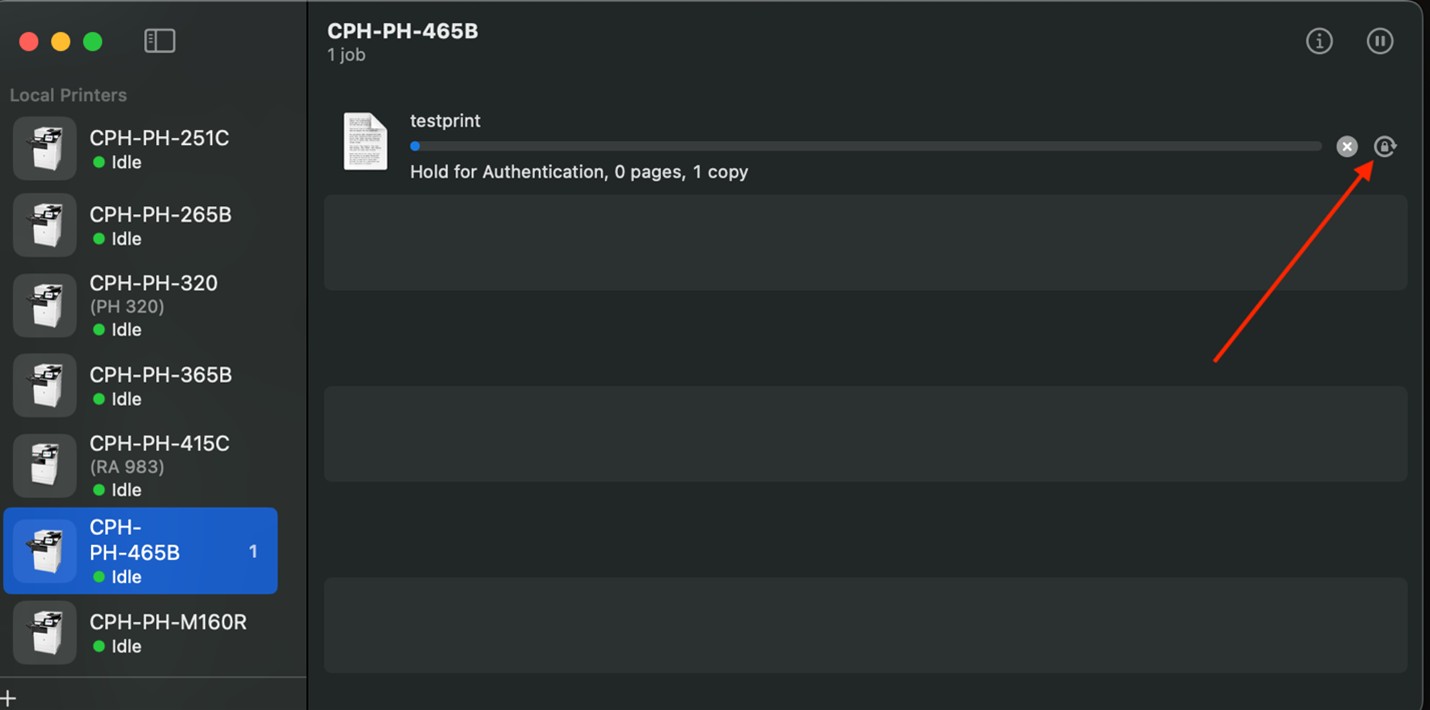
It should begin to print, but stop and ask for authentication. Click on the small circle at the end of the print job, and it will prompt for your Temple login. Check the box to save the login, and the print will complete.
Printer Troubleshooting
Mac Systems
Hold for Authentication / Updating Printing Access After a Temple Password Change
|
1. After your yearly Temple password change, you may encounter an error when printing that says “Hold for Authentication.”
1. Click the refresh icon at the end of the error message.
2. If prompted to enter your Temple credentials, type your updated password. 3. Check the box labeled "Remember this password in keychain" so your Mac saves the new credentials for future printing.
|
 |
|
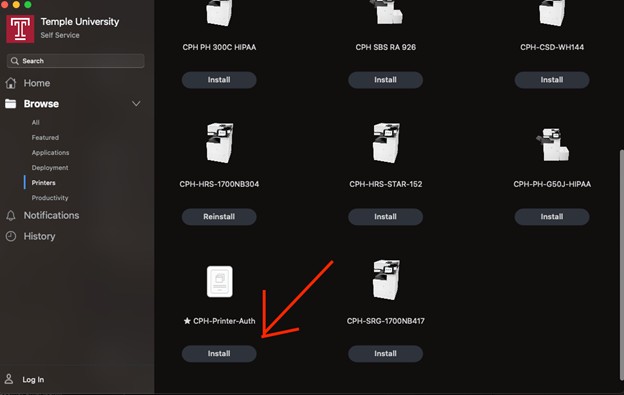
2. If nothing happens when you click the refresh icon, open the Self Service application from your Applications folder.
1. Locate and click the button labeled “CPH-Printer-Auth.”
2. This will prompt your Mac to reauthenticate your printing credentials using your updated Temple password.
|
 |
|
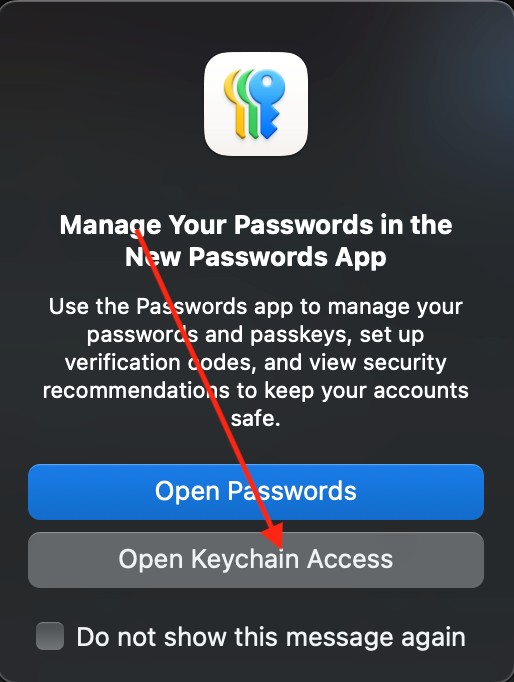
3. Try clicking the refresh icon again. If it still does not prompt you for your Temple login, you’ll need to open another application called Keychain Access.
|
 |
|
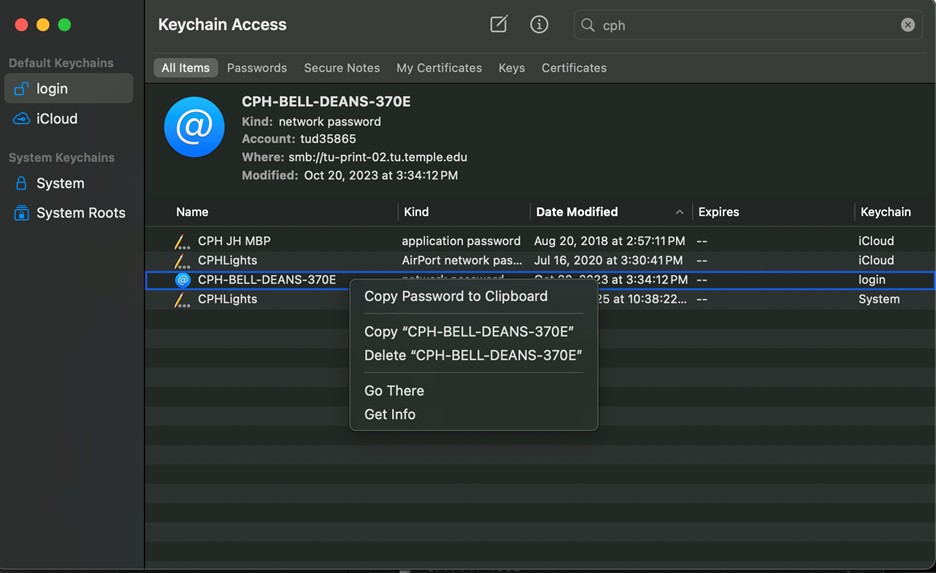
4. Once Keychain Access is open, use the search bar in the top-right corner to look for “CPH-”.
|
 |
|
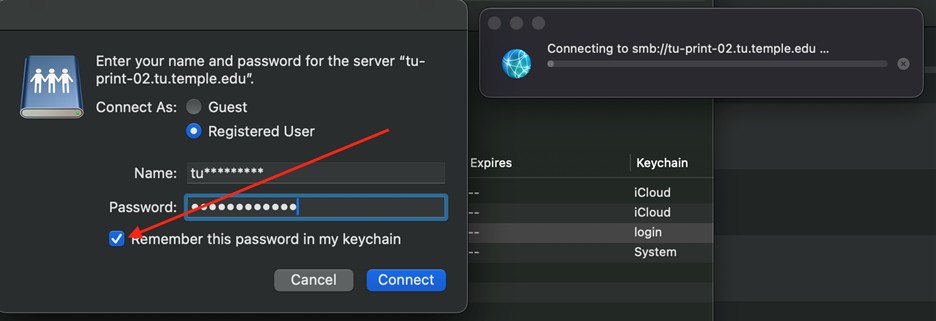
5. Right-click (or hold Control and click) the printer entry, then select “Go There.”
|
 |
|
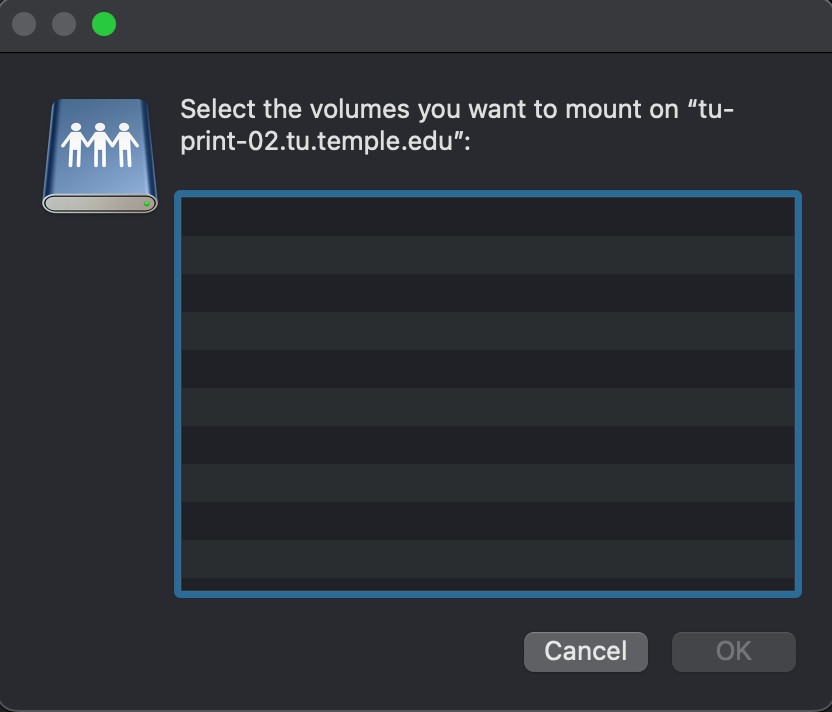
6. If everything worked correctly, a blank print dialog box will appear. This indicates that your Mac has successfully reauthenticated with the printer.
|
 |
|
7. You can now close the blank print dialog box.
|