
Manage Teams and Channels
Managing Microsoft Teams allows users to customize their collaboration spaces by adding members and creating channels tailored to their needs. Team owners can invite new participants, assign roles, and organize discussions through standard or private channels.
Whether you're setting up a space for a department, class, or project group, managing your team structure ensures the right people have the right access to conversations and files. Channels help segment topics, protect sensitive discussions, and streamline communication.
Standard channels are open to all team members, while private channels are limited to specific people and used for restricted discussions.
Follow the guides below to:
Add User to a Team
|
1. Open Microsoft Teams. |
 |
|
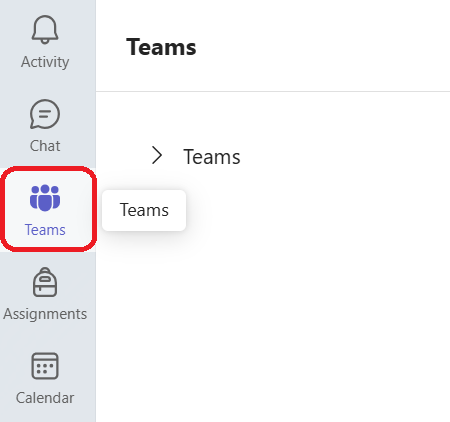
2. In the left sidebar,
|
 |
|
3.
|
4. Click the ••• (More options) next to the team name.
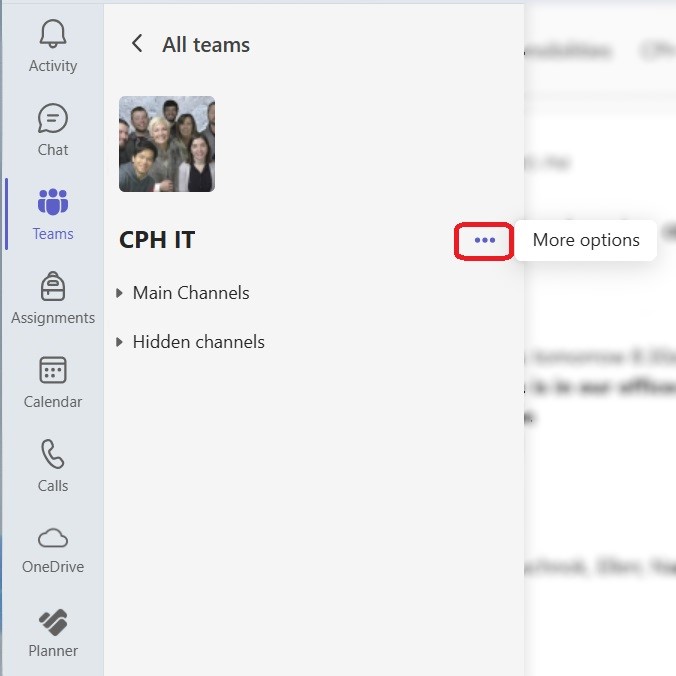
5.4. Select Add member.

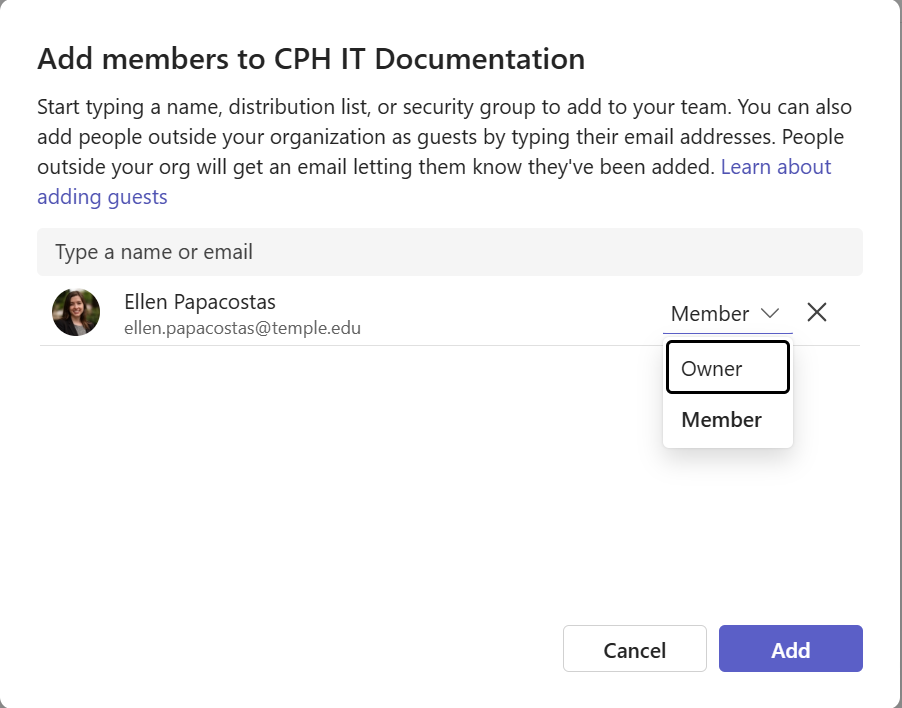
6. In the pop-up window:
a. Type the user's name or email address.
b. Choose their role (Member or Owner).
c. Click Add.
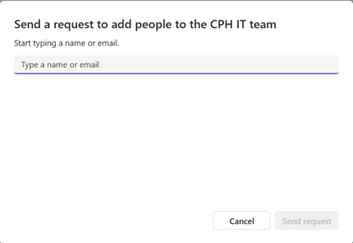
Please note that the first image is a Team Owner view, the second screenshot shows the interface as seen by a Team Member or non-owner, with limited permissions and fewer options.
Add Channel to a Team
|
1. Open Microsoft Teams. |
|
|
2. In the left sidebar, |
 |
3. Find the team you want to add a channel to.
4. Click the ••• (More options) next to the team name.
5. Select Add channel.

6. Fill out the form:
a. Channel Name (e.g., “General Discussion”)
b. Description (optional)
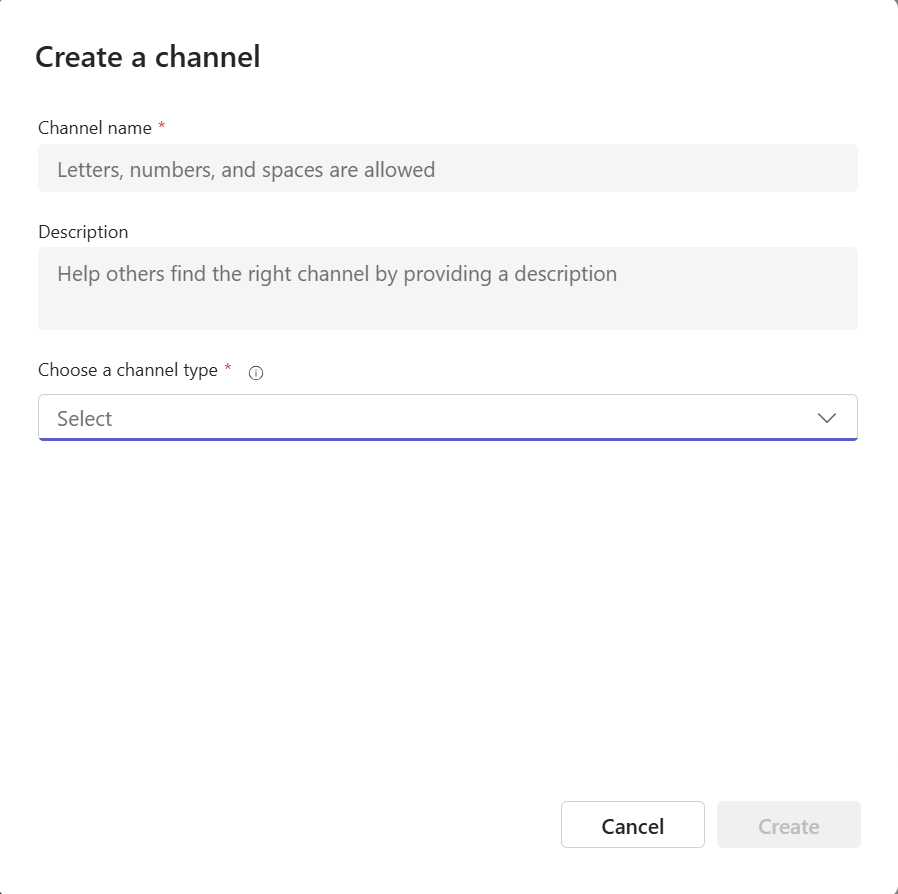
7. Under Choose Channel Type, choose:
a. 🔓 Standard – Accessible to everyone on the team
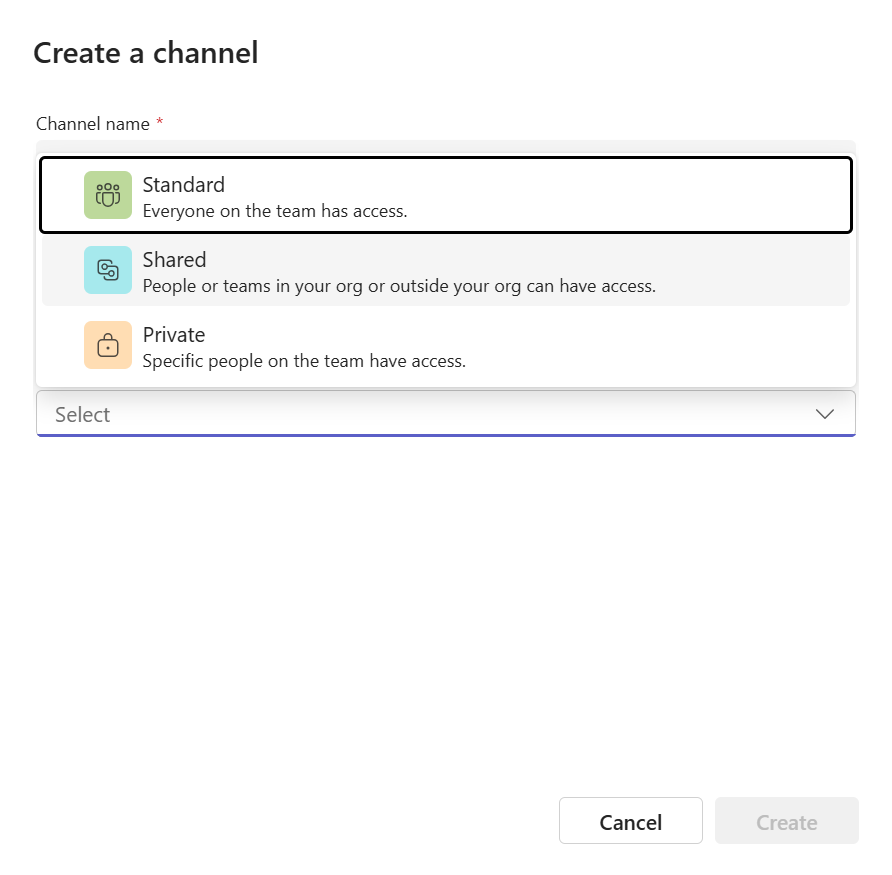
8. Click Create.
Add Private Channel to a Team
Please note that any members added to a private channel must be a member of the Team already. There is no way to add a member just to the private channel.
|
1. Open Microsoft Teams. |
|
|
2. In the left sidebar, |
|
3. Find the team you want to add a channel to.
4. Click the ••• (More options) next to the team name.
5. Select Add channel.
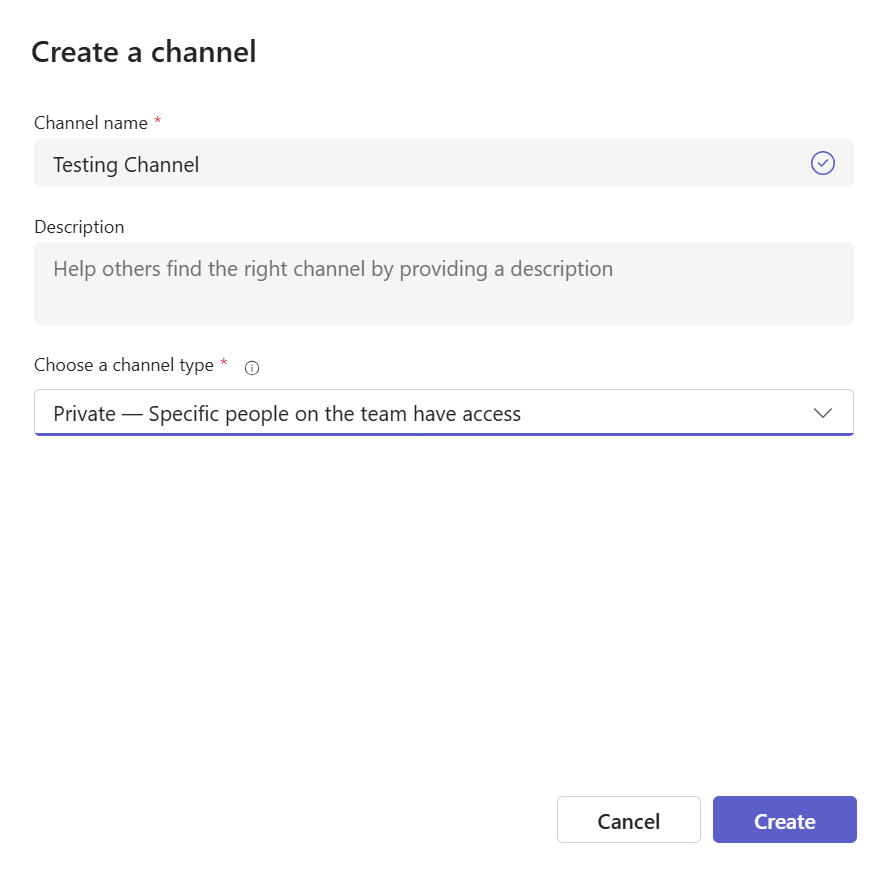
6. Fill out the form:
a. Channel Name (e.g., “General Discussion”)
b. Description (optional)
7. Under Channel Type, choose from the drop down menu:
a. 🔐 Private – Accessible only to a specific group of people within the team
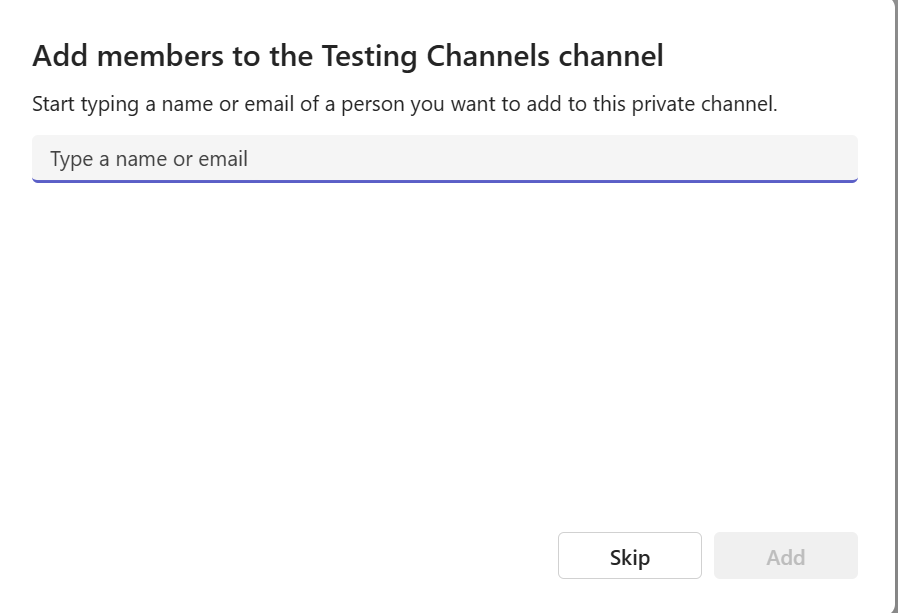
Set Channel Permissions
Use channel moderation to keep communication organized, especially in large teams or channels focused on announcements.
|
1. Open Microsoft Teams. |
|
|
2. In the left sidebar, |
|
|
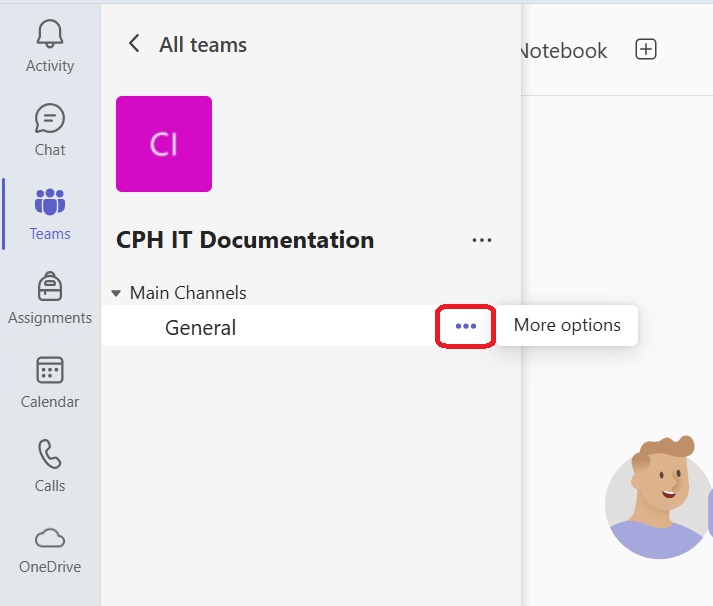
3. Find the channel you want to manage and click the ••• (More options) next to its name. |
 |
|
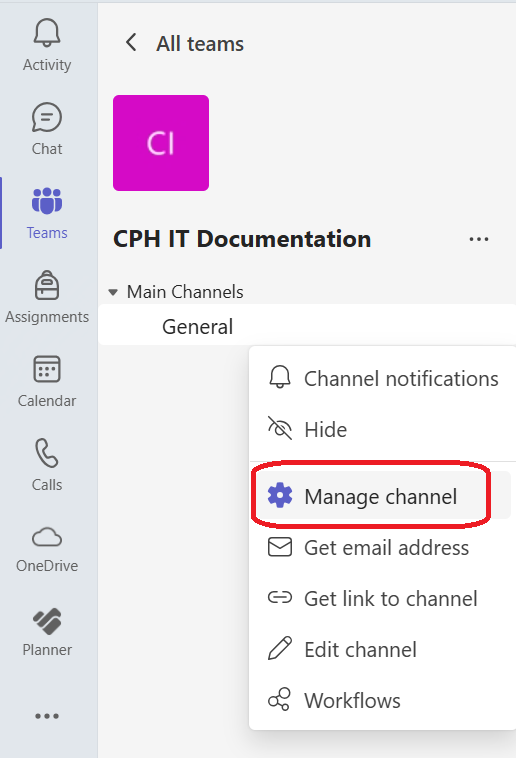
4. Select Manage channel. |
 |
|
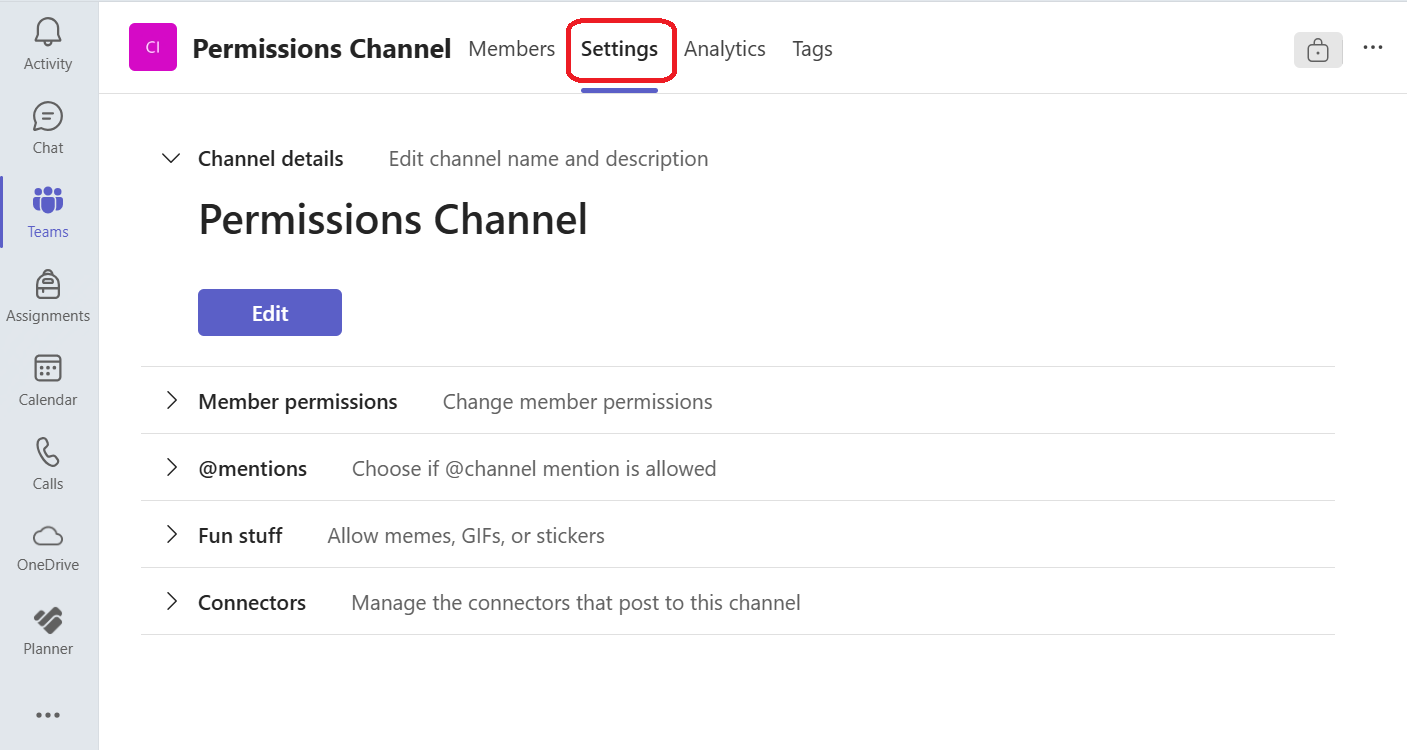
5. Click on the Settings tab.
|
 |
|
6. Click Member permissions to show the dropdown menu for checking what members can create, edit, or delete.
|
|
Rename or Delete a Team or Channel
Rename a Team:
|
1. In Microsoft Teams, |
|
|
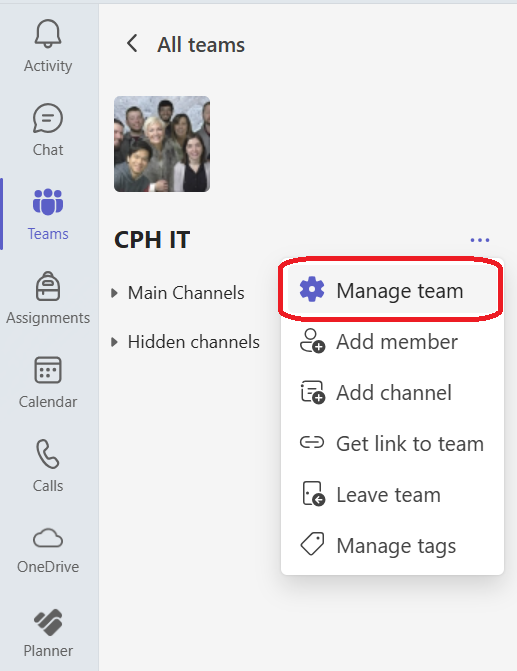
2. Click the ••• (More options) next to the team name. |
|
|
3. Select Manage team. |
 |
|
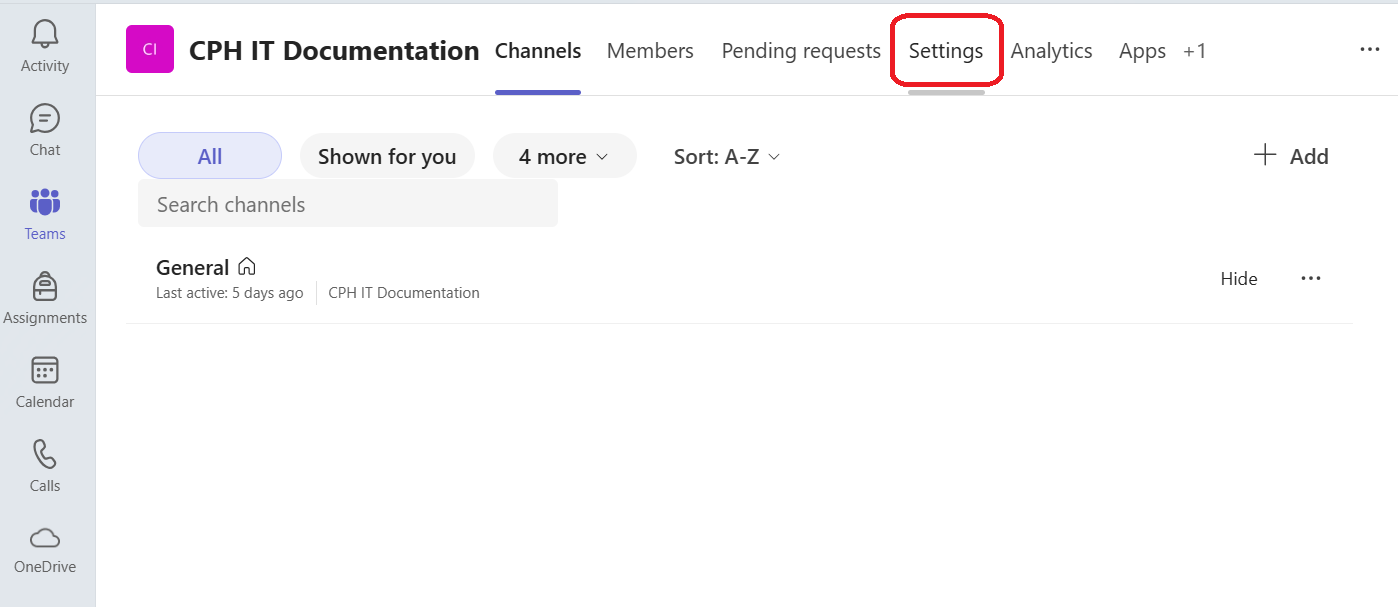
4. Select the Settings tab.
|
 |
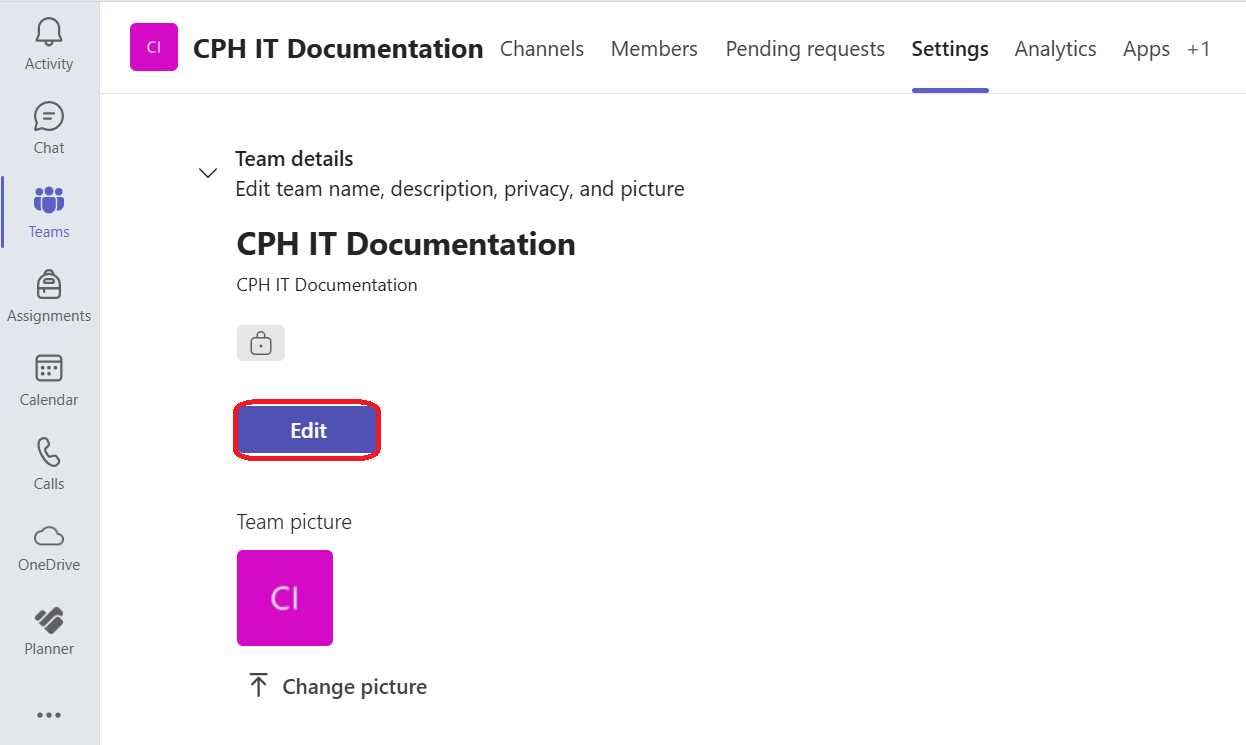
| 5. Click Edit. |
|
| 5. Update the Team name and description. | 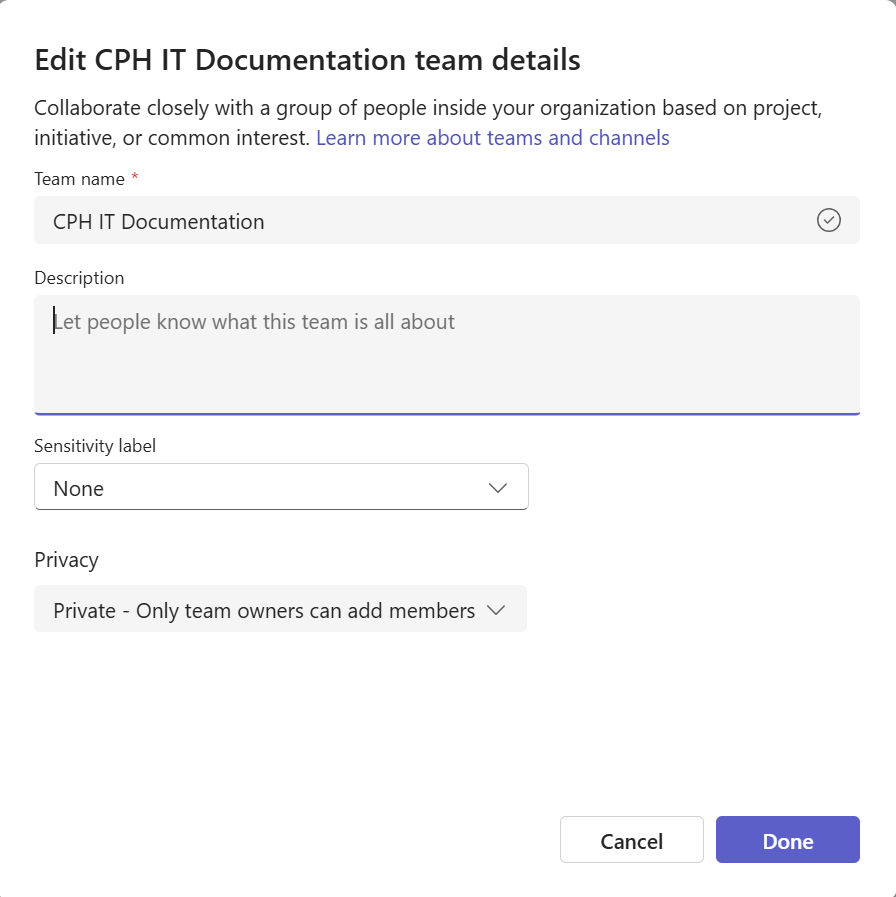
|
| 6. Click Done. |
|
Delete a Team:
|
1. In Microsoft Teams, |
|
|
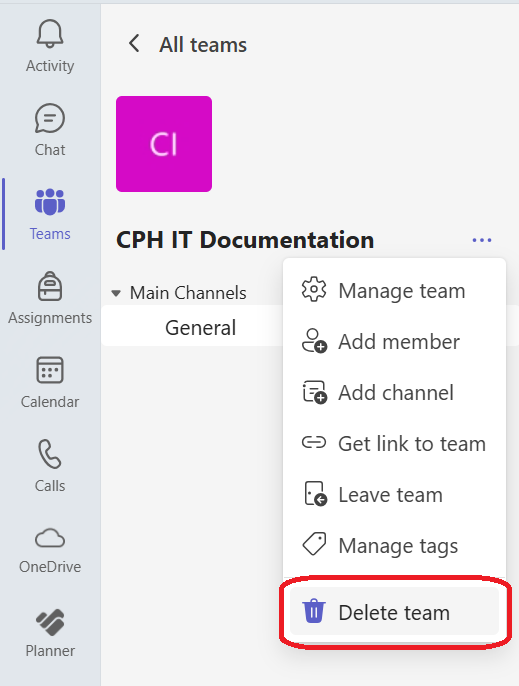
2. Click the ••• (More options) next to the team name. |
|
|
3. Select Delete the team. |
 |
|
4. Confirm the deletion. ⚠️ This is permanent. All files and conversations will be removed.
|
Rename a Channel:
|
1. In Microsoft Teams, |
|
|
2. Go to the channel under the team. |
|
|
3. Click ••• next to the channel name. |
|
|
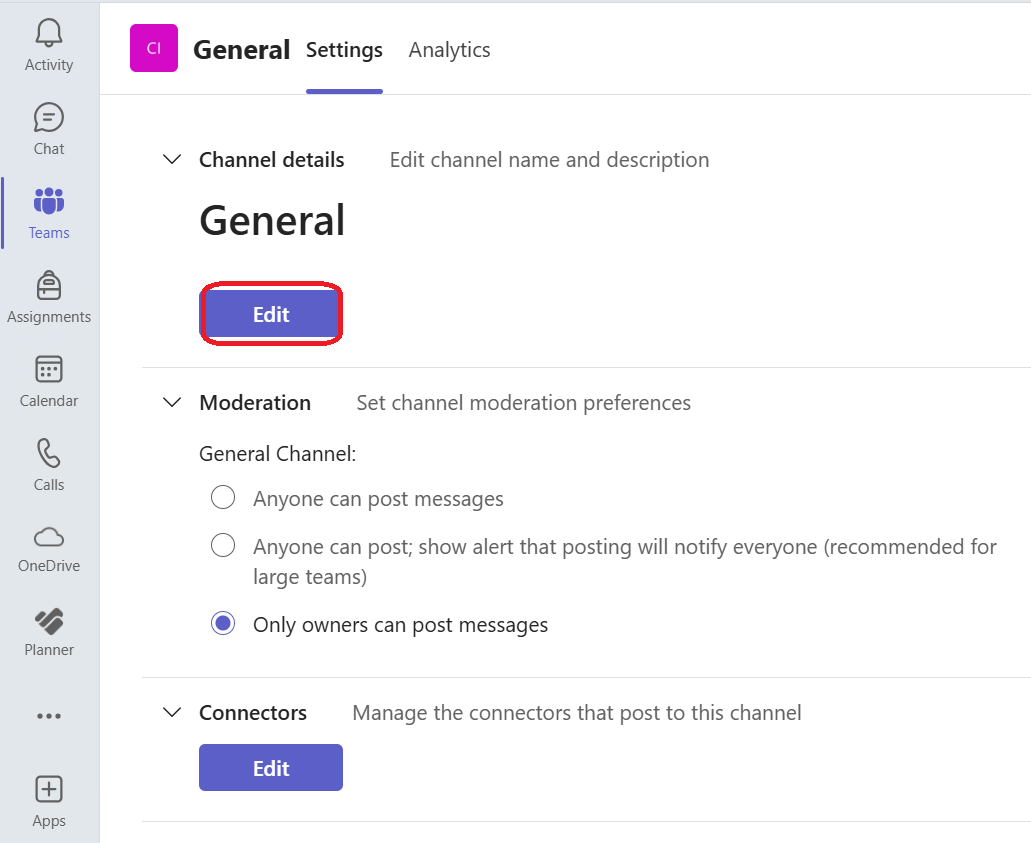
4. Select Manage channel. |
|
|
4. Click Edit to change the name and click Save.
|
 |
Delete a Channel:
|
1. In Microsoft Teams, |
|
|
2. Go to the channel under the team. |
|
|
3. Click ••• next to the channel name. |
|
|
4. Select Delete channel and then Confirm.
|
Please visit Assign team owners and members in Microsoft Teams admin center for some general information and detailed information on managing user roles, setting permissions, and controlling who can create teams and channels in Microsoft Teams.