
Accessing Microsoft Teams
Microsoft Teams is a hub for teamwork in Office 365. It is commonly used to share files, edit documents with teammates in real time, chat and message individuals as well as with groups, and view directory information for Temple users.
Every Temple member has an Office 365 account, which includes access to Microsoft Teams. Use your existing Temple AccessNet username and password to log in to Teams. Since Microsoft Teams is linked directly to your AccessNet account, your directory information and free/busy status is automatically pulled into Teams.
Important: Microsoft Teams is available on Windows, Mac, Web, iOS Devices, and Android Devices. Your chats and files will synchronize in real time across any device that you use with Microsoft Teams.
Please visit the Microsoft Teams - Getting Started page created by Temple University Information Technology Services for some general information and quick start guides.
How to Access Microsoft Teams via Desktop Application
| 1. You may already have Microsoft Teams installed. Please look in your installed applications for Microsoft Teams. |  |
|
2. If Microsoft Teams is not installed on your computer, please go here to download: |
|
| 3. Clicking on the Download icon will automatically download the proper Windows or Mac version for your system. | 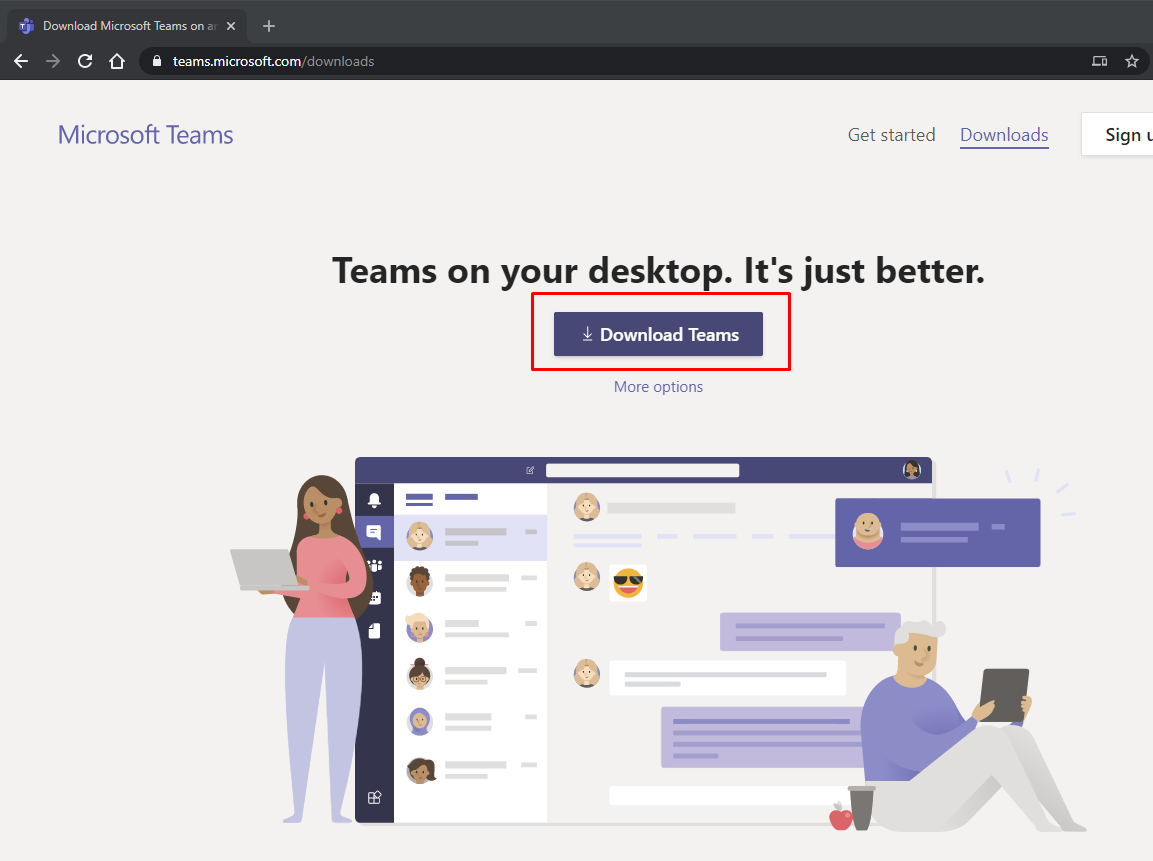 |
|
4. Browse to your download folder on your computer and install the file that was downloaded.
|
|
| 5. After the downloaded file is installed, please launch Microsoft Teams, type in your AccessNet@temple.edu, and click Sign In. | 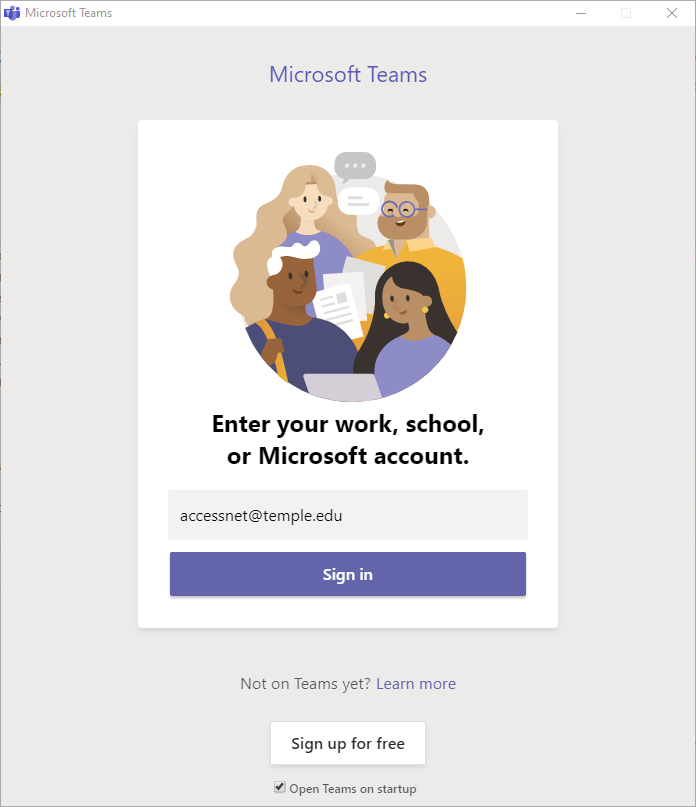 |
| 6. A Temple login window will appear. Log in with your AccessNet name and password. | 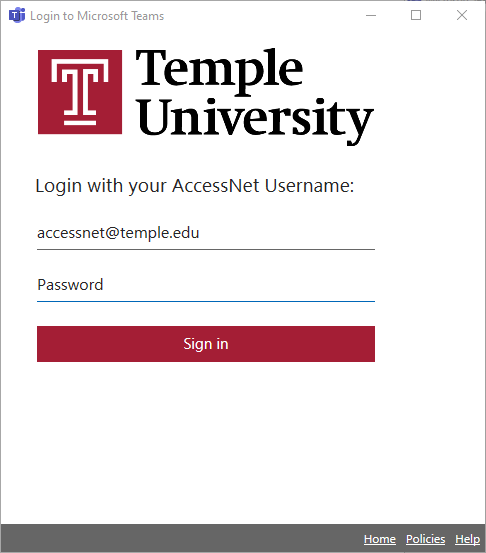 |
|
7. You can now begin using Microsoft Teams.
|
How to Access Microsoft Teams via the Web
| 1. Microsoft Teams can be accessed from any computer that is connected to the internet. Go to https://portal.office.com, enter your Accessnet@temple.edu and click Next. | 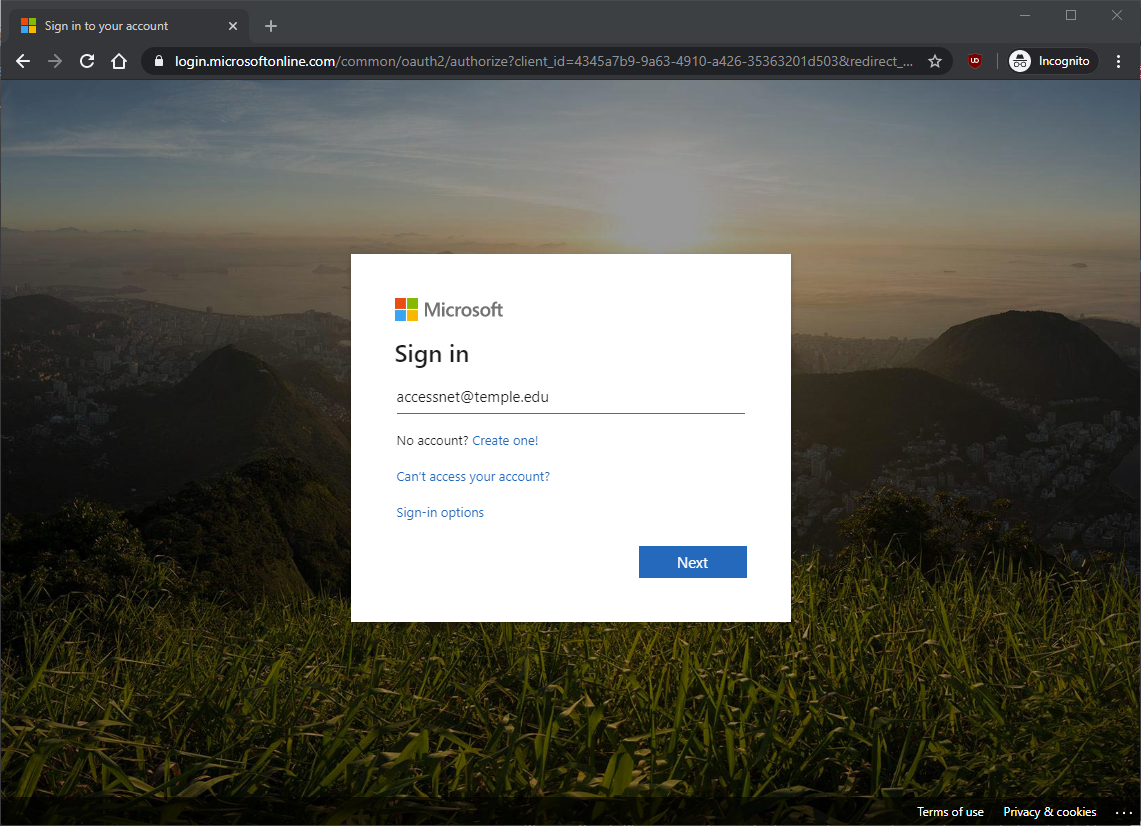 |
| 2. A Temple login window will appear. Log in with your AccessNet name and password. | 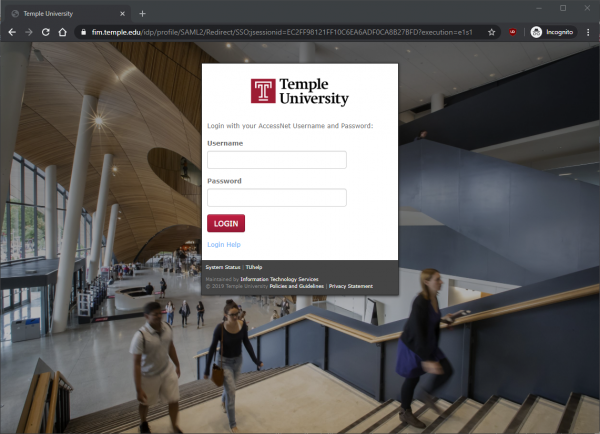 |
| 3. You can select either Yes or No. Selecting Yes will make future logins simpler. | 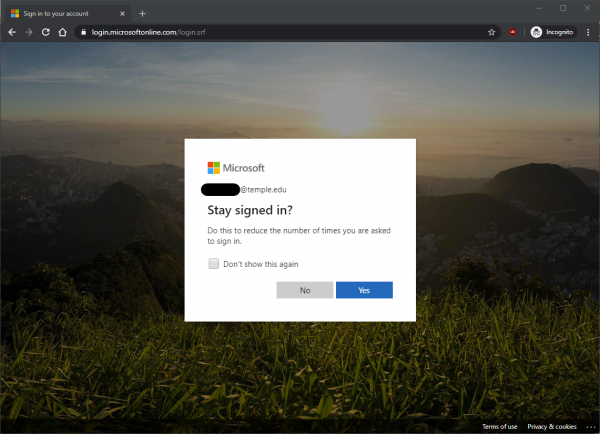 |
| 4. You are now at the Office Dashboard. Please select the Microsoft Teams icon. | 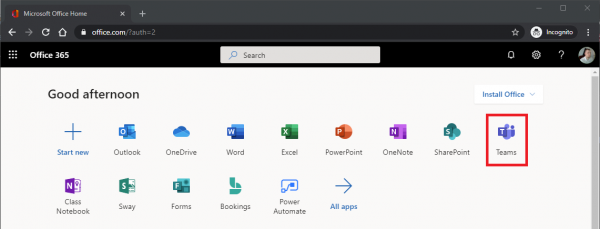 |
|
5. You can now begin using Microsoft Teams.
|