
Accessing Conference Room Calendars
There are multiple ways to access this new calendar system.
Web (View-Only)
If you accessed conference room calendars via the website (https://cphapps.temple.edu/conferencerooms) you can continue to do so in a Read-Only manner. The updated calendars will look different, but still be accessible via that website. Alternatively, you may now simply add the calendar to your Outlook application.
|
1. Go to: https://cph.to/conferencerooms
|
|
|
2. Select your location.
|
 |
|
3. Select the conference room you wish to view.
|
 |
|
4. You can View the calendar.
|
 |
Outlook Application
Windows (and Web)
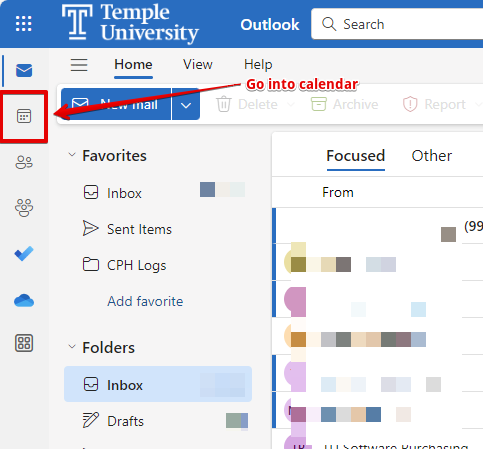
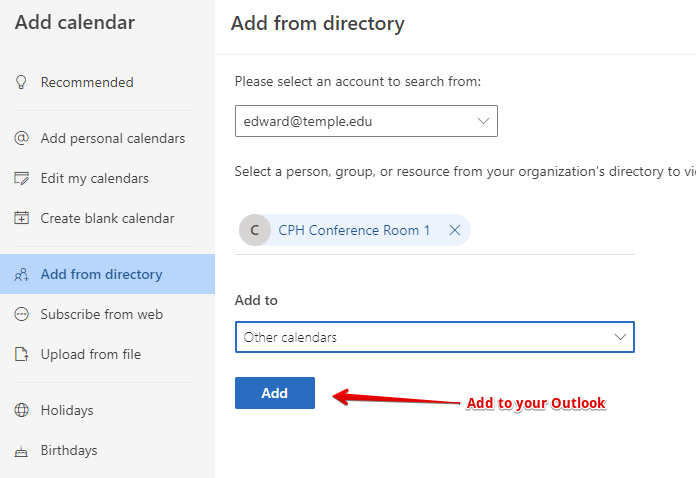
1. Load Outlook and go into the Calendar app.
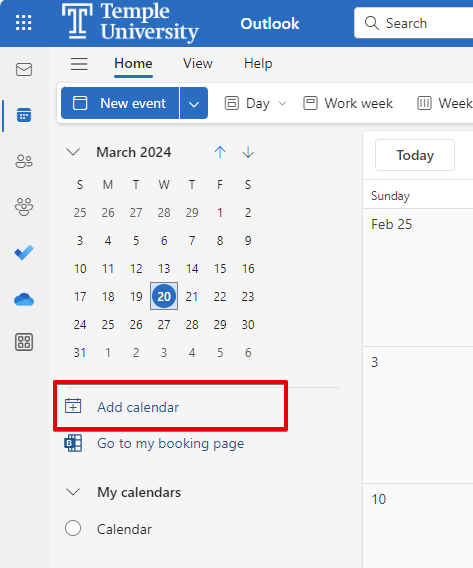
2. Select Add calendar.
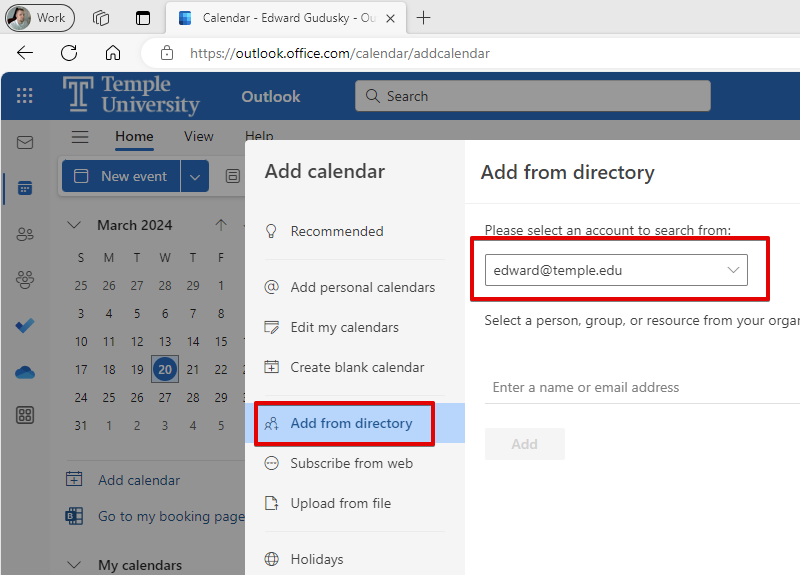
3. Select Add from directory.
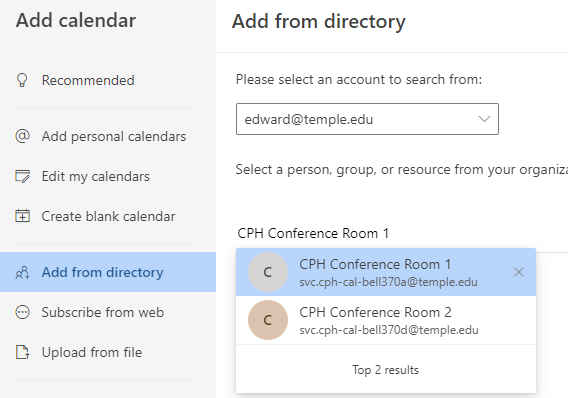
4. Type the name of the conference room (ex. CPH Conference Room 1).
5. Click Add.
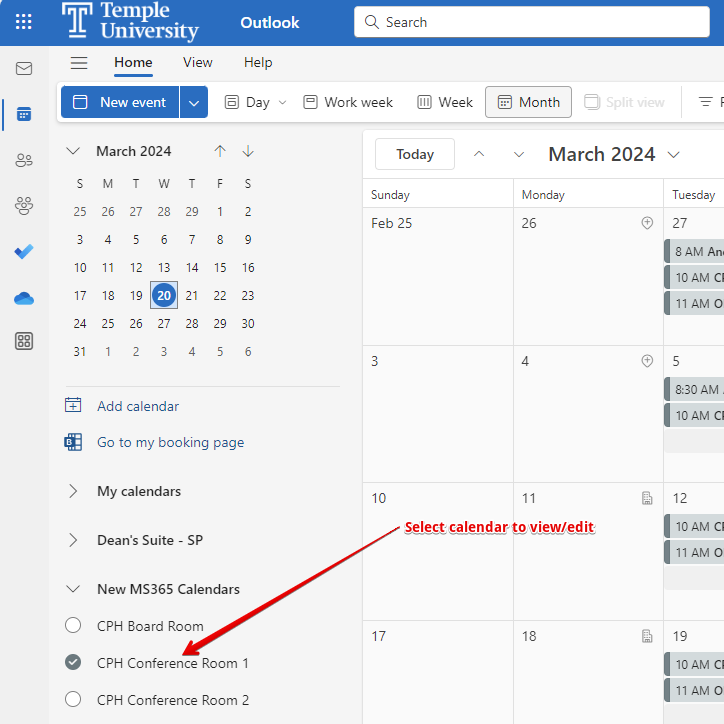
6. Select the calendar from the left hand side to view/manage.
-
Load Outlook and go into the Calendar app

-
Select Add calendar

-
Select Add from directory

-
Type the name of the conference room (ex. CPH Conference Room 1)

-
Click Add

-
Select the calendar from the left hand side to view/manage


Windows (Classic Version)
-
Load Outlook and go into the Calendar app

-
Select Open Calendar then Open Shared Calendar…

-
Click the Name button

-
Type the name of the conference room (ex. CPH Conference Room 1) and click the arrow

-
Highlight the calendar and click OK
-
Select the calendar from the left hand side to view/manage


Outlook for Mac
-
Load Outlook and go into the Calendar app

-
Select Add calendar then Add Shared Calendar…

-
Type the name of the conference room (ex. CPH Conference Room 1) and click Open

-
Select the calendar from the left hand side to view/manage


Outlook Mobile Application
-
Load Outlook and go into the Calendar app

-
Touch your name icon to open the calendar menu

-
Touch the plus icon

-
Touch Add Shared Calendars

-
Type the calendar name and click the Plus next to the name

-
Make sure the calendar you want to view/edit is checked


