
Remotely Proctor Canvas Exams with Proctorio
If you are not a member of the College of Public Health and have a Proctorio request, please contact Information Technology Services (ITS) by emailing help@temple.edu.
What is Proctorio?
Proctorio integrates with Canvas and works with the Chrome web browser to secure online tests and ensure exams are proctored fairly and impartially. This automated system allows instructors to set controls for each exam including locking down the browser, recording and ID verification options, customized behavior settings, and more. Proctorio provides virtual proctoring options for fully online courses but can also be used to secure assessments in blended and on-campus courses. Follow the steps below to get started.
-
Students will need a high-speed internet connection.
-
Students will be prompted to install a required Chrome Proctorio browser
extension.extension and the Secure Companion application. -
If assessments are given online outside of the classroom, students will need a web camera, microphone, and their Temple ID.
- Because students will need to install the browser
extension,extension and the Secure Companion application, it is required that they are provided with a practice quiz to allow them to get set up with Proctorio in advance of the exam.
Video (3:08): Proctorio Overview, by Heather Porter, Associate Professor, College of Public Health
Summer 2026 Update - All requests for Proctoring require instructors to attend a 30 minute exam settings training session to learn the new AI blocking settings needed for exams. Send request to: cphhelp@temple.edu
Step 1: Submit Request to Enable Proctorio in Your Canvas Course
Proctorio is not automatically included in yourCanvas course;courses. itA license must be requested each semester, even if you used it in a prior semester. Please sendvisit yourProctoring request at least a week in advance of the exam.
To request Proctorio for your course, email cphithelp@temple.eduExams with the Canvas course IDs for all the Canvas courses in which you wish to use Proctorio. After you receive confirmation that Proctorio has been enabled in your course, follow the steps below to install the browser extension and enable Proctorio in your Canvas quizzes.
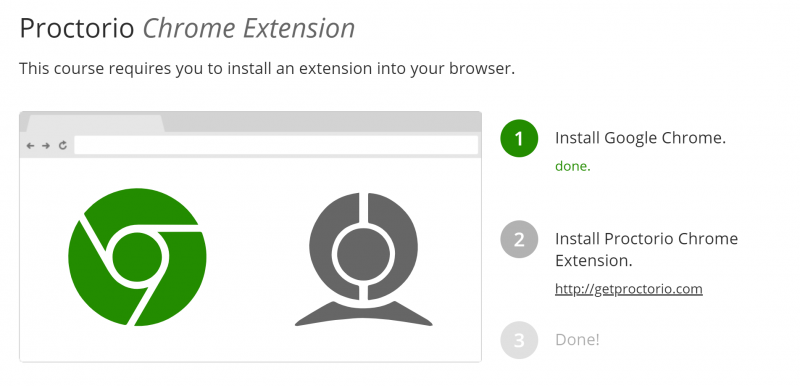
Step 2: Install the Proctorio Browser Extension
After Proctorio has been activated in your course, install the Chrome Extension:
Step 3: Enable Proctorio in Quiz Settings
After installing the browser extension, follow the steps below to enable Proctorio for each quiz you would like to use it with. If Proctorio is not enabled in the quiz settings, it will not be used for that quiz. Additionally, Proctorio cannot be enabled in a quiz after a student has started the quiz.
Important: Create a short practice quiz, so students can get their machines setup properly with Proctorio, at minimum, 3-5 days before they take their first graded proctored exam. The Proctorio-enabled quiz should contain the exact Proctorio settings you will use when you give them subsequent proctored exams. Students should take the practice quiz on the same computer they plan to use for the exam.
Enabling Proctorio in a Quiz
After the first student begins the exam, Proctorio settings cannot be changed.
Video (7:43): Setting Up Your Quiz, by Heather Porter, Associate Professor, College of Public Health
Proctorio-Enabled Exams Copied from a Previous Semester:
If you copied exams that used Proctorio from another course, follow the process below to ensure that Proctorio-enabled quizzes copied from a previous semester will properly import the Proctorio settings.
If this initiation process is not completed for each copied exam, it could lead to the exam's Proctorio Gradebook perpetually displaying the "The exam has not been taken by a test-taker yet" message. (Steps above provided in the Proctorio Instructor Guide.)
Step 4: Review Proctorio Results
Video (6:07): Reviewing Proctorio Results, by Heather Porter, Associate Professor, College of Public Health
Help for Students During an Exam
It is important that students understand how to get technicalstarted. support while taking a Proctorio-enabled exam. Students must contact Proctorio Support directly by using the Live Chat which can be accessed via the browser extension. By clicking on Live Chat, they will be connected to an agent who will assist them. Support is available 24/7. Additional details can be found on our Proctorio Support Information for Students page and on Proctorio's Support for Test-Takers page.
Tips and Best Practices
Benefits of Proctorio
Video (2:51): Strengths and Weaknesses of Proctorio, by Heather Porter, Associate Professor, College of Public Health
Remote Proctoring Statement for Students
Zoom, Proctorio or a similar proctoring tool may be used to proctor exams and quizzes in this course. These tools verify your identity and record online actions and surroundings. It is your responsibility to have the necessary government or school issued ID, a laptop or desktop computer with a reliable internet connection, the Google Chrome browser and Proctorio extension, a webcam/built-in camera and microphone, and system requirements for using Proctorio, Zoom, or a similar proctoring tool.