
Proctorio - Updated Steps for Summer 2026
Getting Started
Your instructor may use a proctoring tool called Proctorio which works with Canvas quizzes. To take a Proctorio-enabled Canvas quiz, you will be required to install:
- Proctorio Browser Extension
- Proctorio Secure Companion Application
Prior to your exam, your instructor will provide a “practice” Proctorio-enabled quiz. The purpose of this practice quiz is to give you the opportunity to install the Proctorio Secure Companion application and Proctorio browser extension, as well as resolve any issues with Proctorio Support in advance. It is important to take this practice quiz on the same laptop that you will use when taking your exam.
Preparation
To prepare for your Proctorio-enabled quiz, please make sure to do the following:
- Use a Mac running macOS 13+ or Windows computer running Windows 10 or 11 with permission to install applications
- Have Google Chrome
Installedinstalled andUpup toDatedate - Have a strong internet connection
- Have a working webcam and microphone
- Close out of all other applications
- Disable any desktop notifications
- Charge your computer
Taking a Proctorio-Enabled Canvas Exam
Please refer to the Proctorio Support- Secure Companion App article for more information.
| 1. Open the |
|
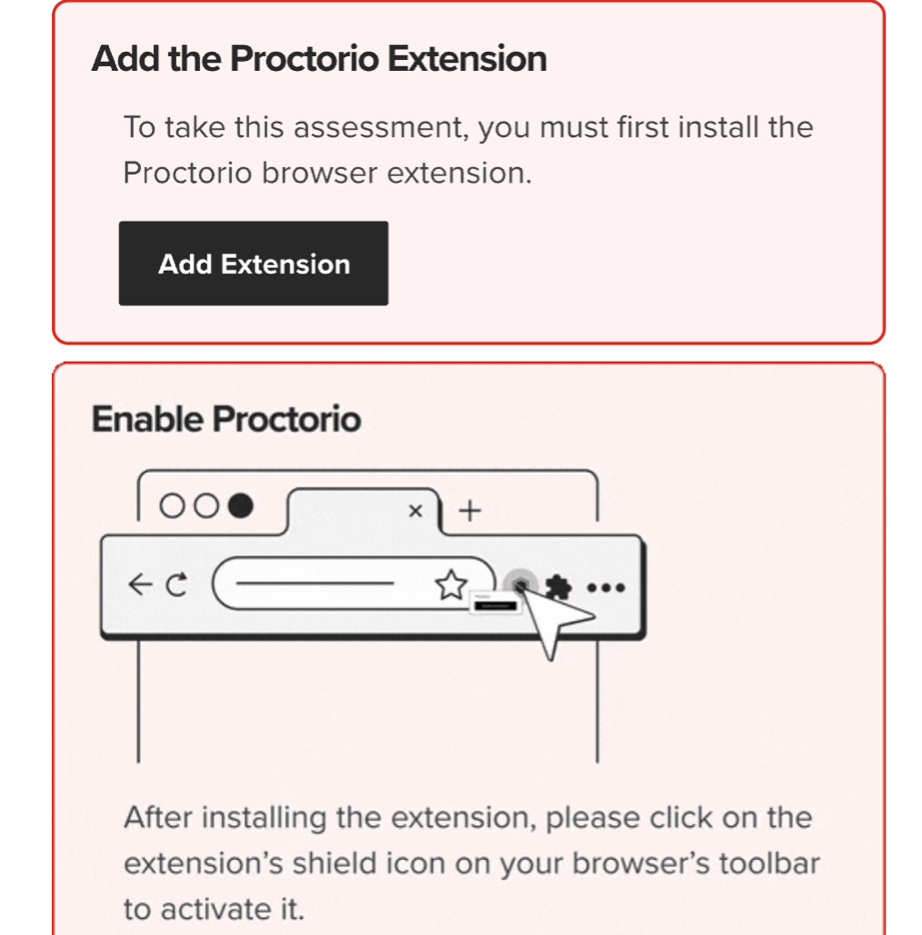
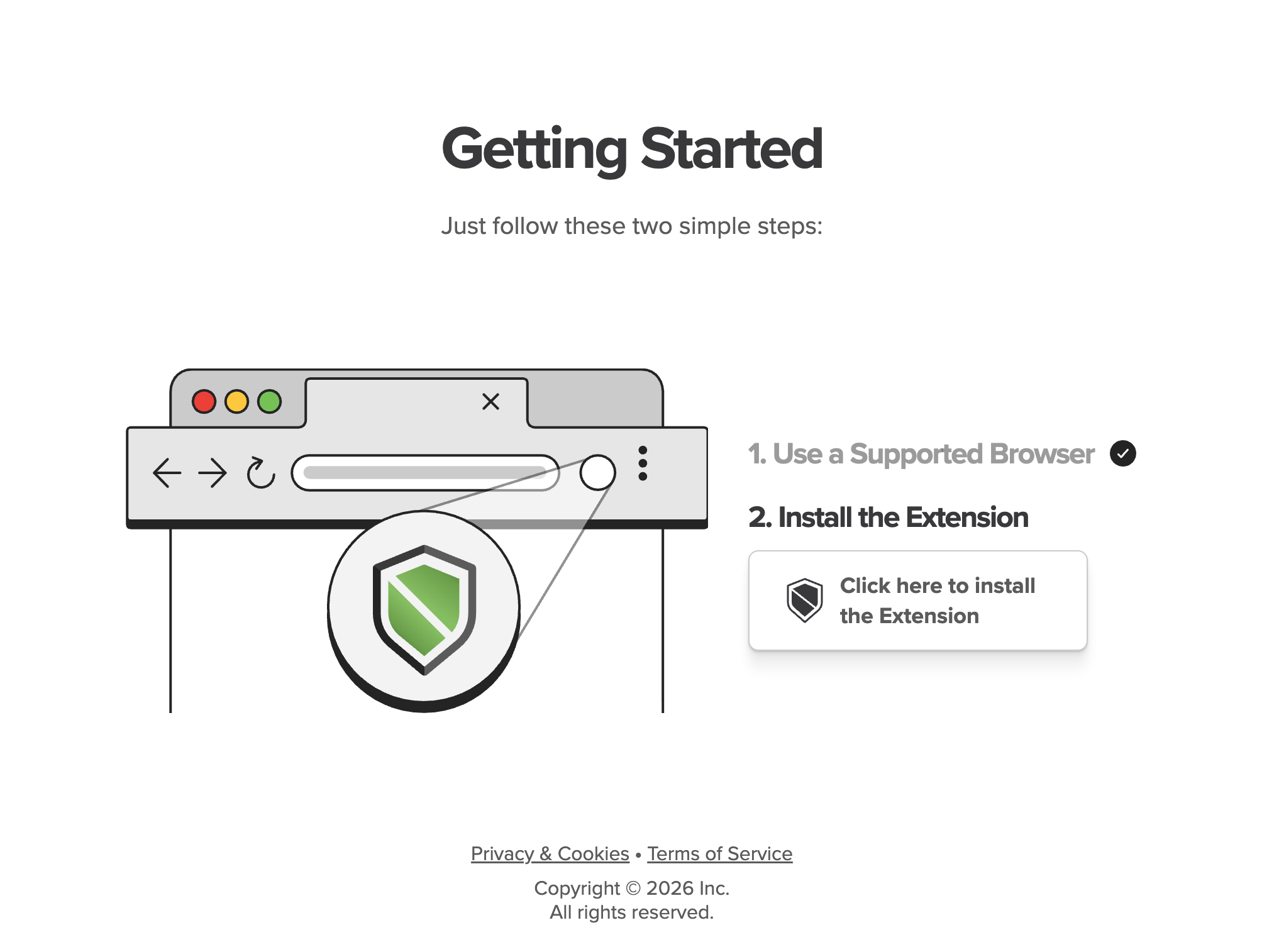
| 2. If you do not have the browser extension already installed, you will be prompted to install and activate the browser extension. Click on Add Extension and follow the on-screen instructions to install the extension. |
|
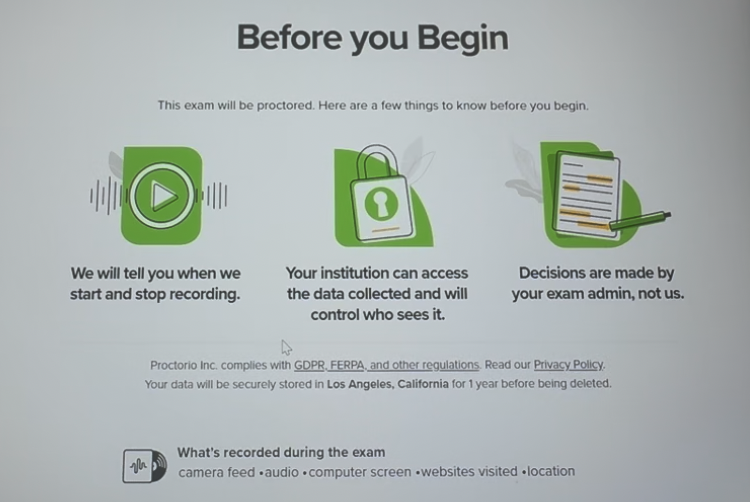
| 3. Next, you will be brought to the “Before You Begin” page which will provide information about Proctorio. Read through and scroll to the bottom. |
|
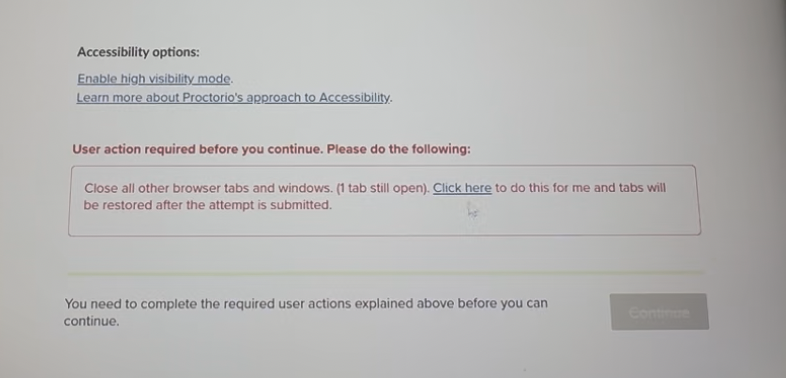
| 4. At the bottom of the “Before You Begin” page, you may see a User Action Required section. You will be required to close any additional open windows and tabs. Click on “Click Here” to have Proctorio close those items for you. |
|
|
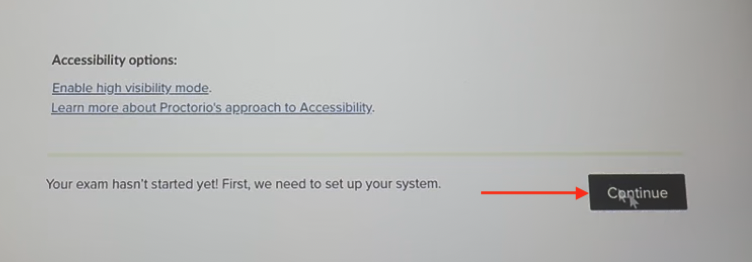
5. After you have completed any required user actions, click on |
|
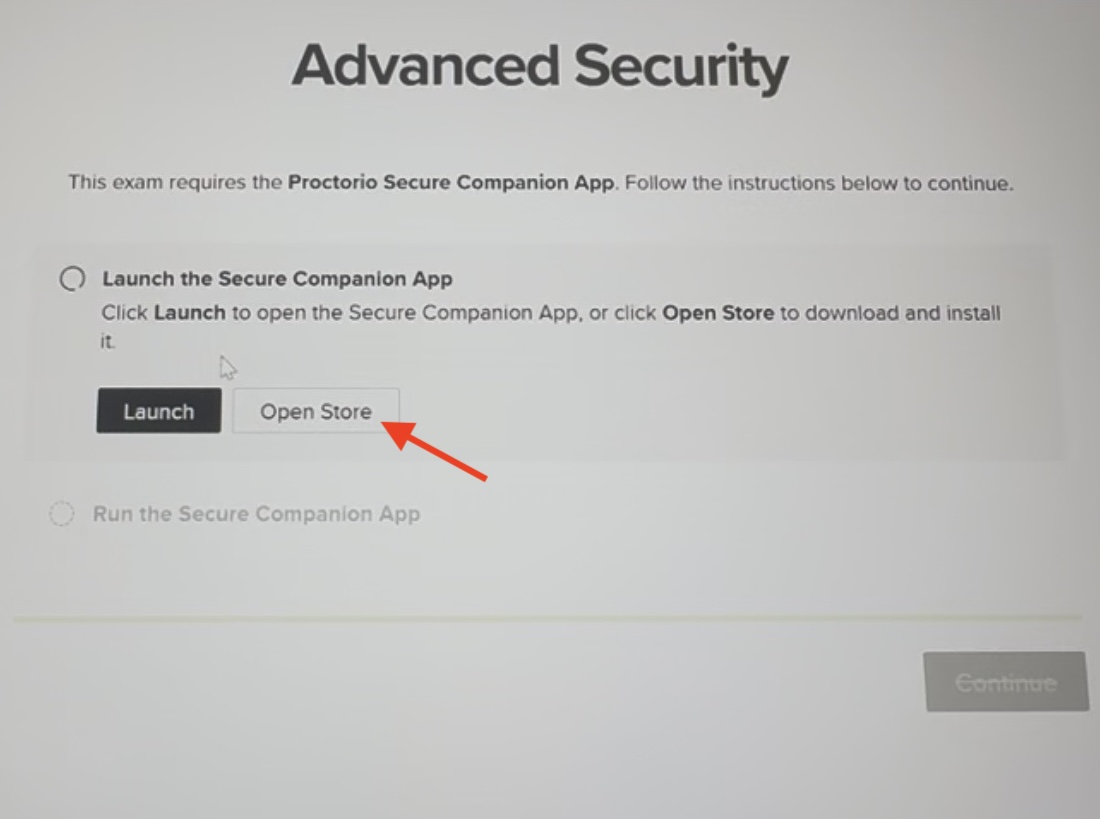
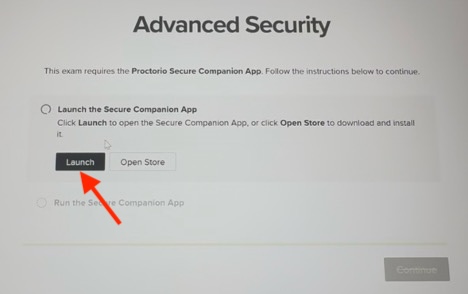
| 6. Now you will be prompted to launch the Secure Companion App. If you do not already have it installed, click on Open |
|
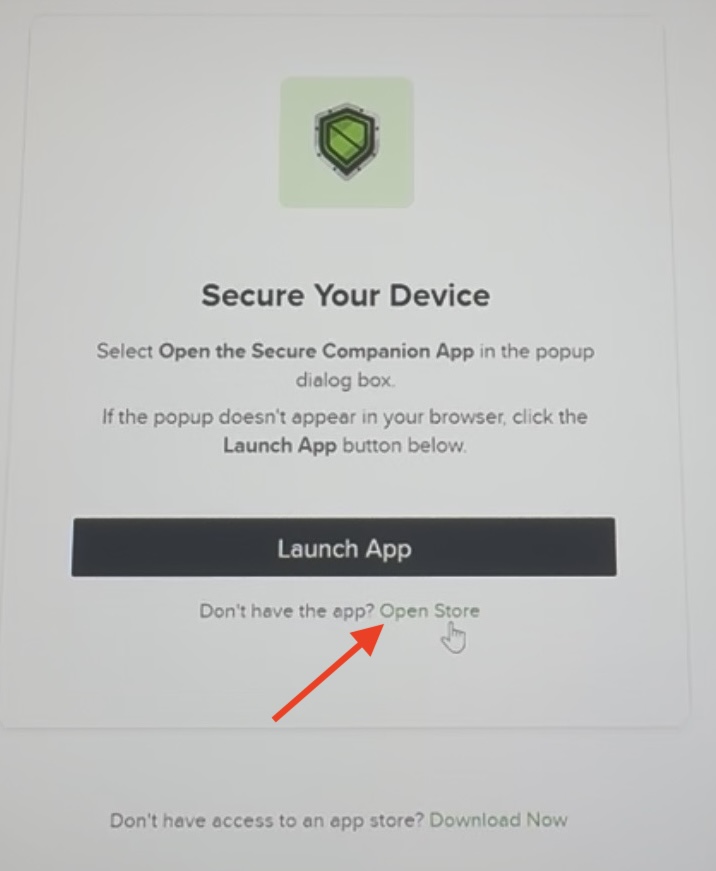
| 7. In the “Secure Your Device” tab that opens, click on Open |
|
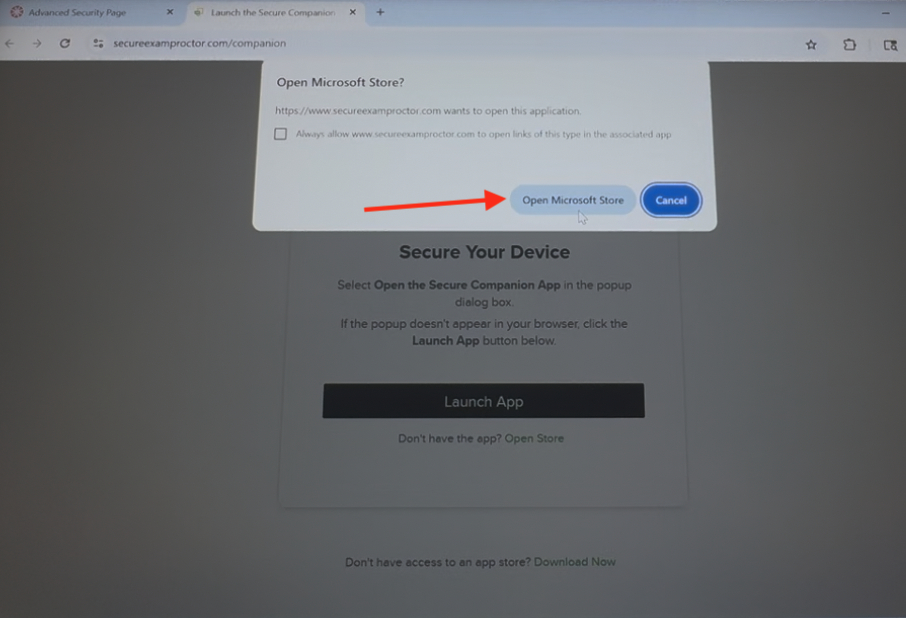
| 8. If prompted in the browser to open the store, click Open Microsoft |
|
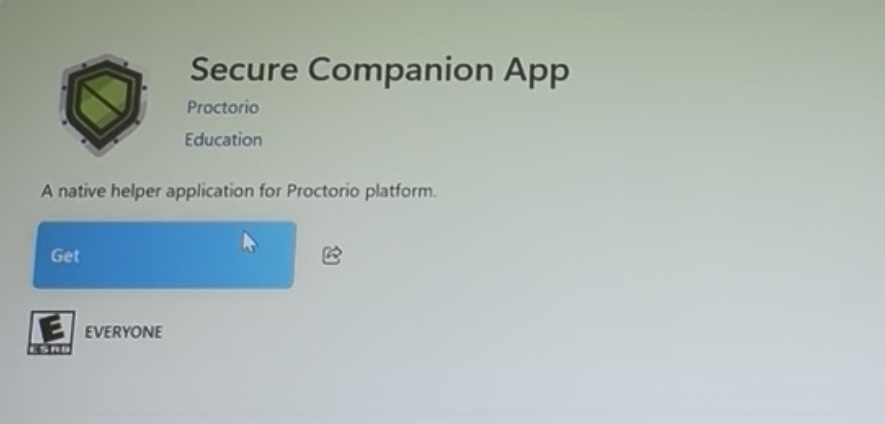
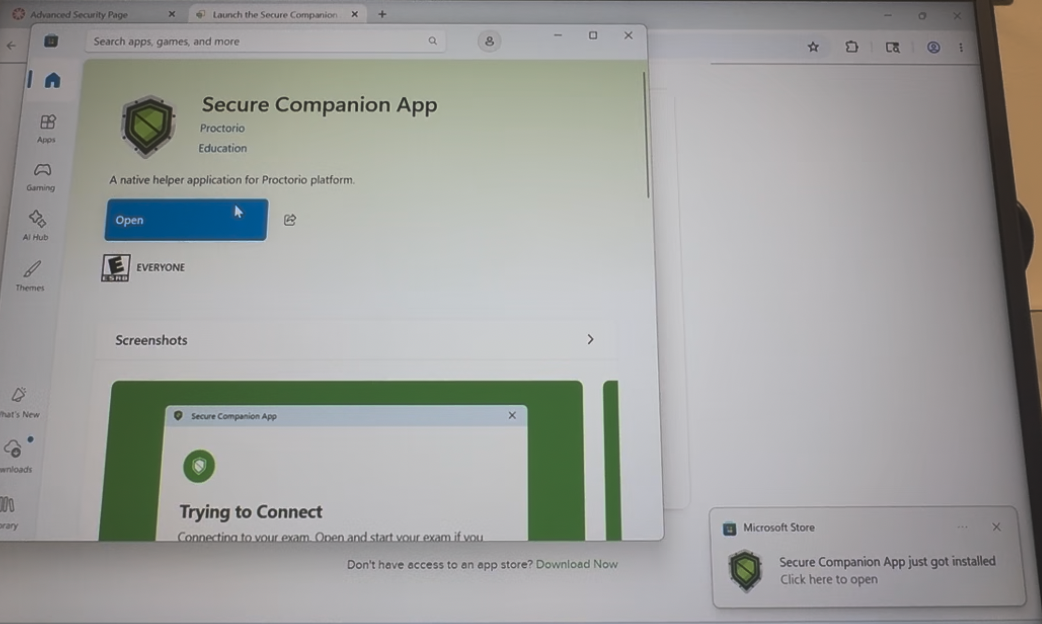
| 9. When the Store opens to the Secure Companion App, click Get. The installation will begin and could take a few minutes to complete. Please allow it to finish installing completely before moving forward. When installation has completed, click Open. |
|
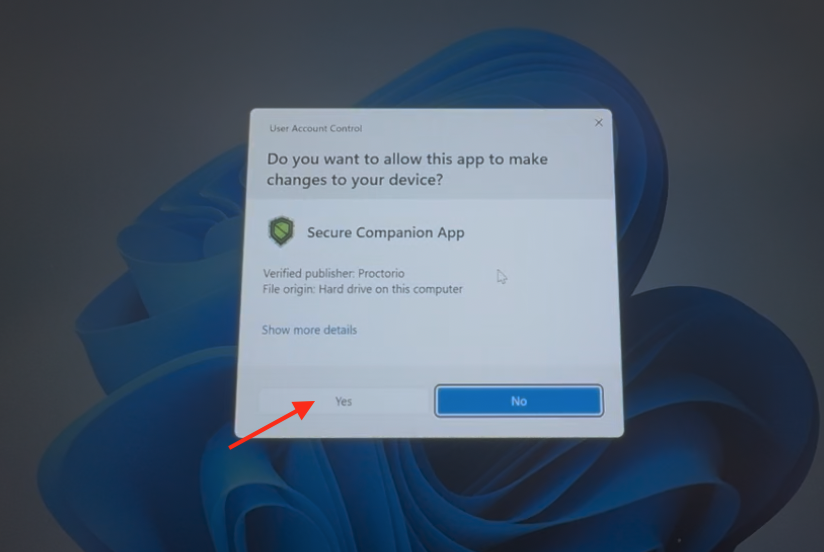
| 10. When prompted about allowing the app to make changes, click |
|
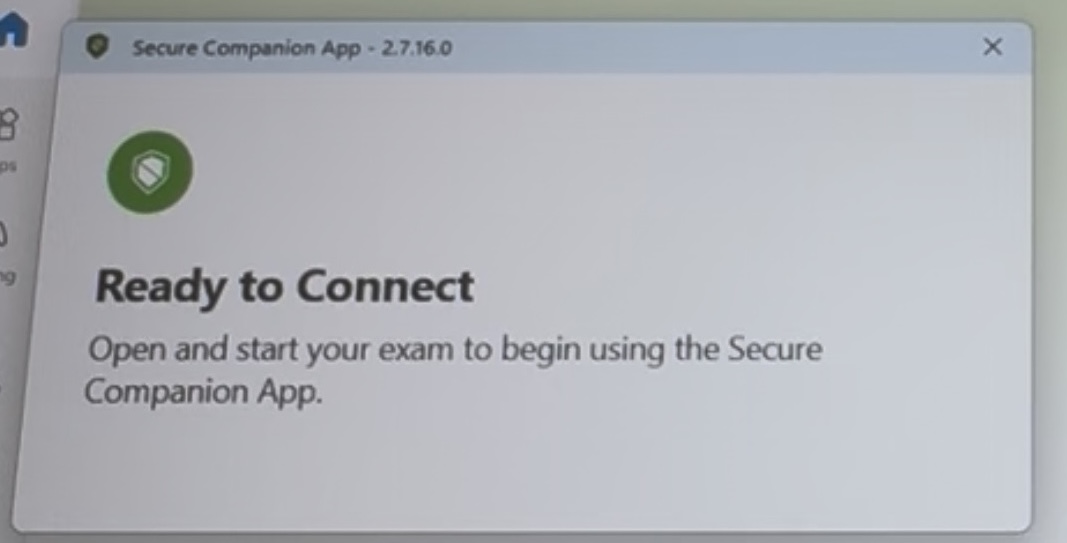
| 11. Now it will say Ready to |
|
| 12. Return to the exam page and if it does not automatically launch, click on |
|
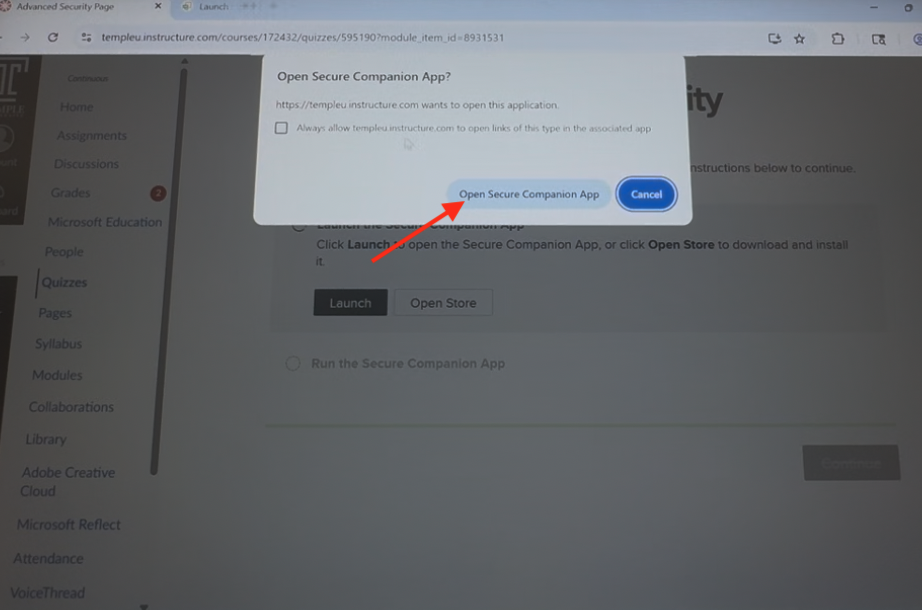
| 13. When prompted, click on Open Secure Companion App and click Yes to allow the app to make |
|
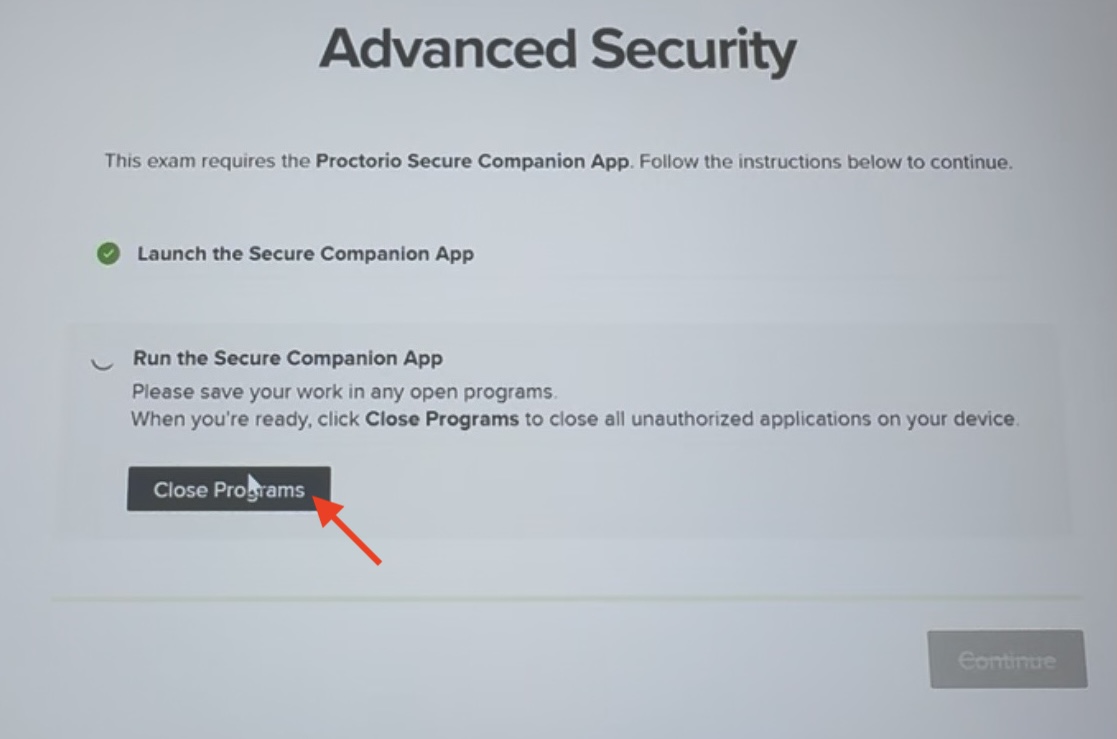
| 14. Now, you will be prompted to close any open programs. Please save your work in those programs and close them or click Close Programs. It may take a few moments for the programs to close. |
|
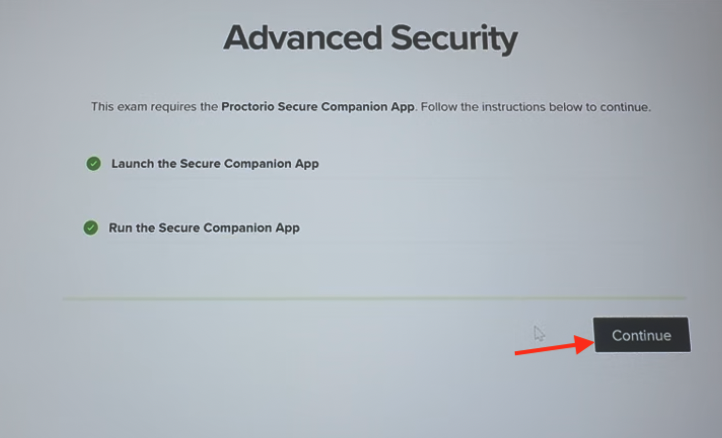
| 15. Now click |
|
|
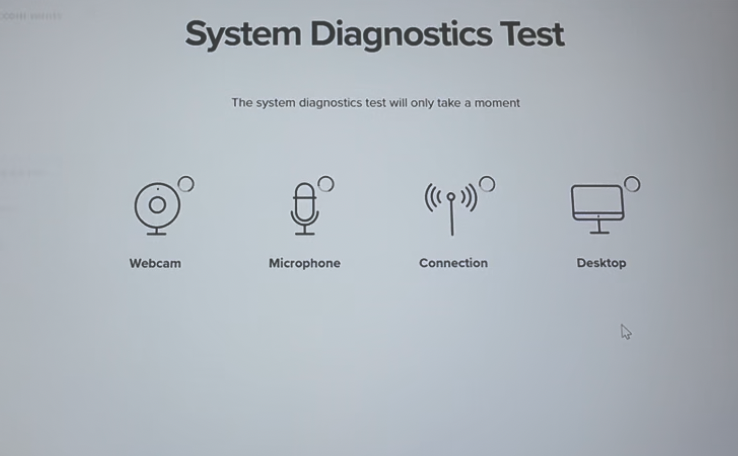
16. Now, you will be brought to the System Diagnostics Test page to make sure your camera, microphone, connection and desktop are all running properly.
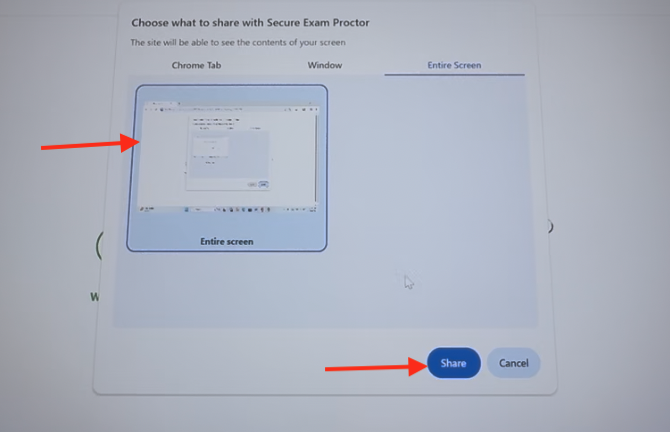
If you need to grant permission to the webcam and microphone, make sure to follow the on-screen prompts to do so.
For the desktop diagnostic test, select the entire screen and click Share. |
|
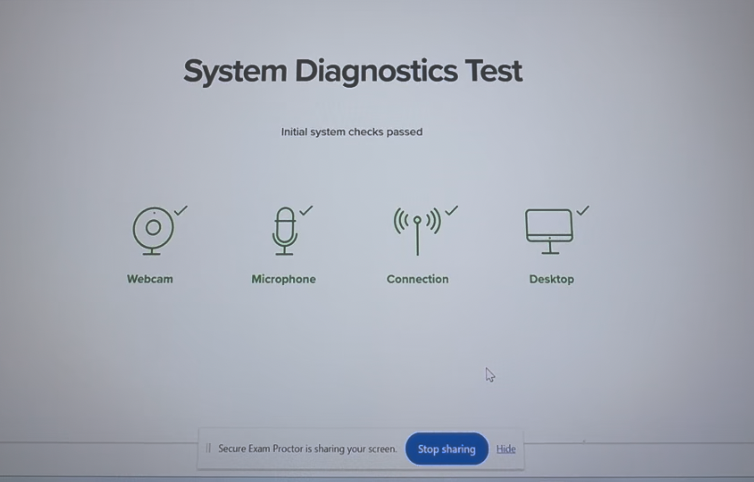
| 17. Your diagnostic test will have green checkmarks for each item when complete – do not click stop |
|
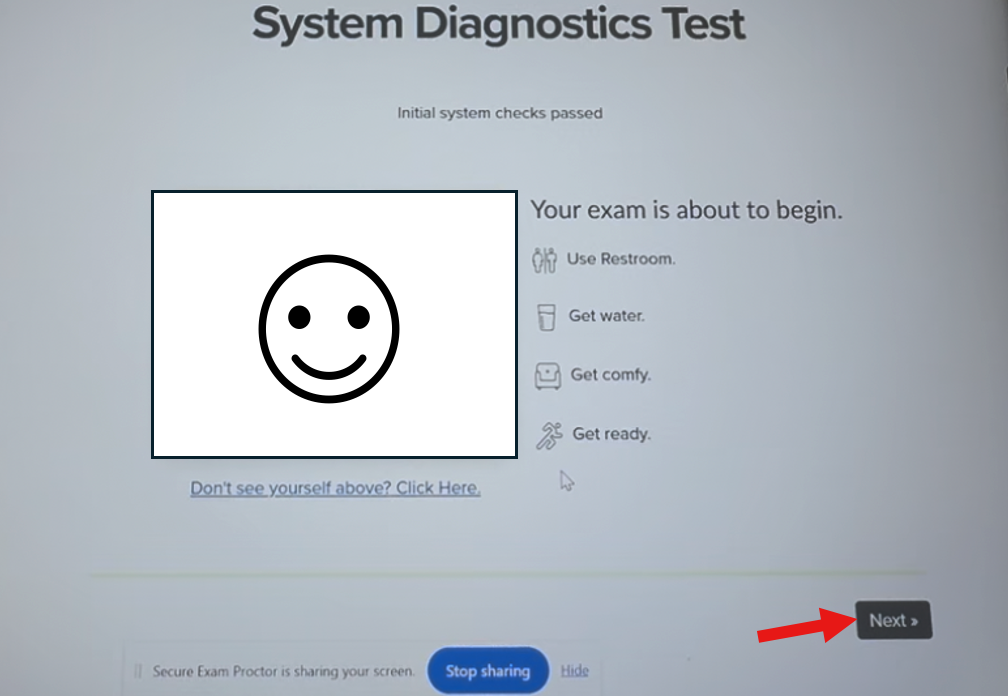
| 18. With the initial systems check passed, click |
|
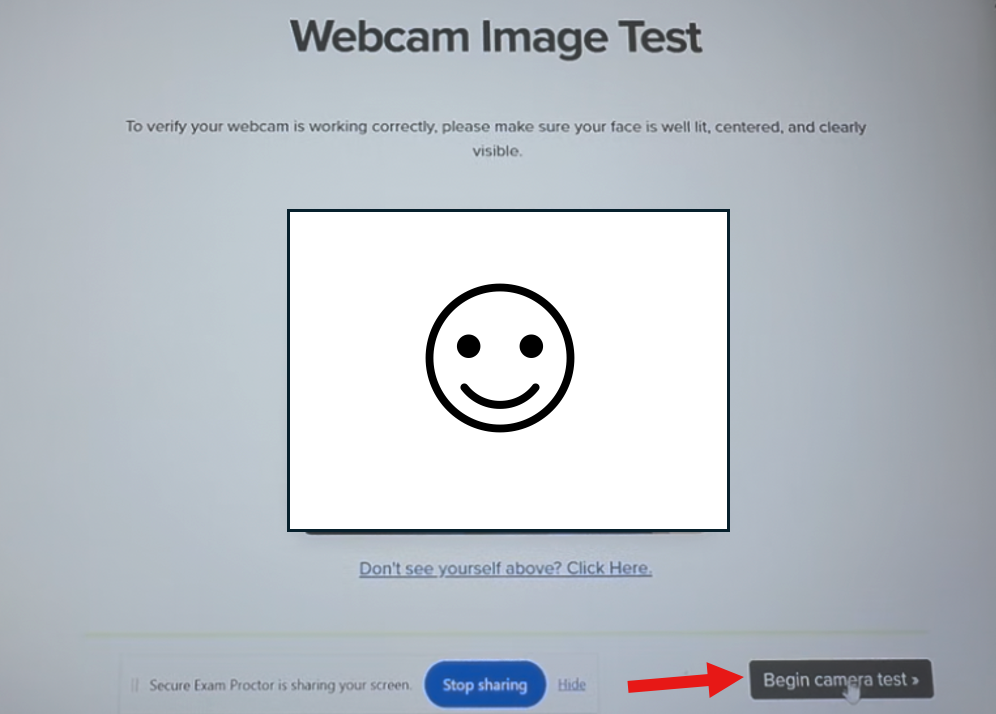
| 19. Next you will need to begin the Webcam Image test. Click Begin Camera Test. Look directly into the camera and the camera test will take a set of snapshots. |
|
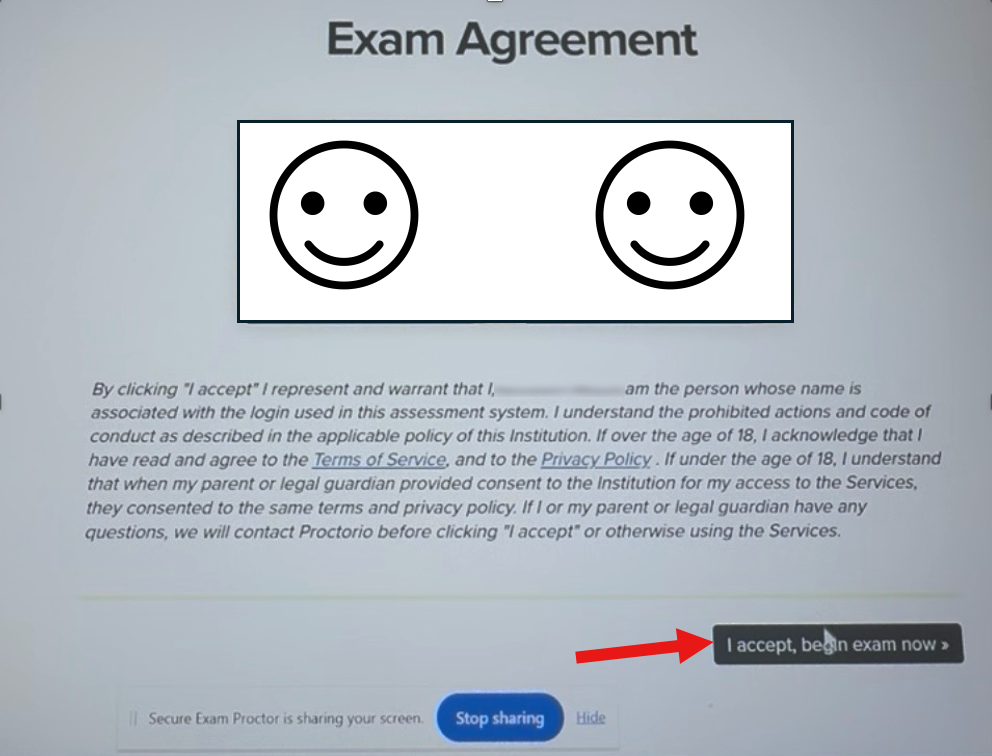
| 20. After passing the camera test, you will need to agree to the Exam Agreement. Click I accept, begin exam |
|
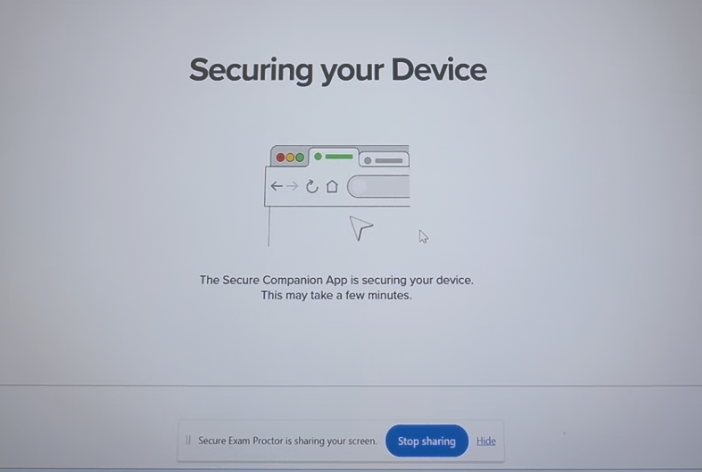
| 21. Now, the Secure Companion App will begin securing your device. This may take a few minutes. Do not click on Stop Sharing. |
|
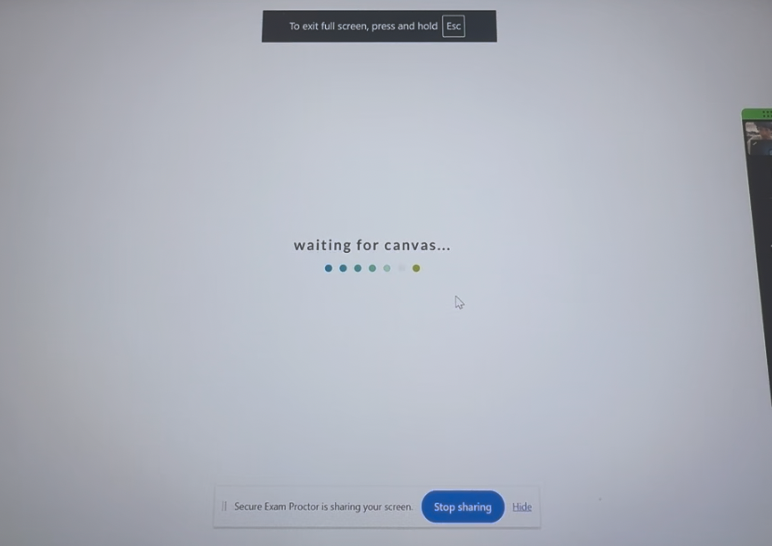
| 22. You may see a Waiting for Canvas message. Allow it to finish loading. Please do not click on Stop Sharing and do not try to exit full screen. |
|
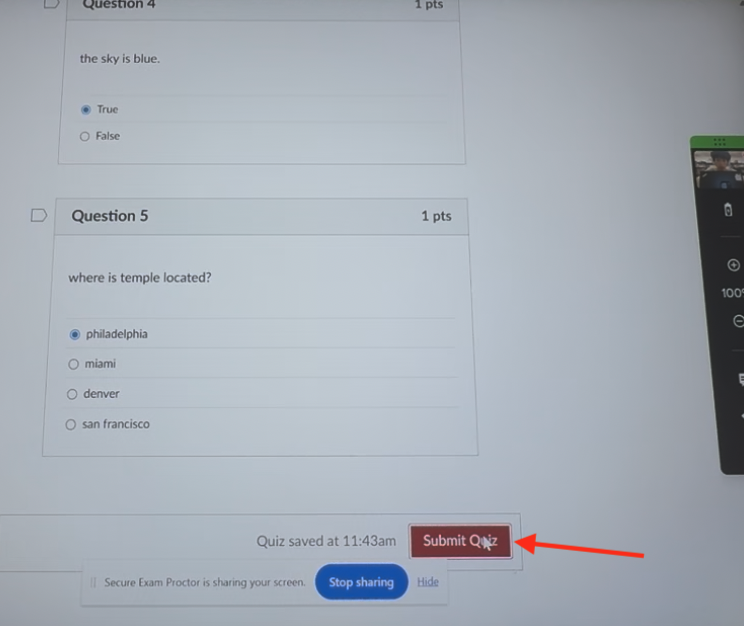
| 23. Your exam will load and you may begin. When finished, press Submit. |
|
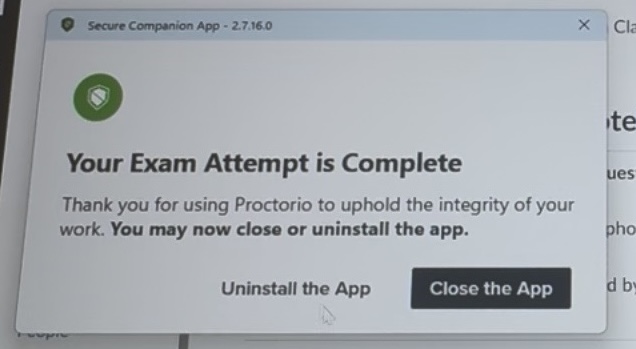
| 24. After, you may be given the option to uninstall the app or close the app. If you uninstall it, you will need to repeat the installation steps again the next time you take a Proctorio-enabled Canvas exam. |
|

Support
Proctorio support is available 24/7. Please contact Proctorio support if you encounter technical issues during a Proctorio-enabled exam. Support is available via Live Chat (Preferred) or Email.
Live Chat: Chat
Live chat is available multiple ways:
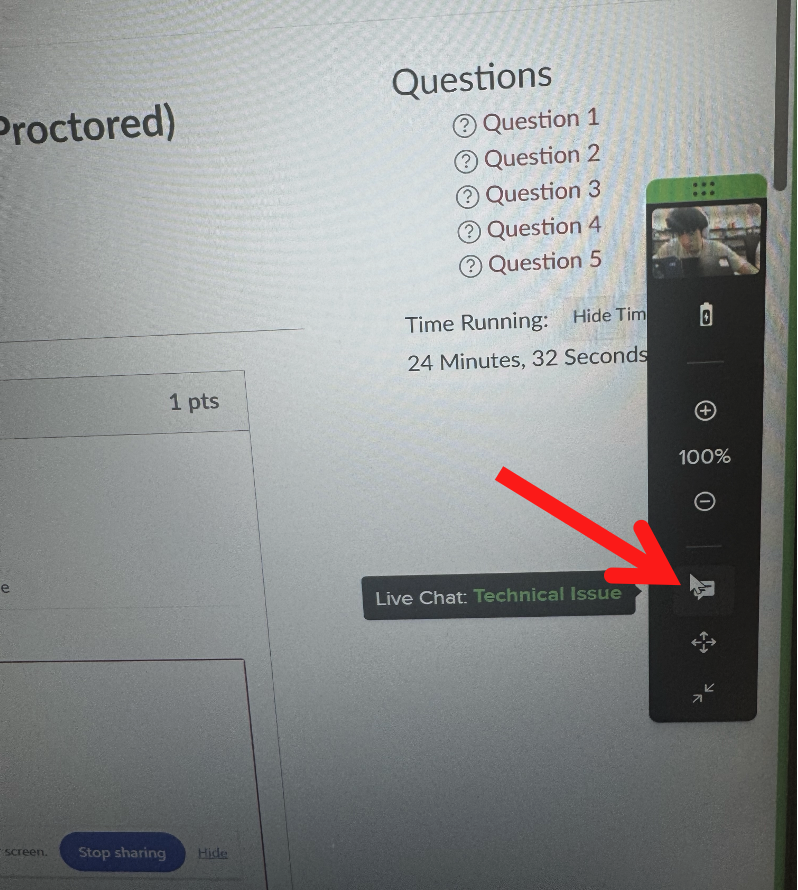
- During an exam in full screen mode, click on the chat button on the menu that appears along the right side. You will be connected with a Proctorio support agent.
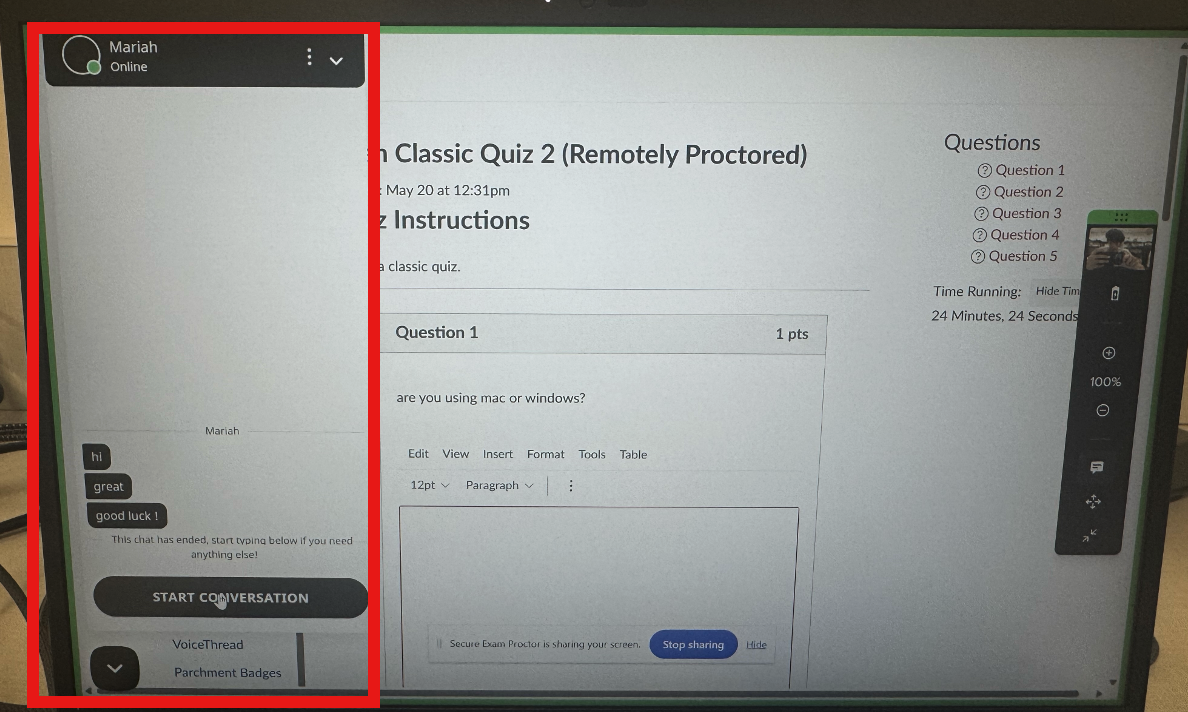
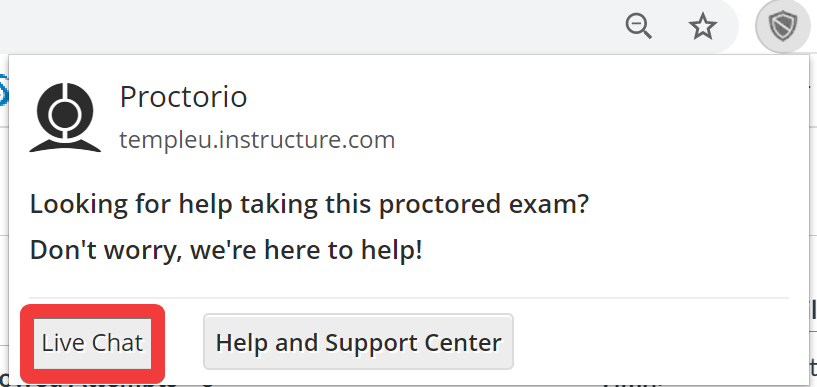
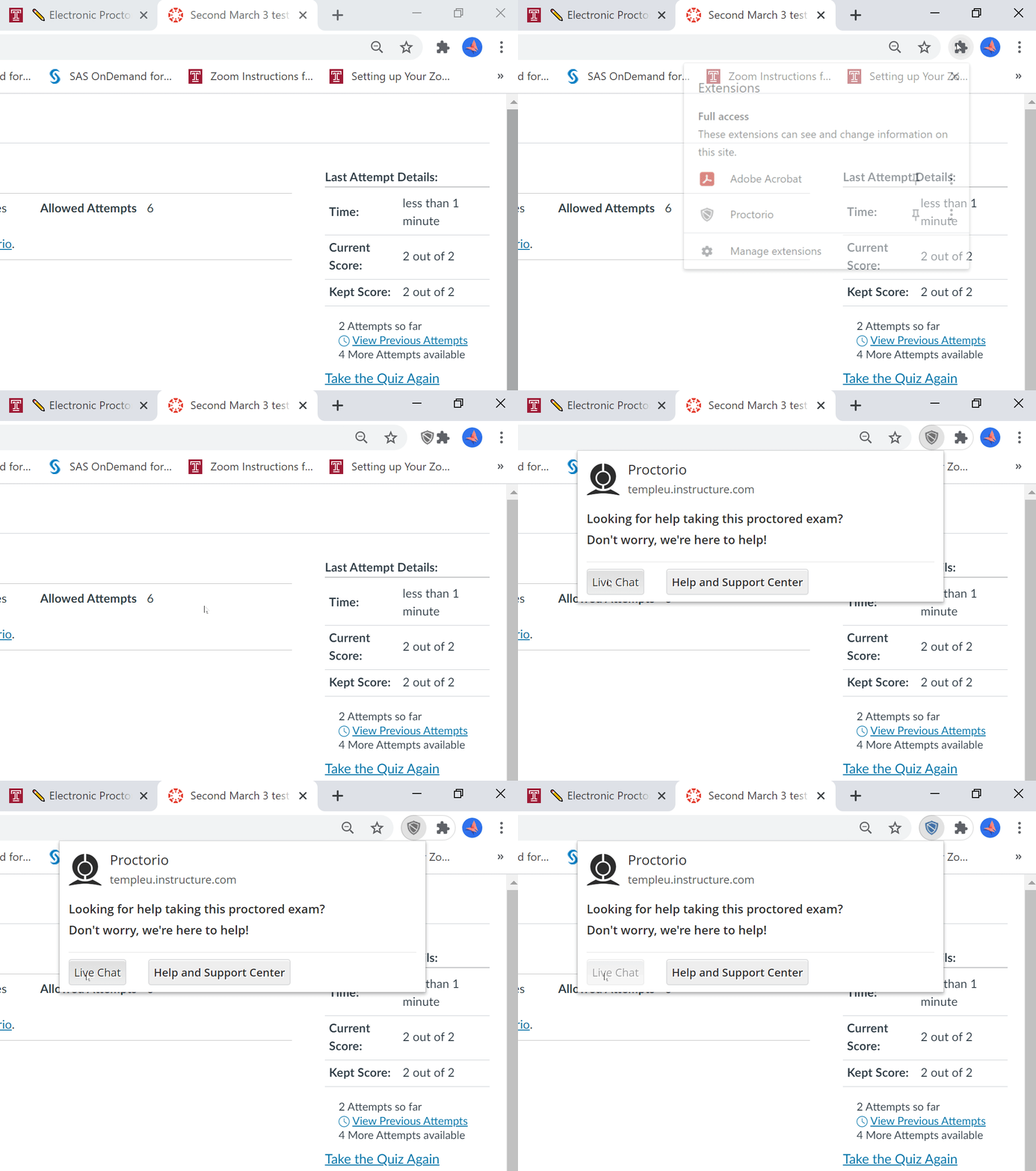
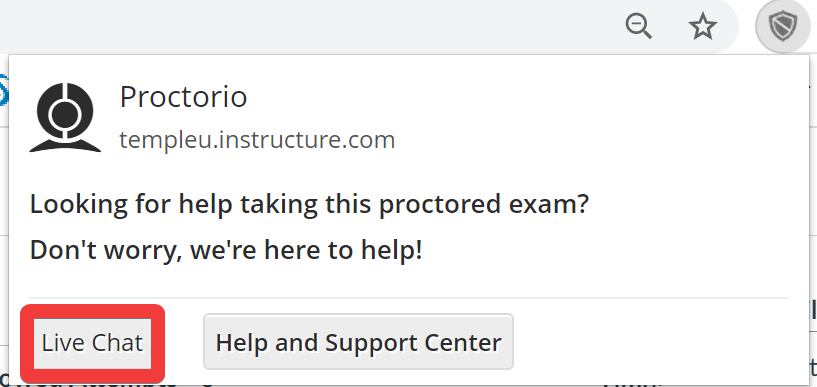
- If not in full screen mode, click on the Proctorio extension (gray shield) in the upper right corner of the browser. Then click Live Chat.
Or, click on Extensions (the puzzle piece icon) and click on Proctorio. Then click Live Chat. Live Chat will open in the bottom corner of your screen.
- Live chat is also available by going to https://chat.proctorio.com/
Send an email to support@proctorio.com (request “immediate assistance” if in a quiz).