
Getting Started and Help
What is Exxat
Exxat is the system used to track and manage your College of Public Health clinical and field experience. It is used to track:
-
Clinical and field placements
-
Evaluations
-
Feedback
-
Clearances and background checks
-
Timesheets (if applicable)
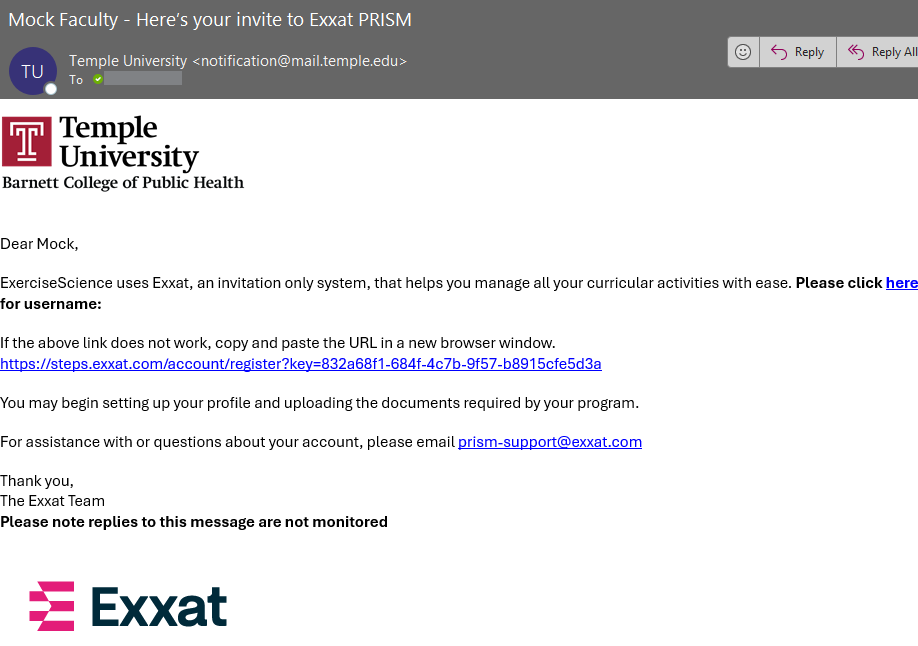
We use single sign on for Exxat - you should have received an email from "notifications@mail.temple.edu" with a link to activate your account.
Activate Your Account
|
1. You will be emailed a message from notification@mail.temple.edu. Click the link to activate your account. |
|
|
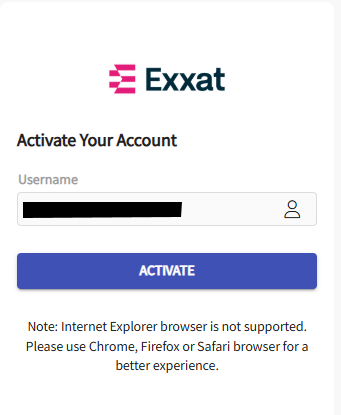
2. Your AccessnetID@temple.edu email address will appear in the Username area on the Exxat login screen; click Activate. |
|
|
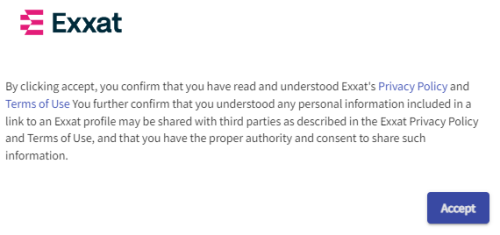
3. Read the Exxat Terms of Use and Click on Accept to agree
You will only need to accept the terms the first time you log in to Exxat.
|
 |
|
4. You will be redirected to log in on the main login page
|
|
|
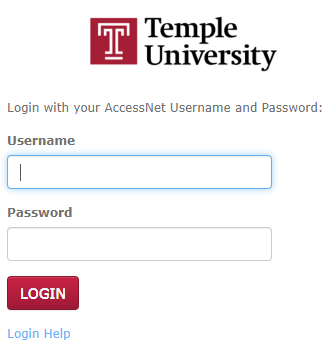
5. We use Single Sign On - after entering your email you will be redirected to logon with your TU AccessNet username and password
|
 |
|
6. You may be prompted for Duo Multi-Factor Authentication. If so, follow the instructions to complete the login process.
|
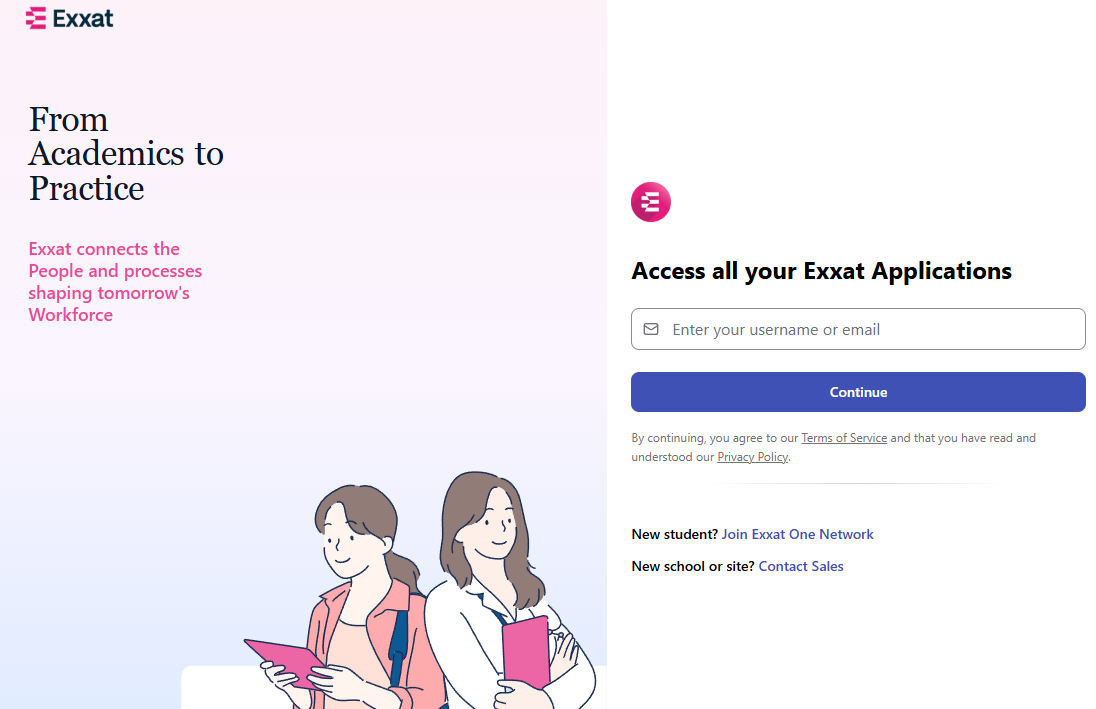
The Exxat Dashboard Screen
After you login, the Dashboard screen will be displayed.
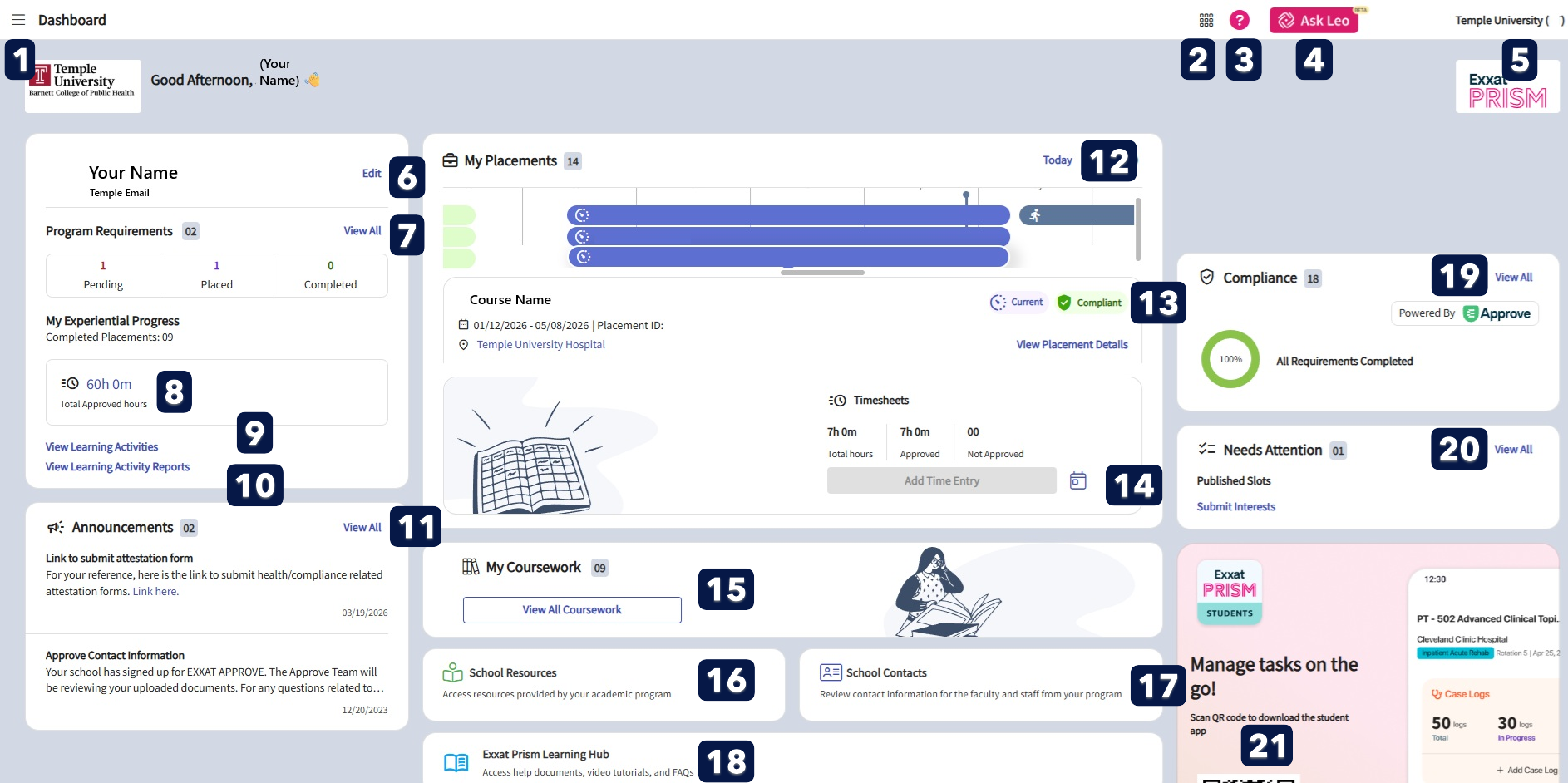
Image of Exxat Dashboard. Sections are listed below in focus order.
Verifybutton Your- Profile
click to
openYoura Profileside containsmenu informationfrom aboutany youpage andfor navigation
PT:to Yourverify your profile information and fill in additional profile details (if applicable).
It is also your professional introductionlink to clinicalmobile sites and is an important step to making a great first impression.
From the Dashboard, click onProfile, and then click on theProfiletabClick on the area you wish to edit; to make changes, click on the Add ( ) and/or Edit (
 ) icons
When complete, clickSave
For additional instructions, refer to the Exxat Completing Your Student Profile Guide.
Get Help
TheExxat Prism Help Forum:From the Dashboard, click on theHelpbutton or clicking on the question mark icon at the top right side of the Exxat screen; provides documents and video tutorials to guide you through common tasks- For assistance with placements, please contact yourprogram coordinator, Director of Practicum Education, DCE, Academic Fieldwork Coordinator, or Instructor.
instructor - For assistance with compliance - check the guidelines of each requirement for information on the requirement and submission format. If you need assistance email cahepl@temple.edu.
Logging Out
-
Click on the drop-down arrow (
 ) next to your name in the upper right corner of the screen
 -
Click on Logout at the bottom of the User setting pop-out box
