
Getting Started and Help
What is Exxat
Exxat is the system used to track and manage your College of Public Health clinical and field experience. It is used to track:
-
Clinical and field placements
-
Evaluations
-
Feedback
-
Clearances and background checks
-
Timesheets (if applicable)
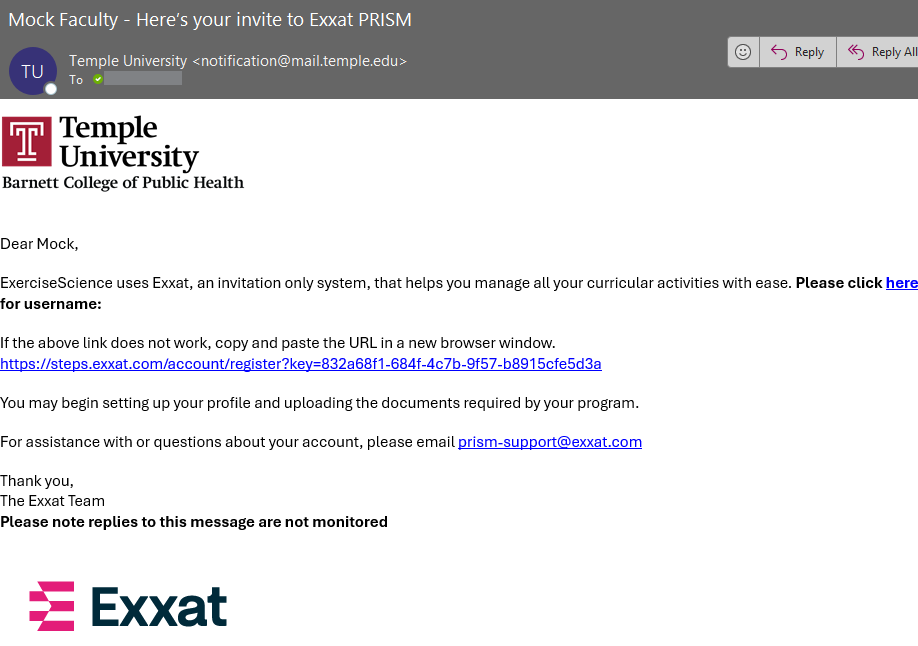
We use single sign on for Exxat - you should have received an email from "notifications@mail.temple.edu" with a link to activate your account.
Activate Your Account
|
1. You will be emailed a message from notification@mail.temple.edu. Click the link to activate your account. |
|
|
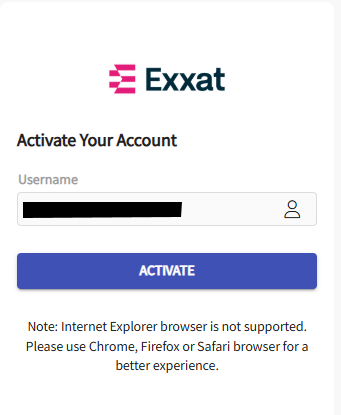
2. Your AccessnetID@temple.edu email address will appear in the Username area on the Exxat login screen; click Activate. |
|
|
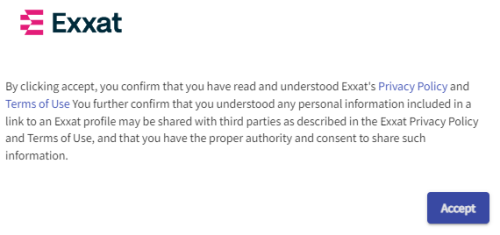
3. Read the Exxat Terms of Use and Click on Accept to agree
You will only need to accept the terms the first time you log in to Exxat.
|
 |
|
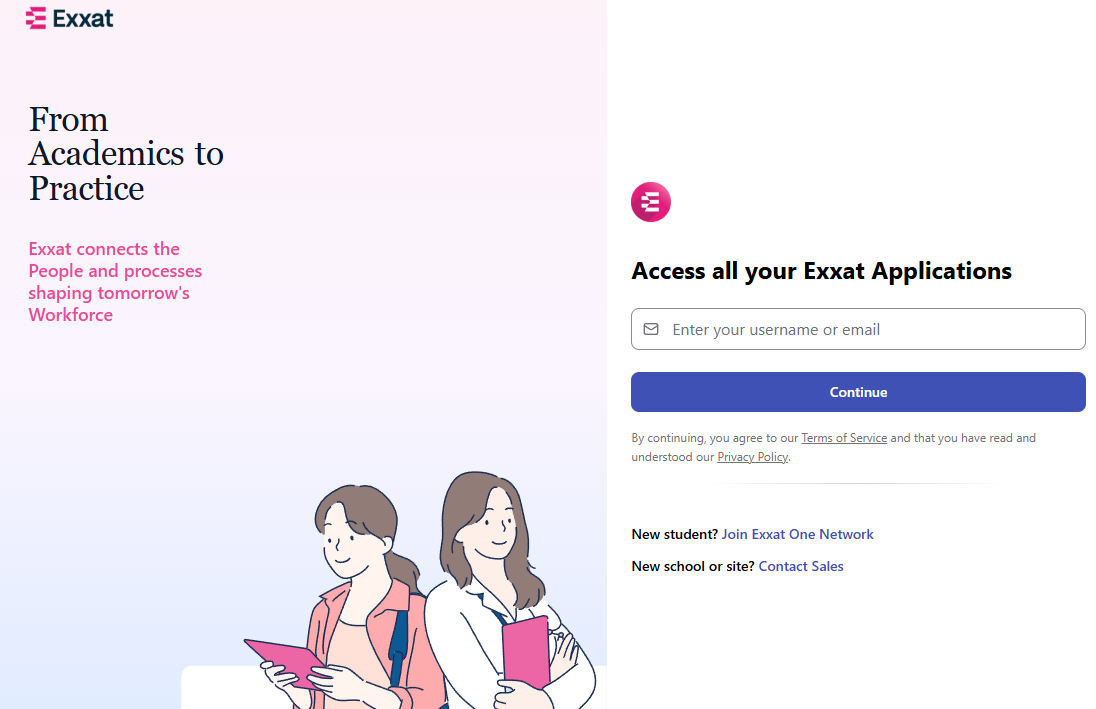
4. You will be redirected to log in on the main login page
|
|
|
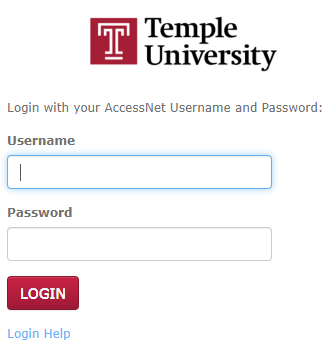
5. We use Single Sign On - after entering your email you will be redirected to logon with your TU AccessNet username and password
|
 |
|
6. You may be prompted for Duo Multi-Factor Authentication. If so, follow the instructions to complete the login process.
|
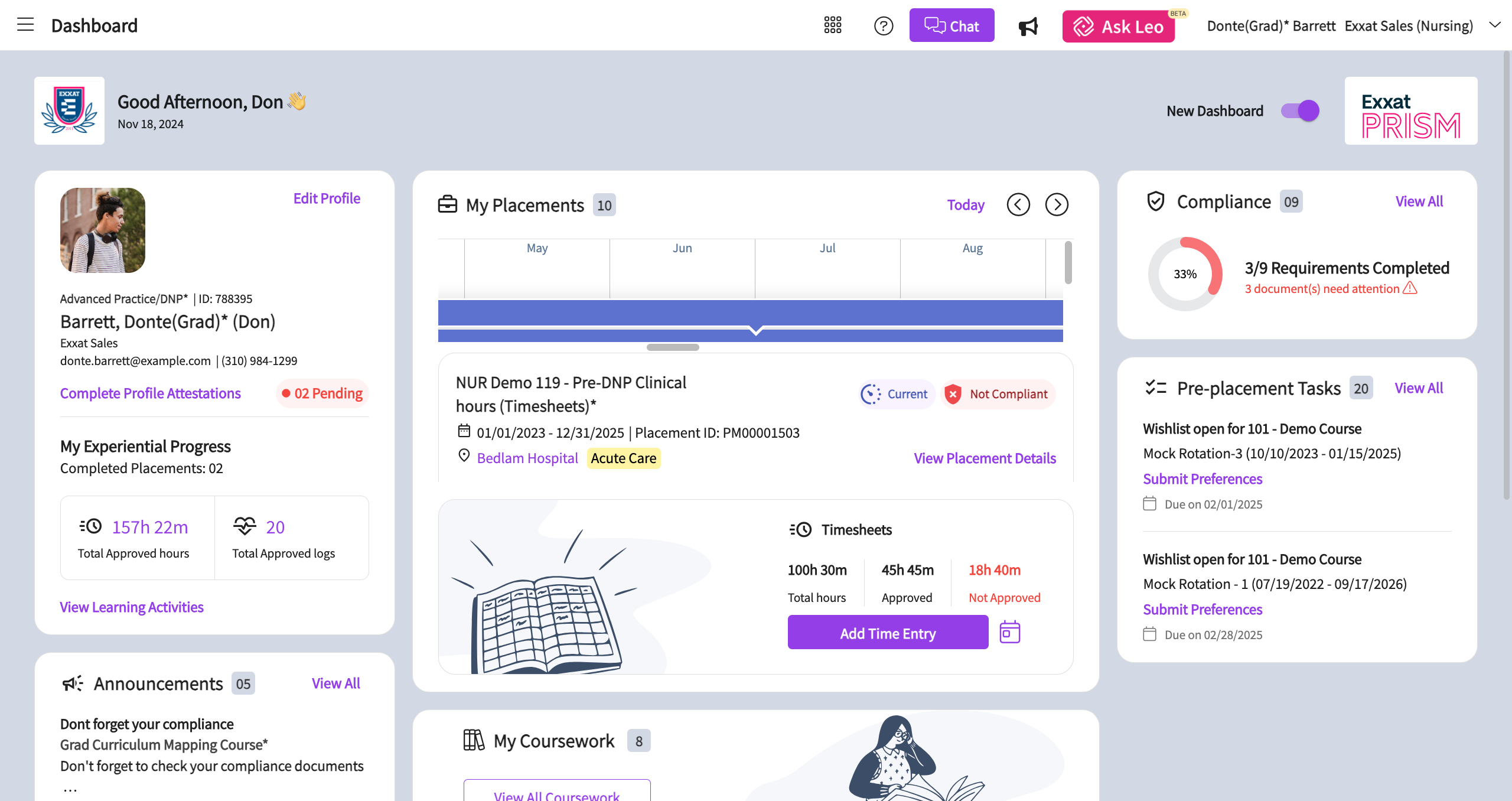
The Exxat Dashboard Screen
After you login, the Dashboard screen will be displayed.
Verify Your Profile
Your Profile contains information about you and your program and will assist faculty in determining appropriate placements.
PT: Your profile information may be shared with clinical sites as part of the
It is also your professional introduction to clinical sites and is an important step to making a great first impression.
-
From the Dashboard, click on Profile, and then click on the Profile tab
-
Click on the area you wish to edit; to make changes, click on the Add (
 ) and/or Edit (
 ) icons
 -
When complete, click Save
For additional instructions, refer to the Exxat Completing Your Student Profile Guide.
Get Help
-
The Exxat Prism Help Forum: From the Dashboard, click on the Help button or clicking on the question mark icon at the top right side of the Exxat screen; provides documents and video tutorials to guide you through common tasks
-
For assistance with placements, please contact your instructor
Logging Out
-
Click on the drop-down arrow (
 ) next to your name in the upper right corner of the screen
 -
Click on Logout at the bottom of the User setting pop-out box
