Advanced Security Proctorio Settings- Draft
Step you1: may be aware, there are AI cheating applications that students may be using to get around browser-based proctoring tools. The current version of Proctorio at Temple usesReview the GoogleInformation Chrome browser plug-in.
NEW for Fall 2026:
These advanced settings require that students install:
- The
current version, which is browser based and prone to AI cheating tools circumventingProctorioinBrowserthe browser plug-in version. If giving in-class exams, faculty are advised to walk around the room. Use the newest version, which we are still testing, but by design is now run as an application, which blocks these AI and other tools from interfering with theThe Proctorioapplication.SecureThisCompanionversion I am told was beta tested in the spring in a courseat Temple, outside of BCPH. Feedback was that it worked well.
ToStep enable2: theSubmit newYour version,Proctorio pleaseUsage followAcknowledgement
steps:
Step 1:2: Submit Your Proctorio Request
Request Proctorio for your course by emailing cphithelp@temple.edu and provide the course ID. InA yourCPH request,IT indicatestaff thatwill respond with a Qualtrics survey where you wouldmust likeacknowledge the Proctorio requirements for use. After you respond to use the newQualtrics versionsurvey, ofCPH Proctorio.IT will follow up regarding licensing and next steps.
Step 2: Enable PluginBrowser Extension
After you have received confirmation that Proctorio has been enabled in your exam, follow these steps:
-
- Click on Secure Exam Proctor on the left side course menu in your course
- Follow the steps shown below to enable the
pluginextension in your browser
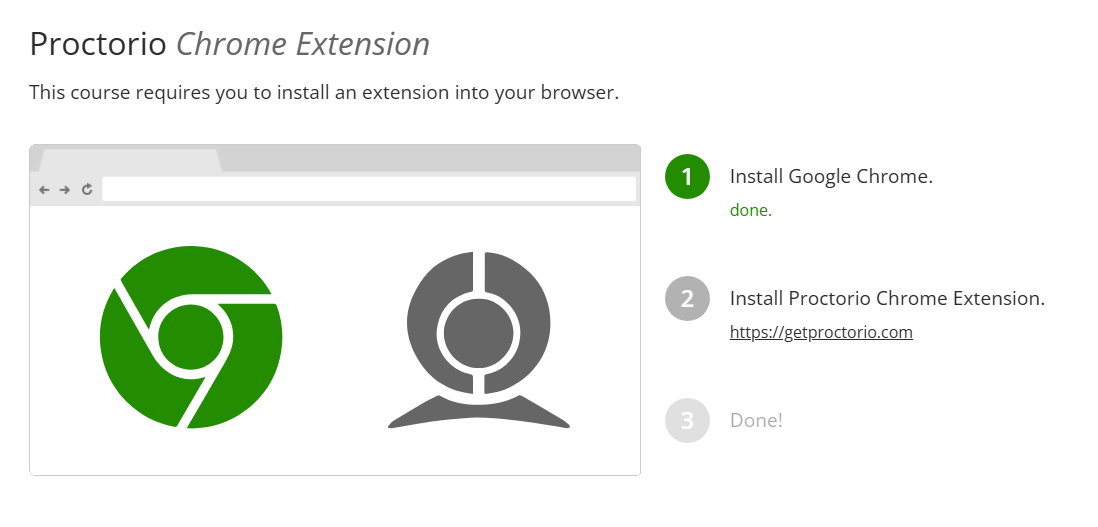
Step 3: AddEnable AdvancedProctorio Securityin Your Quiz and Select Proctorio Settings to Quiz
After adding the plugin,browser, go to your existing quiz or create a new quiz and follow these steps:
-
- Enable Proctorio in your quiz and go to the Proctorio Settings area
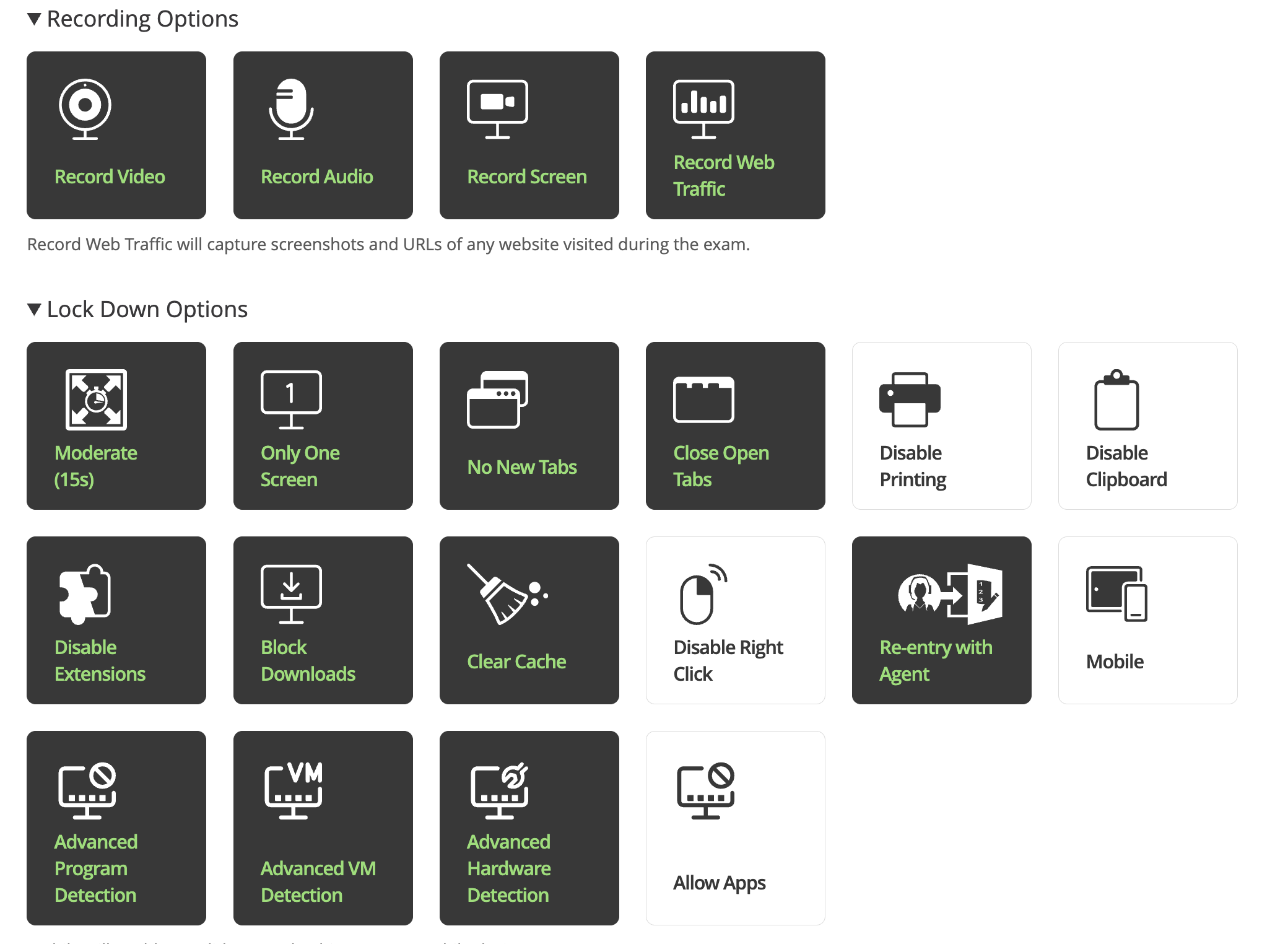
- The three new advanced security settings are: Advanced Program Detection, Advanced VM Detection, Advanced Hardware Detection
- Below are the Exam settings we recommend if students are taking exams remotely.
Please note that due to accessibility restrictions, we do not recommend enabling Disable Printing, Disable Clipboard, and Disable Right Click. At this time, we also do not recommend enabling Mobile or Allow Apps.
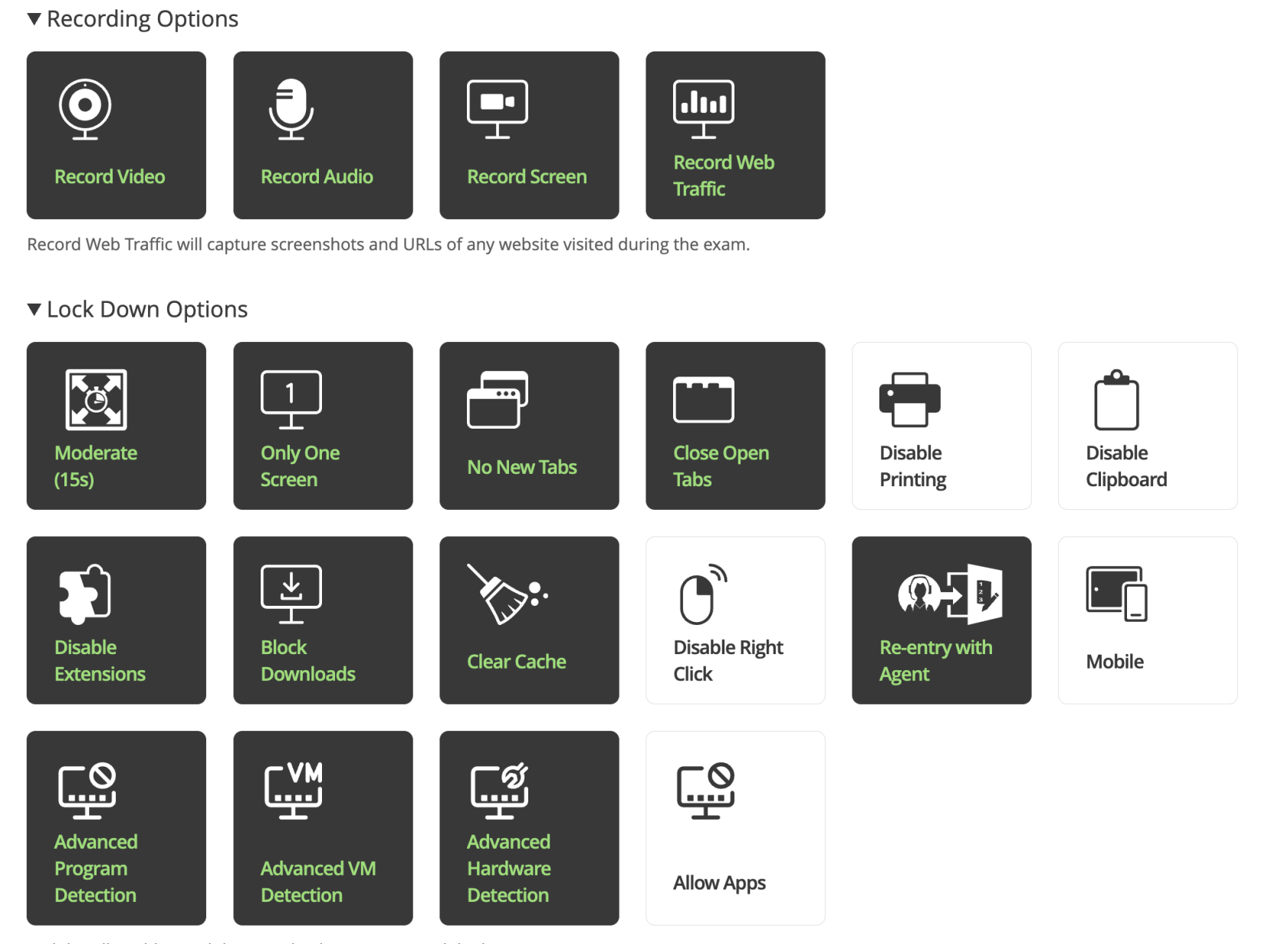
- Below are the Exam Settings we recommend if students are taking exams in the classroom.