Advanced Security Proctorio Settings- Draft
Step 1: Review the Information Below
- The Proctorio Browser Extension
- The Proctorio Secure Companion Application
Step 2: Submit Your Proctorio Usage Acknowledgement
Step 2: Submit Your Proctorio Request
Request Proctorio for your course by emailing cphithelp@temple.edu and provide the course ID. A CPH IT staff will respond with a Qualtrics survey where you must acknowledge the Proctorio requirements for use. After you respond to the Qualtrics survey, CPH IT will follow up regarding licensing and next steps.
Step 2: Enable Browser Extension
After you have received confirmation that Proctorio has been enabled in your exam, follow these steps:
-
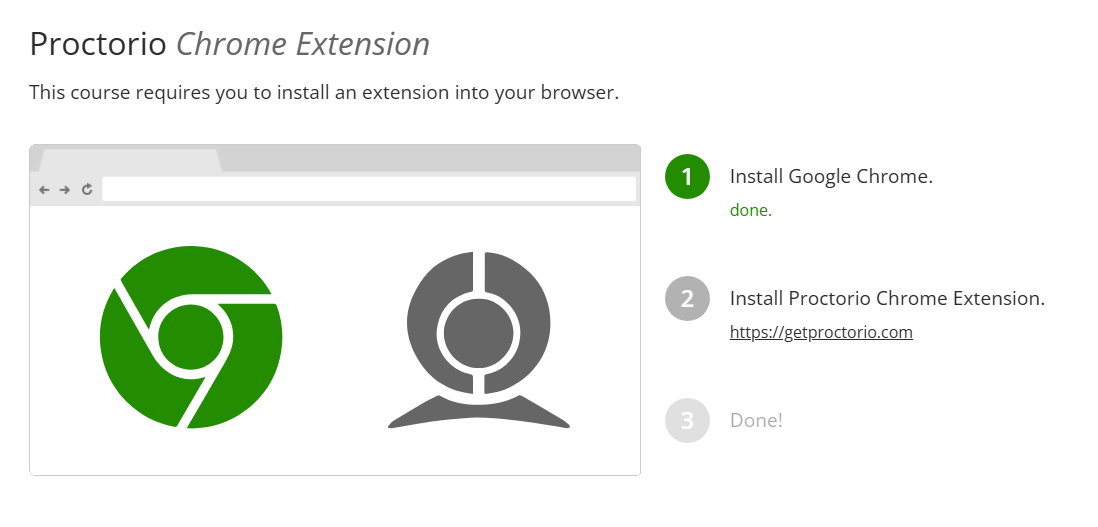
- Click on Secure Exam Proctor on the left side course menu in your course
- Follow the steps shown below to enable the extension in your browser
Step 3: Enable Proctorio in Your Quiz and Select Proctorio Settings
After adding the browser, go to your existing quiz or create a new quiz and follow these steps:
-
- Enable Proctorio in your quiz and go to the Proctorio Settings area
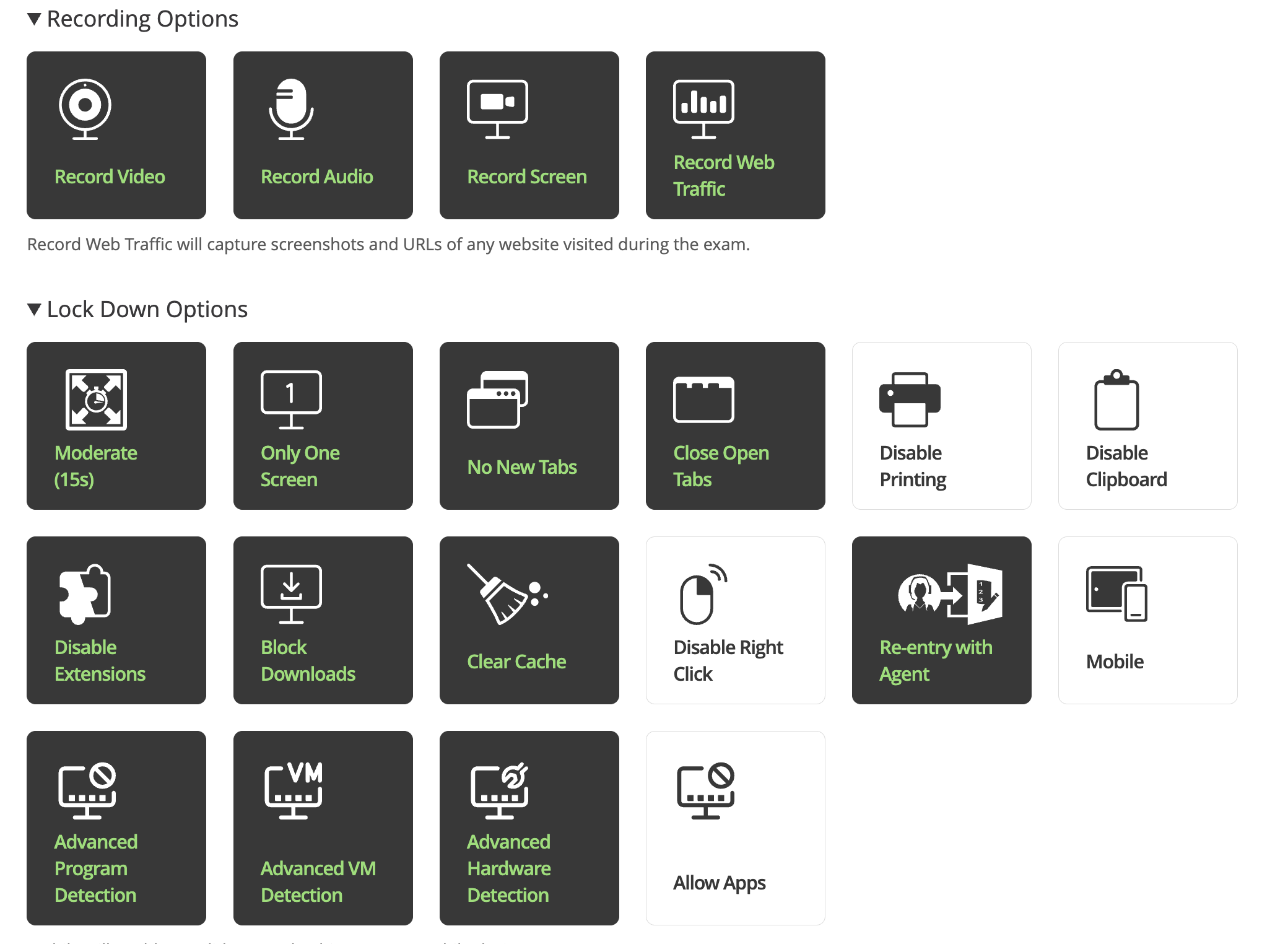
- The three new advanced security settings are: Advanced Program Detection, Advanced VM Detection, Advanced Hardware Detection
- Below are the Exam settings we recommend if students are taking exams remotely.
Please note that due to accessibility restrictions, we do not recommend enabling Disable Printing, Disable Clipboard, and Disable Right Click. At this time, we also do not recommend enabling Mobile or Allow Apps.
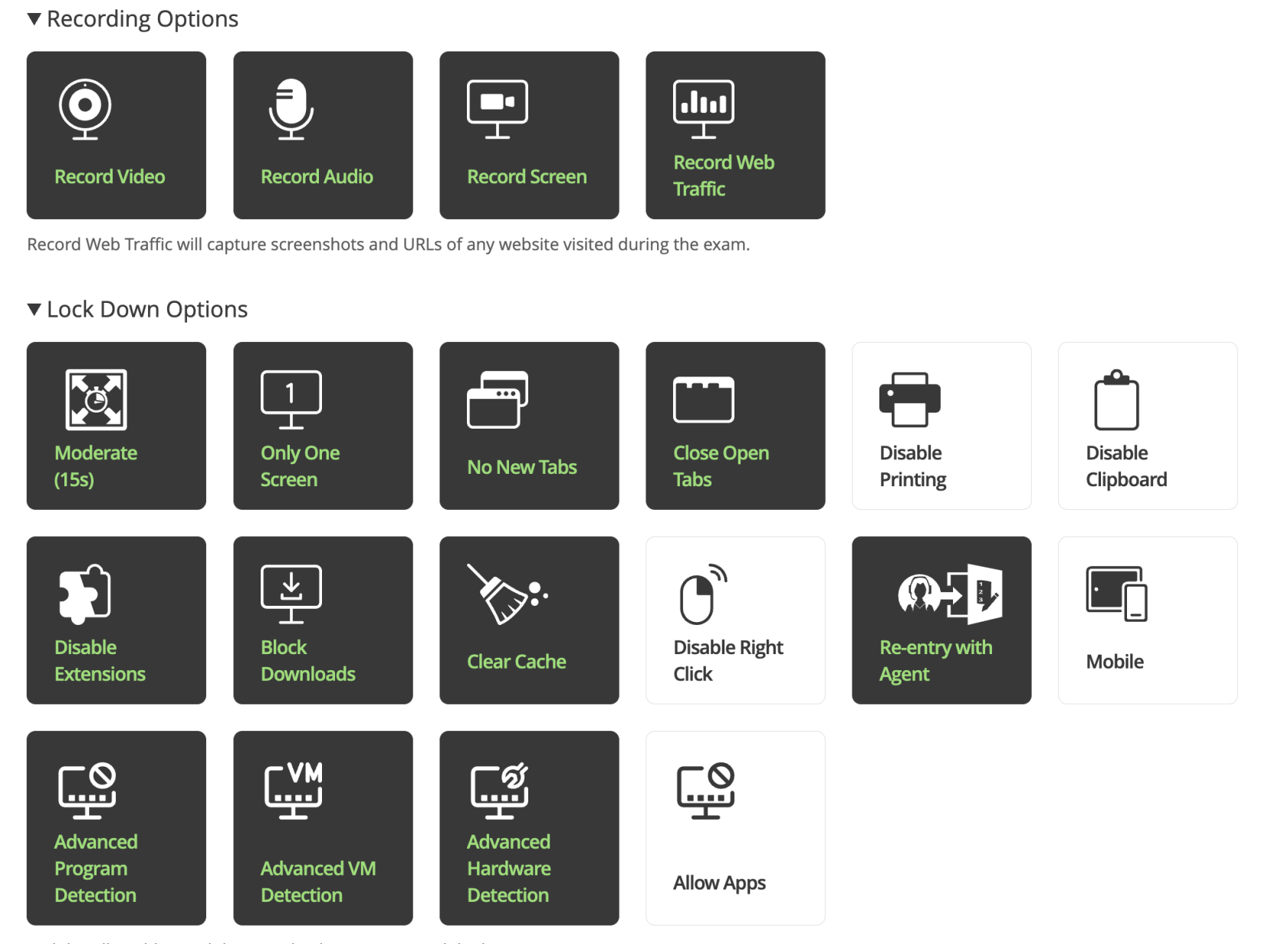
- Below are the Exam Settings we recommend if students are taking exams in the classroom.