
Proctoring Exams with Proctorio
If you are not a member of the Barnett College of Public Health and have a Proctorio request, please contact Information Technology Services (ITS) by emailing help@temple.edu.
WhatStep 1: Review the New Information for Fall Information Below
- The Proctorio Browser Extension
- The Proctorio Secure Companion Application
Due to these new settings, we require faculty complete a Proctorio Usage Acknowledgement Form and after submitting their request. Additionally, for those giving in-class Proctorio-enabled Canvas exams, it is Proctorio?strongly Proctorio integrates with Canvas and works with the Chrome web browserrecommended to securehave onlinepaper tests and ensure exams are proctored fairly and impartially. This automated system allows instructors to set controls for each exam including locking down the browser, recording and ID verification options, customized behavior settings, and more. Proctorio provides virtual proctoring options for fully online courses but can also be used to secure assessments in blended and on-campus courses. Follow the steps below to get started.
Students will need a high-speed internet connection.
Students will be prompted to install a required Chrome Proctorio browser extension.
If assessments are given online outsidecopies of the classroom,exam studentsavailable willas needbackup afor webstudents, camera,who microphone,may andhave theirtechnical Templeissues ID.Becausesome studentsreason, willcannot need to installcomplete the browserexam extension, it is required that they are provided with a practice quiz to allow them to get set up with Proctorio in advance of the exam.
Video (3:08): Proctorio Overview, by Heather Porter, Associate Professor, Barnett College of Public Healthelectronically.
Step 1:2: Submit Request to EnableYour Proctorio inRequest Yourand CanvasUsage CourseAcknowledgement Form
Proctorio is not automatically included in your Canvas course; ita license must be requested each semester, even if you used it in a prior semester. PleaseNew sendinstructors youror requestexisting instructors who would like to be trained should email cphhelp@temple.edu at least 2 weeks in advance of the first proctored exam to allow time to be trained and create a Proctorio-enabled practice quiz for students to take at least aone week in advance of the exam. Existing trained instructors must request a license and setup their exams at least 1 week in advance to allow time for the exam setting to be applied and to give students time to take a practice quiz and complete any troubleshooting with Proctorio Support prior to the exam.
To requestRequest Proctorio for your course,course emailby emailing cphithelp@temple.edu withand provide the Canvas course IDsID(s). A CPH IT staff will respond with a Qualtrics form where you must acknowledge the Proctorio requirements for all the Canvas courses in which you wish to use Proctorio.use. After you receiverespond to the Qualtrics form, CPH IT will follow up regarding licensing and next steps.
Step 3: Enable Browser Extension
After you have received confirmation that Proctorio has been enabled in your course,exam, follow thethese steps below to install the browser extension and enable Proctorio in your Canvas quizzes. steps:
Step
2: Install the Proctorio Browser Extension
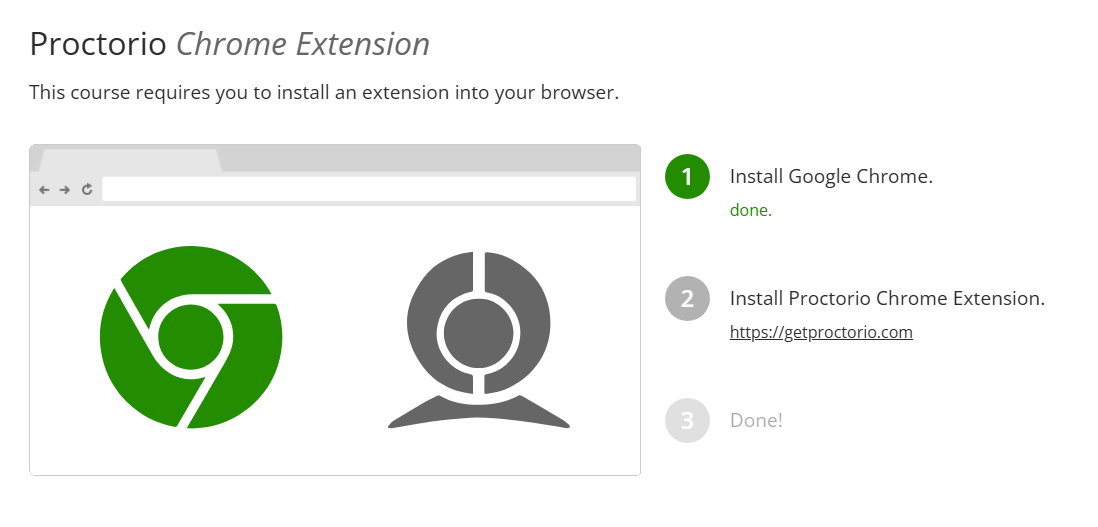
After Proctorio has been activated in your course, install the Chrome Extension:
-
Open your Google Chrome browser.
- Make sure it is up to date.
-
Go to Canvas and click on your course.
- on the left side course menu in your course.
On the course navigation menu, clickClick on Secure Exam Proctor. - Follow the steps shown below to
installenable the extension(seeinscreenshotyourbelow).browser.If you change computers, you must install the extension on that machine as well.
Step 3:4: Enable Proctorio in Your Quiz and Select Proctorio Settings
After installingadding the browserbrowser, extension,go to your existing quiz or create a new quiz and follow thethese steps below to enable Proctorio for each quiz you would like to use it with.below. If Proctorio is not enabled in the quiz settings, it will not be used for that quiz. Additionally,If Proctorio cannotSettings are not selected for the quiz, there will not be enabledprotection infor a quiz after a student has started thethat quiz.
Important: Adhering to college best practices, instructors are askedrequired to create a short practice quiz, at a minimum of 3-5 days before students take their first graded proctored exam, so they can get their machines setup properly with Proctorio.
The Proctorio-enabled quiz should contain the exact Proctorio settings you will use when you give them subsequent proctored exams. Students should take the practice quiz on the same computer they plan to use for the exam.
Enabling Proctorio in a Quiz
- To add Proctorio in a quiz you have already created, locate your quiz and click on the three dots. Click Edit. If you are creating a quiz from scratch, go to the Quizzes area of your course and click on the +Quiz button.
- Classic Quizzes: Scroll down to the Quiz Restrictions area and check the box for Enable Proctorio Secure Exam Proctor. New Quizzes: Click on Build and click on Settings. Scroll to the bottom and click on the toggle button for Enable Proctorio.
- After enabling Proctorio, the access code/password field is automatically filled in. Do not try to change this.
PleaseProctorioseeusesProctorio'sthisexplanation:toBy creating a passwordensure thatis not shared with test takers or faculty,theonly way to enter the examstudent isfromusing a supported browser with theProctorioextensionExtensioninstalledinstalled.andProctoriocompanionsecretlyappenters the password to the exam after the test takerand has passed the system pre-checks. The student will not be prompted to enter a password if they followthosethe steps. For quiz instructions, please use theseSample Proctorio Instructions.Finish selecting your quiz settings. Be sure to enterSelect a Time Limit(required by Proctorio).Proctorio strongly advises against using the "Show one question at a time" setting.- Click onare: Advanced Program Detection, Advanced VM Detection, Advanced Hardware Detection. Please refer to recommended settings based on use case below.
theProctorio Settings.tab.- Click on each Proctorio setting you would like to enable for your quiz. Settings will turn dark gray when selected. If you need to deselect a setting, click on the setting again. Hover over each setting and click on the question mark in the upper right side of each setting to learn more about a setting.
ClickImportant:on a setting to enable it for your exam. Settings will turn dark gray when selected. If you need to deselect a setting, click onthesettingthreeagain.newPleaseadvancedseeEnabling Proctorio for Students Using Text-To-Speech Technologyto selectsecurity settings tomakeprotectyouragainsttestAImorecheatingaccessible.tools - Click on each Proctorio setting you would like to enable for your quiz. Settings will turn dark gray when selected. If you need to deselect a setting, click on the setting again. Hover over each setting and click on the question mark in the upper right side of each setting to learn more about a setting.
AfterBelowselectingare the Proctorio settingsyouwewouldrecommendlikeif students are taking exams remotely. (Please note that due touse,accessibilityscrollrestrictions, we do not recommend enabling Disable Printing, Disable Clipboard, and Disable Right Click. At this time, we also do not recommend enabling Mobile or Allow Apps.) Note: Exam settings cannot be changed after the first student has started the exam.-
Force Full Screen (Moderate- 15s)
-
Only One Screen
-
Disable New Tabs
-
Close Open Tabs
-
Disable Extensions
-
Block Downloads
-
Clear Cache
-
Re-Entry with Agent
- Advanced Program Detection
- Advanced VM Detection
- Advanced Hardware Detection
-
- Below are the Exam Settings we recommend if students are taking exams in the classroom and an instructor is walking around the room. Please note that due to accessibility restrictions, we do not recommend enabling Disable Printing, Disable Clipboard, and Disable Right Click. At this time, we also do not recommend enabling Mobile or Allow Apps.) Note: Exam settings cannot be changed after the first student has started the exam.
-
Record Video
-
Record Audio
-
Record Screen
-
Record Web Traffic
-
Force Full Screen (Moderate 15s)
-
Only One Screen
-
Disable New Tabs
-
Close Open Tabs
-
Disable Extensions
-
Block Downloads
-
Clear Cache
-
Re-Entry with Agent
- Advanced Program Detection
- Advanced VM Detection
- Advanced Hardware Detection
- Verify Video
- Verify Audio
- Verify Desktop
-
- Make any changes to the
bottomProctorioandBehavior Settings if you would like. - When finished selecting settings click
onSaveSettings.Settings at bottom left (New Quizzes) or Save at the bottom right (Classic Quizzes). -
Save the quiz. You will now see (Remotely Proctored) added to the name of the quiz. Do not change the name.
Step
5: (After the first student begins the exam, Proctorio settings cannot be changed.
Video (7:43): Setting Up Your Quiz, by Heather Porter, Associate Professor, Barnett College of Public Health
Proctorio-Enabled Exams Copied from a Previous Semester:
If you copied exams that used Proctorio from another course, follow the process below to ensure that Proctorio-enabled quizzes copied from a previous semester will properly import the Proctorio settings.
Submit your request to have Proctorio enabled in your Canvas course and wait until you receive confirmation that Proctorio has been activated in your course before moving to the next step.Install the Proctorio Browser Extension.Click on a quiz that was copied.A green banner at the top of the page will show the message that Proctorio settings were successfully copied.ClickEditbutton for your quiz.Wait a few seconds until you see a Proctorio Settings tab. Click on theProctorio Settingstab.Scroll down and clickSave.Repeat this process for each quiz.
If this initiation process is not completed for each copied exam, it could lead to the exam's Proctorio Gradebook perpetually displaying the "The exam has not been taken by a test-taker yet" message. (Steps above provided in the Proctorio Instructor Guide.)
Step 4:Exam) Review Proctorio Results
-
Click on the name of the quiz that you want to
reviewreview. -
Click on Proctorio Review
Proctorio GradebookCenter..A list of the students that took the test will be displayed, as well as suspicion levels for eachstudentstudent. -
Click on the Eye icon next to
viewa student'stestname to view the student's attempt.
Tips and Best Practices
-
VideoStudents(6:07):and instructors should always use the latest version of the Chrome web browser when interacting with a Proctorio-enabled exam.
-
When you are on your course page in Canvas, you can access 24/7 live chat to address any questions you have; click on the puzzle piece icon in the upper right of your browser and click on the Secure Exam Proctor gray shield.
-
Direct students to
ReviewingProctorio's Support for Test-Takers page web page; you do not have to support ProctorioResults,questionsbyorHeatherissuesPorter,yourself.Associate
-
Do not change the exam title once the exam has been created.
-
Do not select "Show one question at a time." This option could cause issues with the test having to load multiple times with Proctorio.
-
You will not be able to change the Proctorio settings for a test once a student has started the test.
-
If you are giving an in-class exam, have paper copies of
PublictheHealthexam
available as backup for students, who may have technical issues and, for some reason, cannot complete the exam electronically.
Help for Students During an Exam
It is important that students understand how to get technical support while taking a Proctorio-enabled exam. Students must contact Proctorio Support directly by using the Live Chat which can be accessed via the browser extension. By clicking on Live Chat, they will be connected to an agent who will assist them. Support is available 24/7. Additional details can be found on our Proctorio Support Information for Students page and on Proctorio's Support for Test-Takers page.
Tips and Best Practices
Students and instructors should always use the latest version of the Chrome web browser when interacting with a Proctorio-enabled exam.
When you are on your course page in Canvas, you can access 24/7 live chat to address any questions you have; click on the gray shield icon in the top right-hand corner of your Chrome browser.
Direct students toProctorio's Support for Test-Takers pageweb page; you do not have to support Proctorio questions or issues yourself.
Do not change the exam title once the exam has been created.
Do not select "Show one question at a time." This option could cause issues with the test having to load multiple times with Proctorio.
You will not be able to change the Proctorio settings for a test once a student has started the test.
Under “Course Information” within a Canvas course, consider creating an “Electronic Proctoring” module that contains information similar to the text below. It is also helpful to include information in the course syllabus.
Prior to students taking a Proctorio quiz/exam, have students read about Proctorio and take a practice quiz configured with the exact Proctorio lockdown features that will be used in upcoming exams in the course.
If you are giving an in-class exam, have paper copies of the exam available as backup for students, who may have technical issues and, for some reason, cannot complete the exam electronically.
Benefits of Proctorio
Unlimited exams and review for one year per userFully automated system for ID verification, recording, and behavioral monitoringFull video, audio, and desktop recordingInstructor control of the level of securityFlexible lockdown browserHardware verificationCentralized student records and violation reporting24/7/365 support
Video (2:51): Strengths and Weaknesses of Proctorio, by Heather Porter, Associate Professor, Barnett College of Public Health
Remote Proctoring Statement for Students
Zoom, Proctorio or a similar proctoring tool may be used to proctor exams and quizzes in this course. These tools verify your identity and record online actions and surroundings. It is your responsibility to have the necessary government or school issued ID, a laptop or desktop computer with a reliable internet connection, the Google Chrome browser and Proctorio extension, a webcam/built-in camera and microphone, and system requirements for using Proctorio, Zoom, or a similar proctoring tool.