
Voicemail
Access Your Voicemail Information Menu
- Open Teams.
- Click on the Calls telephone icon.
- Dial *62 and call. Then enter your passcode followed by the # key.
Create a Personal Greeting
- Open Teams.
- Click on the Calls telephone icon.
- Dial *62 and call. Then enter your passcode followed by the # key.
- Press 1 and perform one or more of the following:
- Press 2 to create/update a busy greeting for when you are on the phone.
- Press 3 to create a no answer greeting when you are away from your desk.
Retrieve Your Messages
Voicemails are automatically sent to your Temple email.
Reset/Change Your Voicemail Password
Your voice mailbox is automatically locked after five invalid login attempts. If you have trouble resetting your passcode, or simply have a question, please contact Telecommunications at 215-777-VOIP or via email at telecom@temple.edu.
| 1. Go to tuportal.temple.edu | |
| 2. Click on the home tab. | |
| 3. Under TUApplications, click Telecom Self Service. |
|
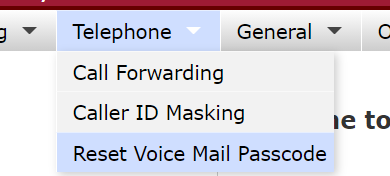
| 4. Hover over the Telephone tab, and click Reset Voicemail Password. |
|
| 5. Click the checkboxes to confirm that you agree. | |
| 6. Click Click here to Reset Voice Mail Passcode to update passcode. |
|
| 7. An email from Telcom will be sent. This email will |
|


Extended Absence Greeting
If you will be on vacation or out of the office, you can record an extended absence greeting on your voicemail. To do so:
- Open Teams and call into your voicemail. Then enter your passcode followed by the # key.
- Press 1 to access your voice mailbox.
- Press 6 to change your mailbox extended away greeting.
- Press 3 and follow the prompts to record and activate a new greeting.
When you return to the office, you can remove the extended absence greeting by following steps 1 through 3 above. When prompted after step 3, press 2 to deactivate your extended absence greeting.
Voicemail Help
Please contact Telecommunications at 215-777-VOIP or via email at telecom@temple.edu.