
Voicemail
Access Your Voicemail Information Menu
- Open Teams.
- Click on the Calls telephone icon.
- Dial *62 and call. Then enter your passcode followed by the # key.
Create a Personal Greeting
- Open Teams.
- Click on the Calls telephone icon.
- Dial *62 and call. Then enter your passcode followed by the # key.
- Press 1 and perform one or more of the following:
- Press 2 to create/update a busy greeting for when you are on the phone.
- Press 3 to create a no answer greeting when you are away from your desk.
Retrieve Your Messages
Voicemails are automatically sent to your Temple email.
Change Your Voicemail Password
- Open Teams.
- Click on the Calls telephone icon.
- Dial *62 and call. Then enter your passcode followed by the # key.
- Press 4 and follow the steps to reset.
Reset Your Voicemail Password
Your voice mailbox is automatically locked after five invalid login attempts. If you have trouble resetting your passcode, or simply have a question, please contact Telecommunications at 215-777-VOIP or via email at telecom@temple.edu.
| 1. Go to tuportal.temple.edu | |
| 2. Click on the home tab. | |
| 3. Under TUApplications, click Telecom Self Service. |
|
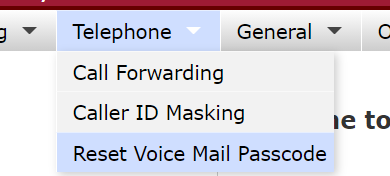
| 4. Hover over the Telephone tab, and click Reset Voicemail Password. |
|
| 5. Click the checkboxes to confirm that you agree. | |
| 6. Click Click here to Reset Voice Mail Passcode to update passcode. |
|
| 7. An email from Telcom will be sent. This email will contact a temporary password that you can use to login to you voicemail. After using that temporary password, you will be prompted for a new password. |
|


Extended Absence Greeting
If you will be on vacation or out of the office, you can record an extended absence greeting on your voicemail. To do so:
- Open Teams and call into your voicemail. Then enter your passcode followed by the # key.
- Press 1 to access your voice mailbox.
- Press 6 to change your mailbox extended away greeting.
- Press 3 and follow the prompts to record and activate a new greeting.
When you return to the office, you can remove the extended absence greeting by following steps 1 through 3 above. When prompted after step 3, press 2 to deactivate your extended absence greeting.
Voicemail Help
Please contact Telecommunications at 215-777-VOIP or via email at telecom@temple.edu.