
Accessing Conference Room Calendars
You can access the new calendar system in several ways, depending on your device and preferred platform:
Web Browser (View Only): Access via a browser for read-only calendar viewing.
Outlook on Windows or Web: Full access to view, create, and manage calendar events.
Outlook on Mac: Supports full calendar functionality.
Outlook Mobile App: View and manage calendars on your mobile device.
Outlook Application
Windows (and Web)
|
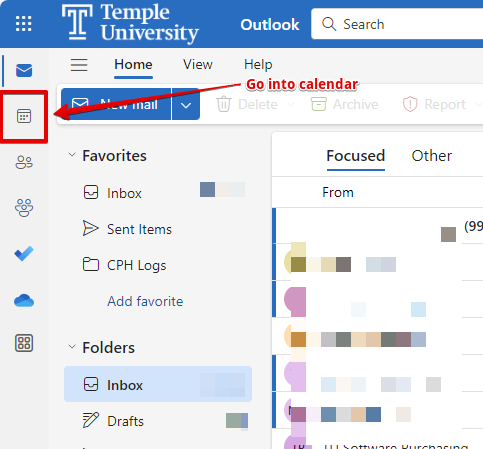
1. Load Outlook and go into the Calendar app.
|
 |
|
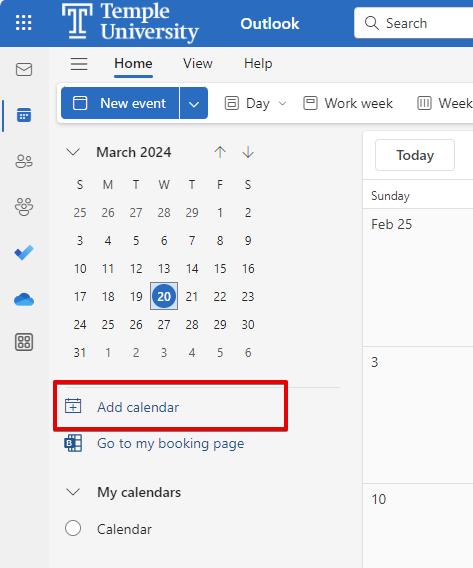
2. Select Add calendar.
|
 |
|
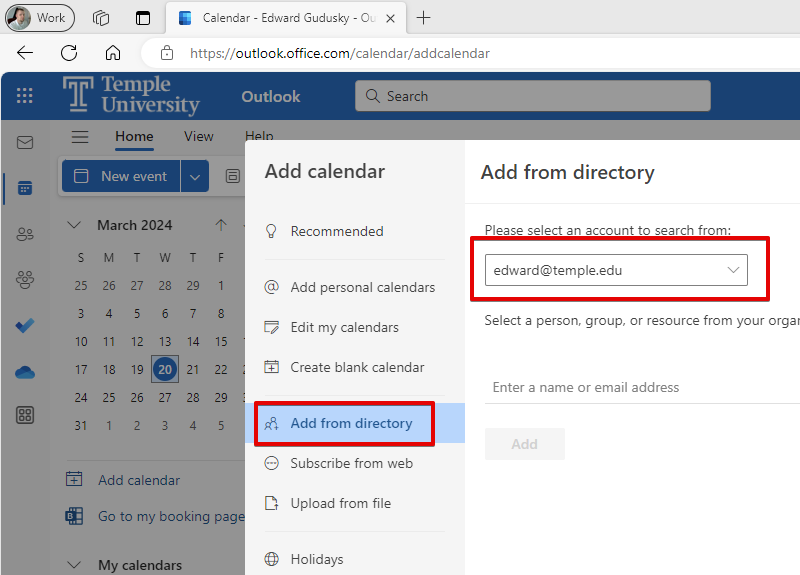
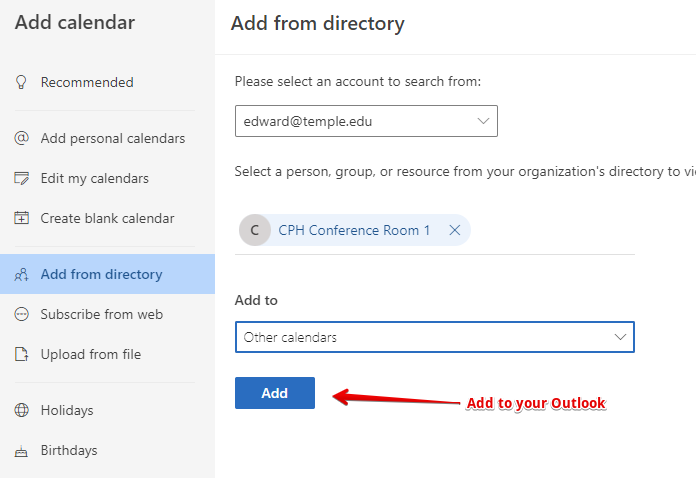
3. Select Add from directory.
|
 |
|
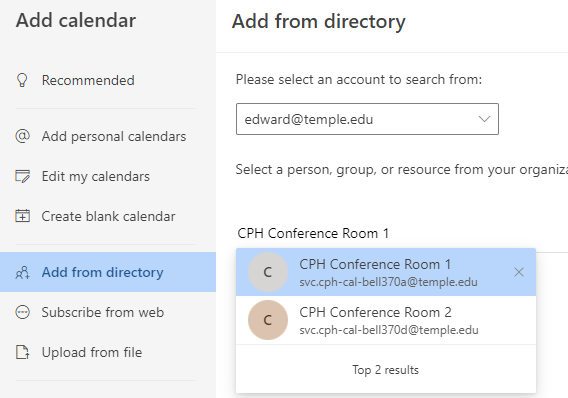
4. Type the name of the conference room (ex. CPH Conference Room 1).
|
 |
|
5. Click Add.
|
 |
|
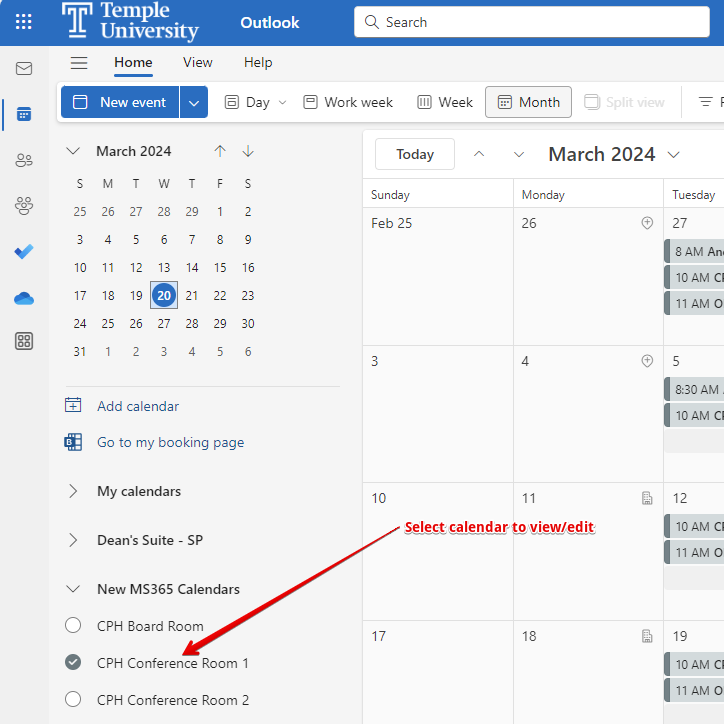
6. Select the calendar from the left hand side to view/manage.
|
 |
Windows (Classic Version)
|
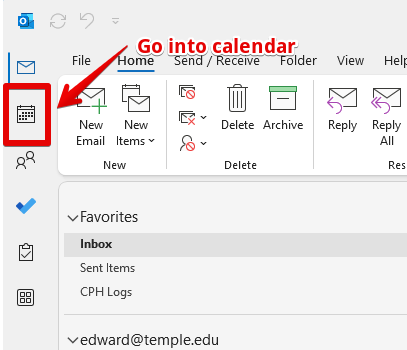
1. Load Outlook and go into the Calendar app.
|
 |
|
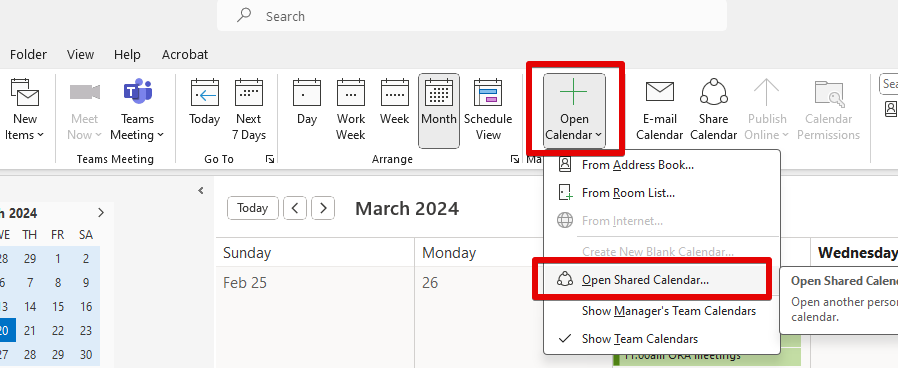
2. Select Open Calendar then Open Shared Calendar.
|
 |
|
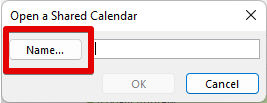
3. Click the Name button.
|
 |
|
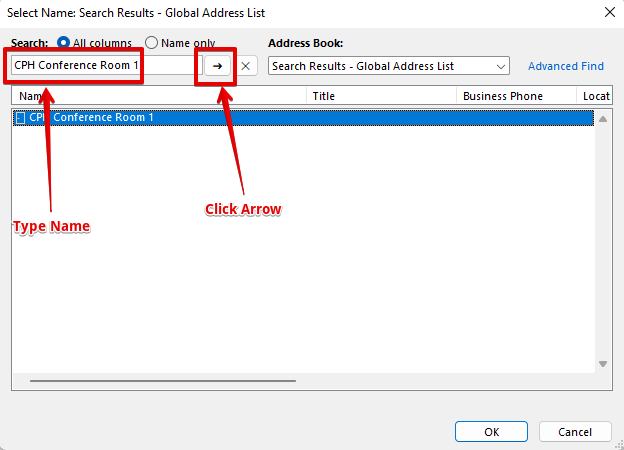
4. Type the name of the conference room (ex. CPH Conference Room 1) and click the arrow.
|
 |
|
5. Highlight the calendar and click OK.
|
|
|
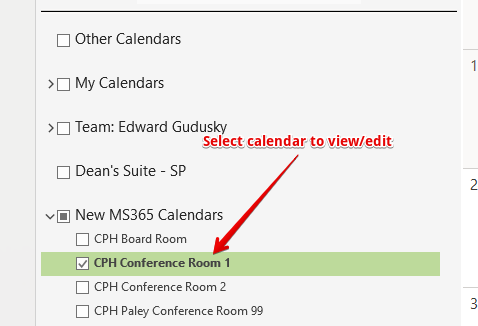
6. Select the calendar from the left hand side to view/manage.
|
 |
Outlook for Mac
|
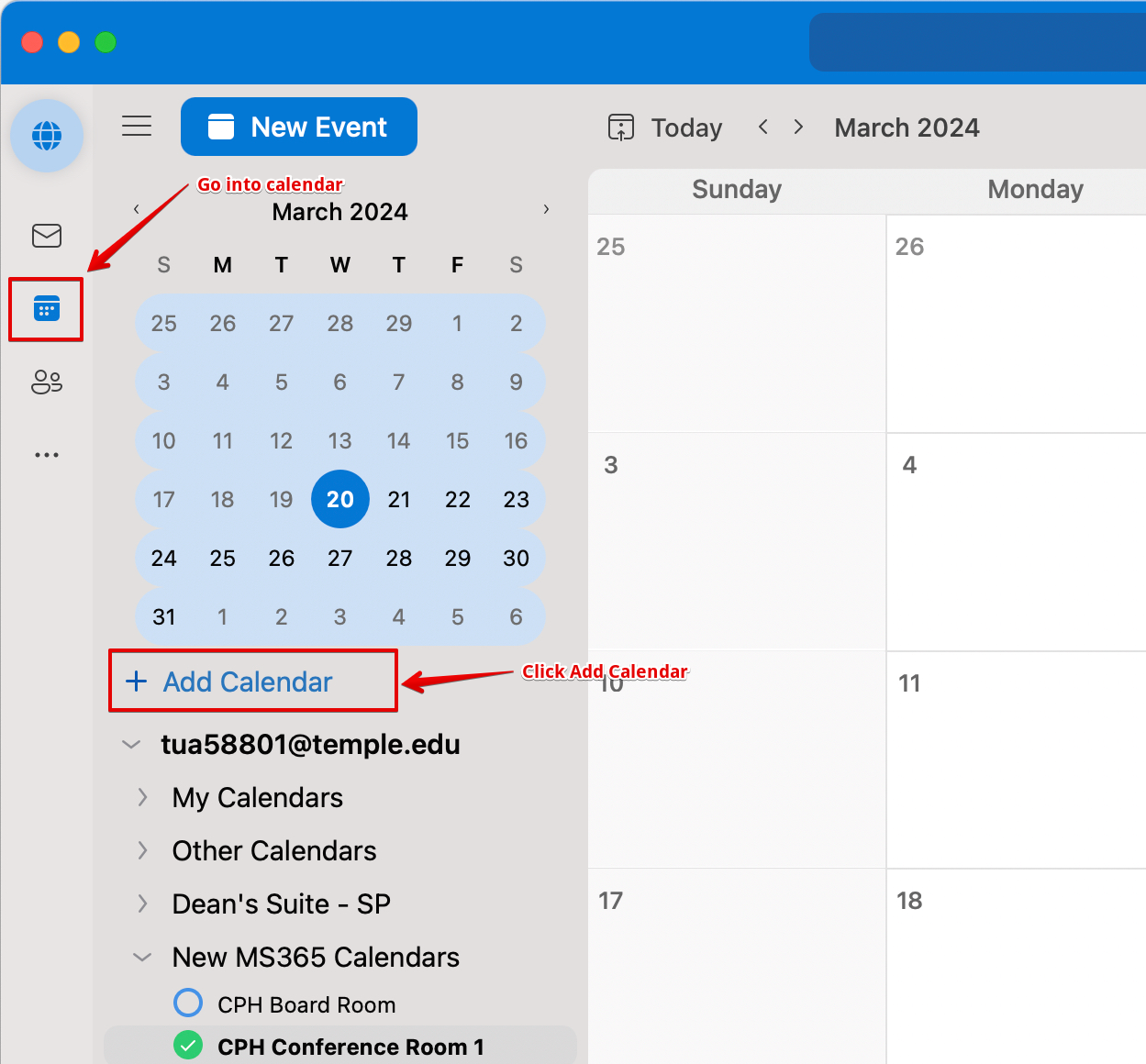
1. Load Outlook and go into the Calendar app.
|
 |
|
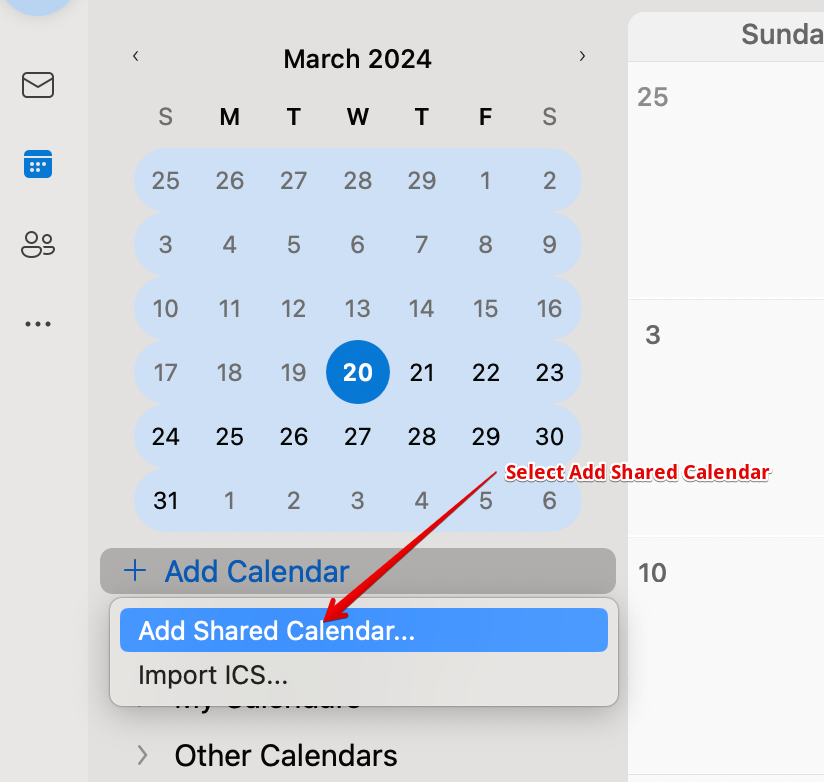
2. Select Add calendar then Add Shared Calendar.
|
 |
|
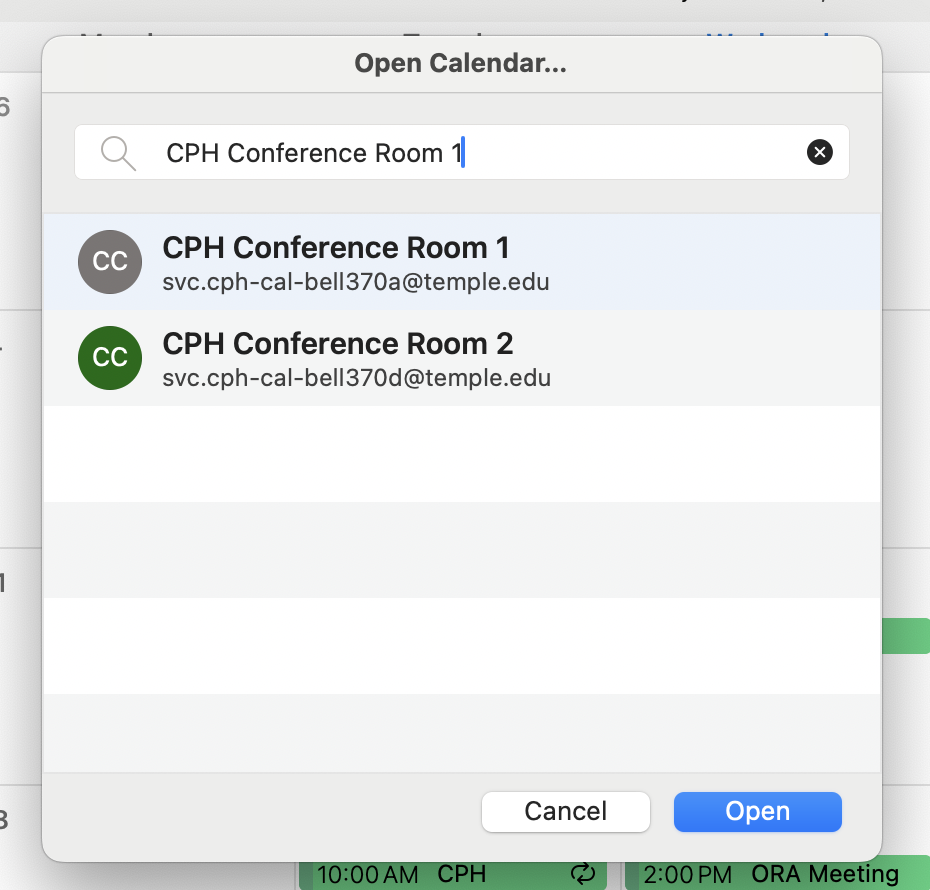
3. Type the name of the conference room (ex. CPH Conference Room 1) and click Open.
|
 |
|
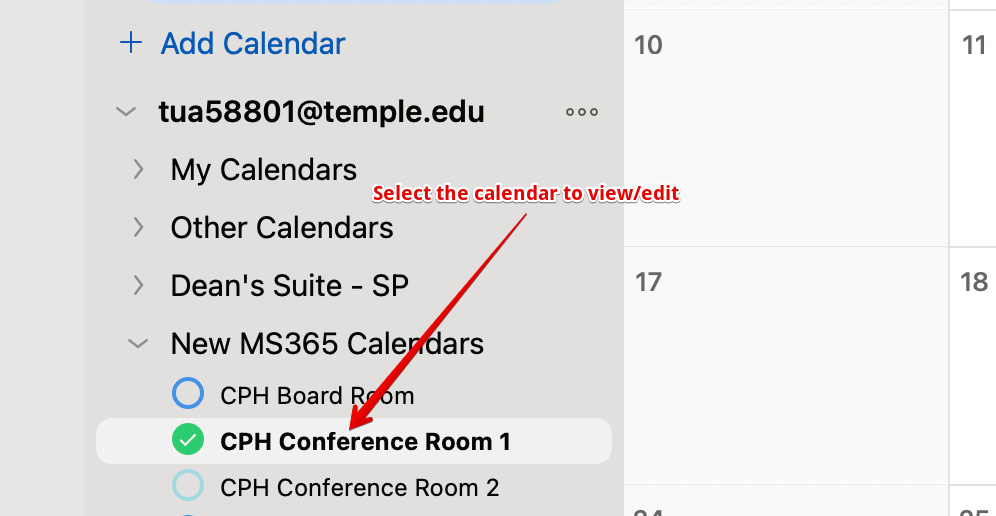
4. Select the calendar from the left hand side to view/manage.
|
 |
Outlook Mobile Application
|
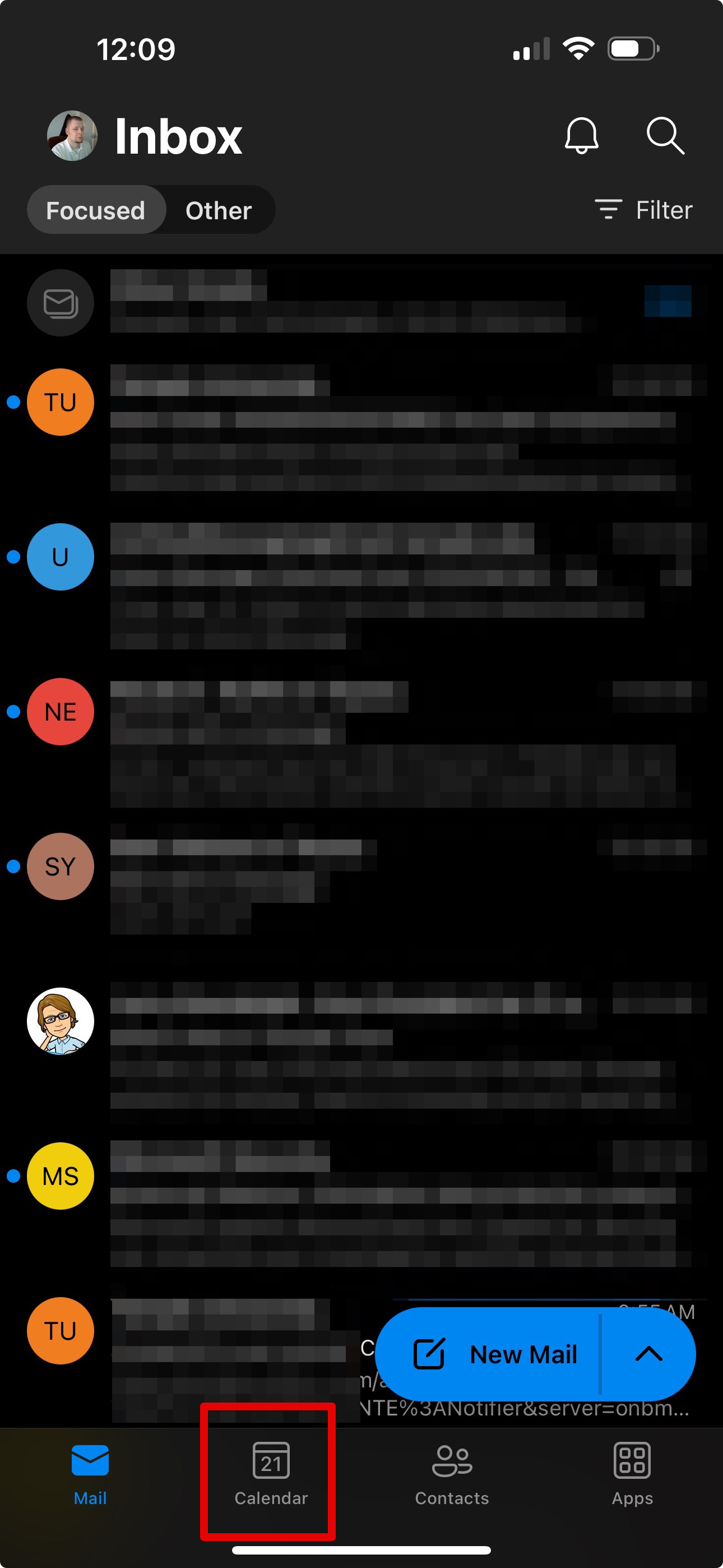
1. Load Outlook and go into the Calendar app.
|
 |
|
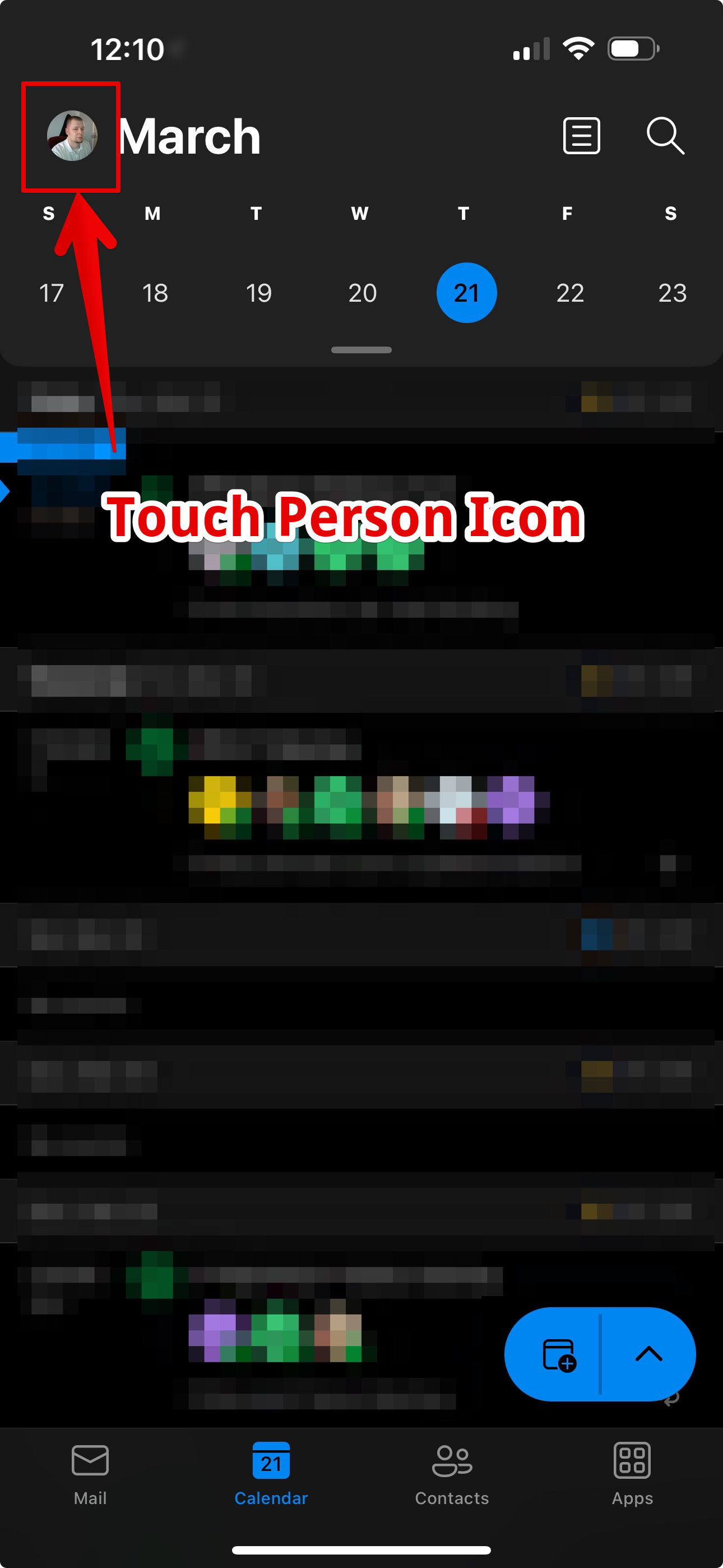
2. Touch your name icon to open the calendar menu.
|
 |
|
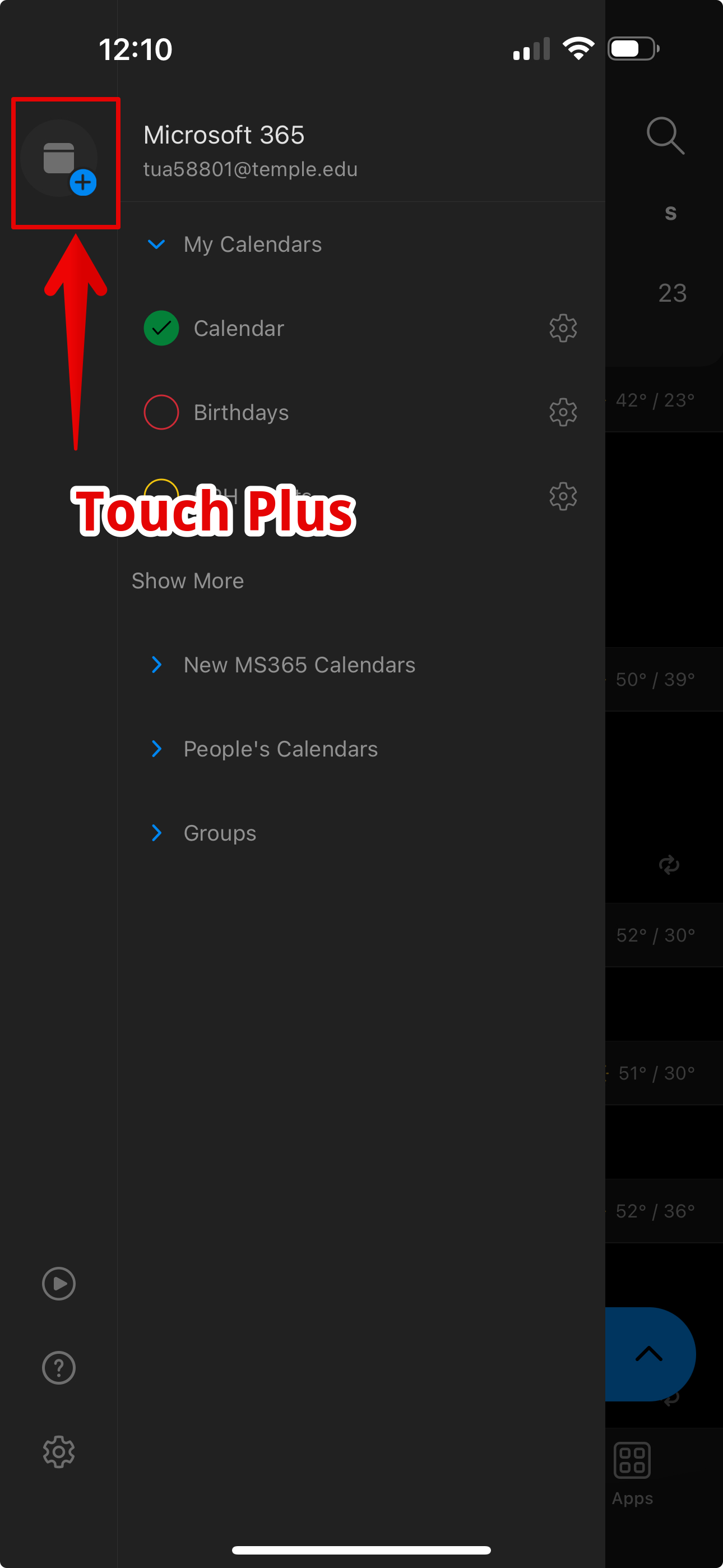
3. Touch the plus icon.
|
 |
|
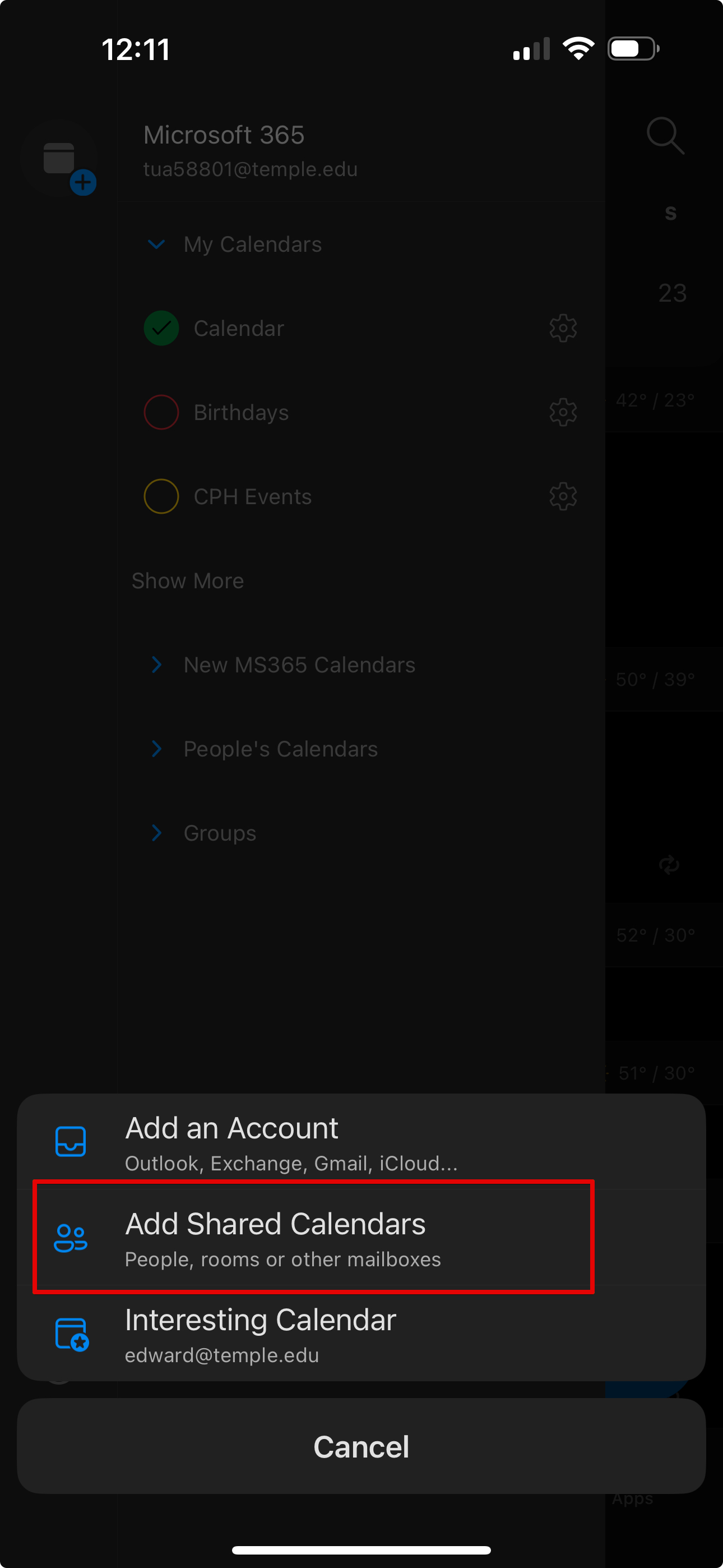
4. Touch Add Shared Calendars.
|
 |
|
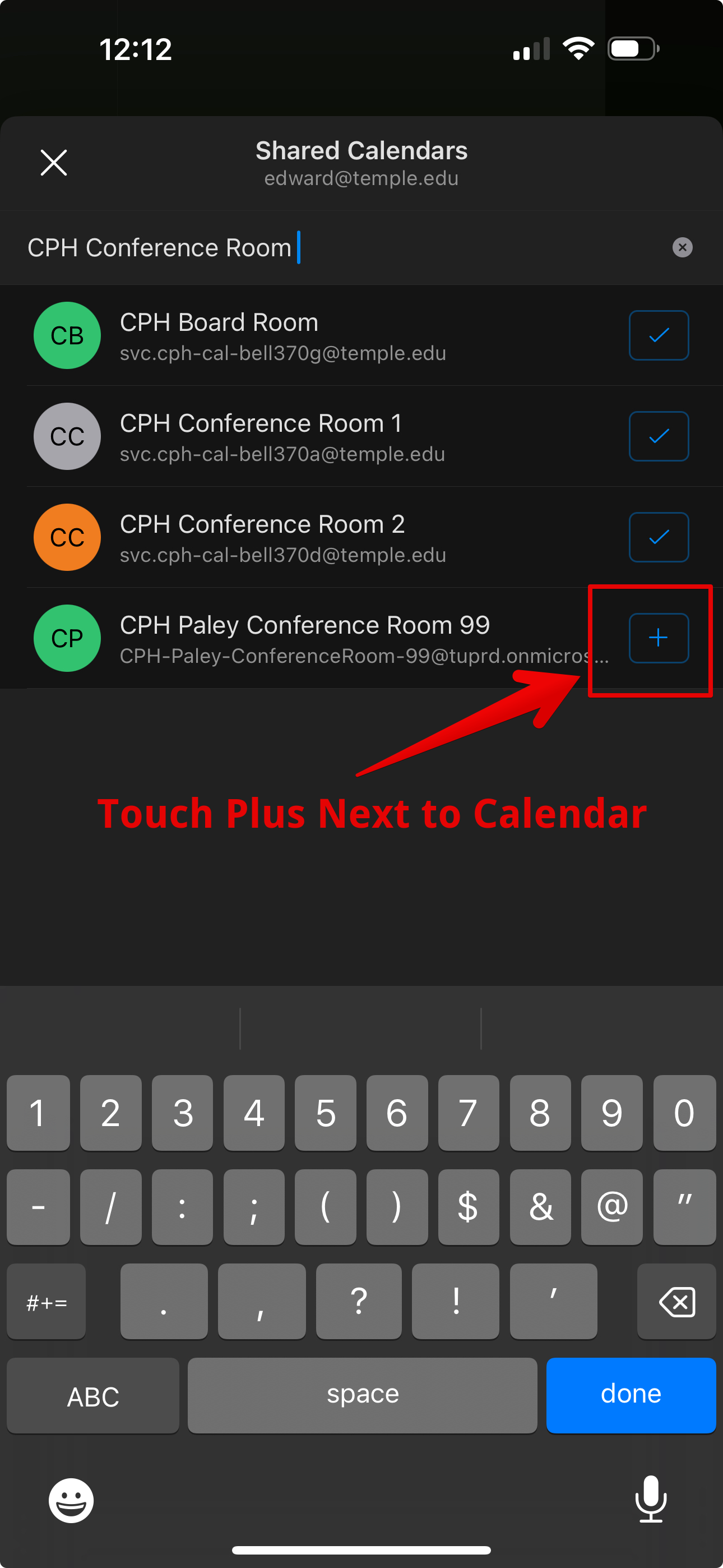
5. Type the calendar name and click the Plus next to the name.
|
 |
|
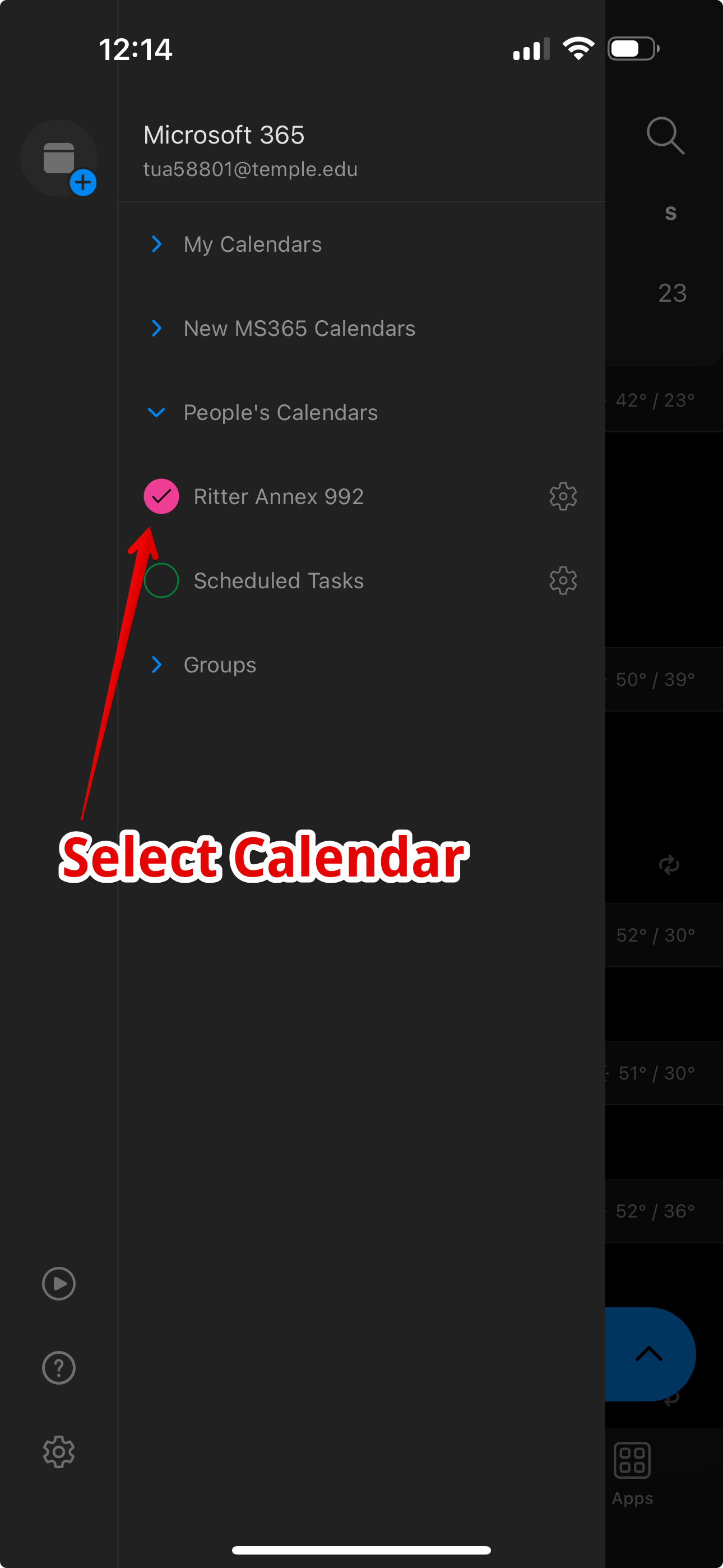
6. Make sure the calendar you want to view/edit is checked.
|
 |