
Insta360 App Instructions
Recording with Insta360 App
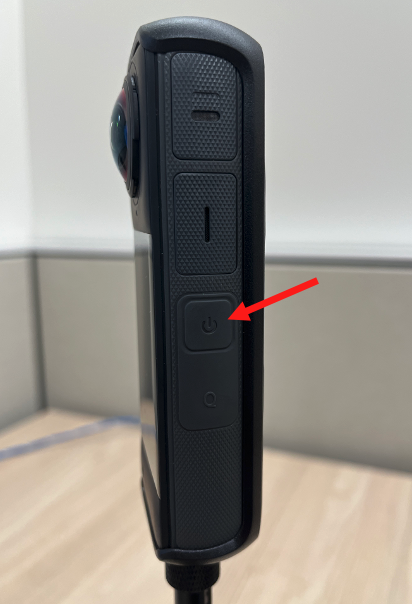
| 1. Turn on the Camera by pressing the side power button |
|
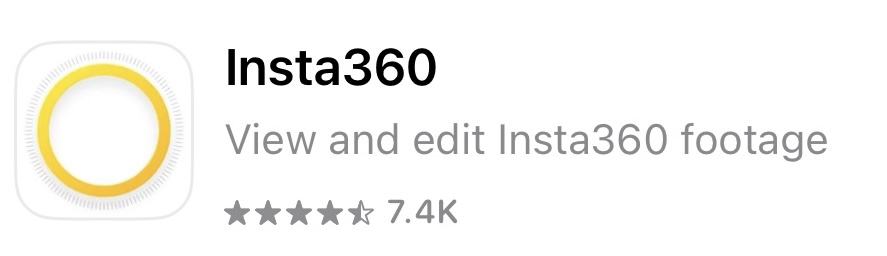
| 2. Open Insta360 App on your phone |
|
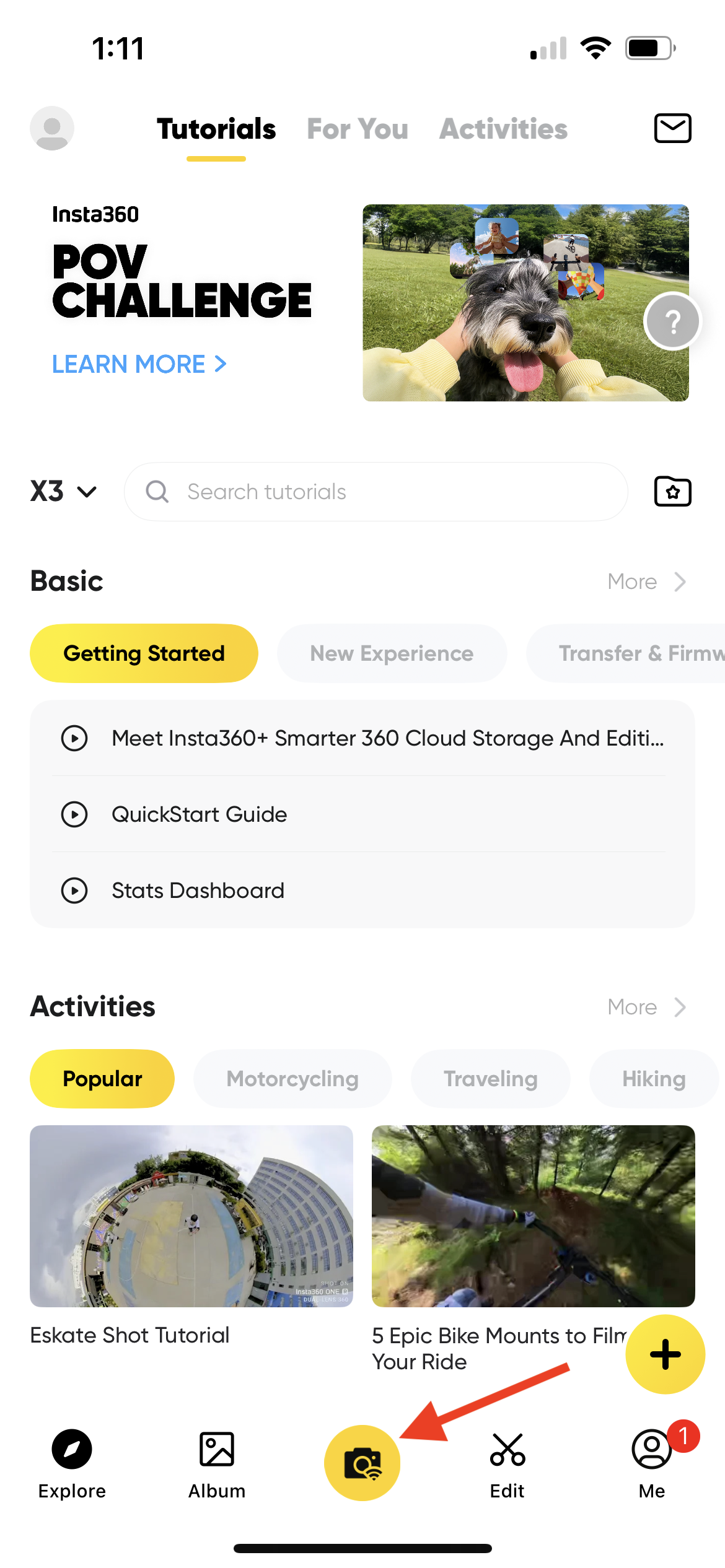
| 3. Press the yellow camera button (it may prompt you to reconnect to the camera- follow the on-screen steps) |
|
| 4. Click Join to connect to the network again | |
| 5. Press the yellow camera button again | |
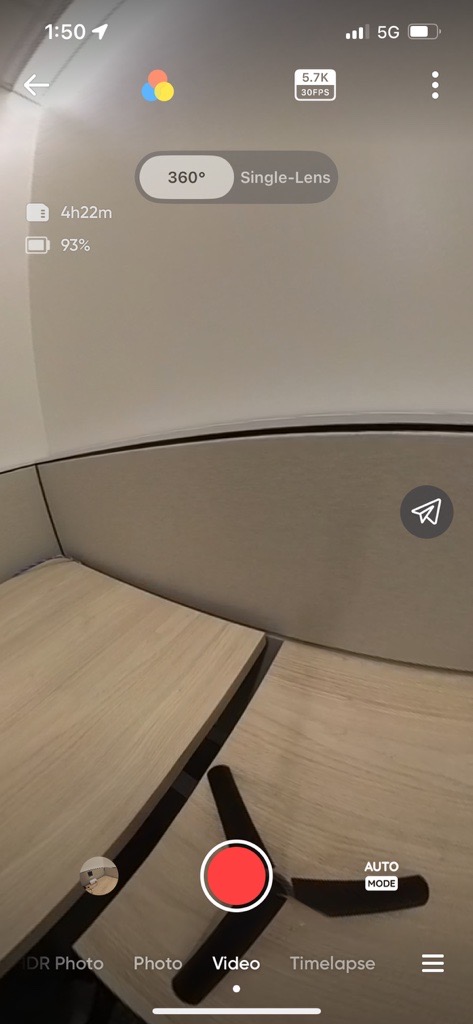
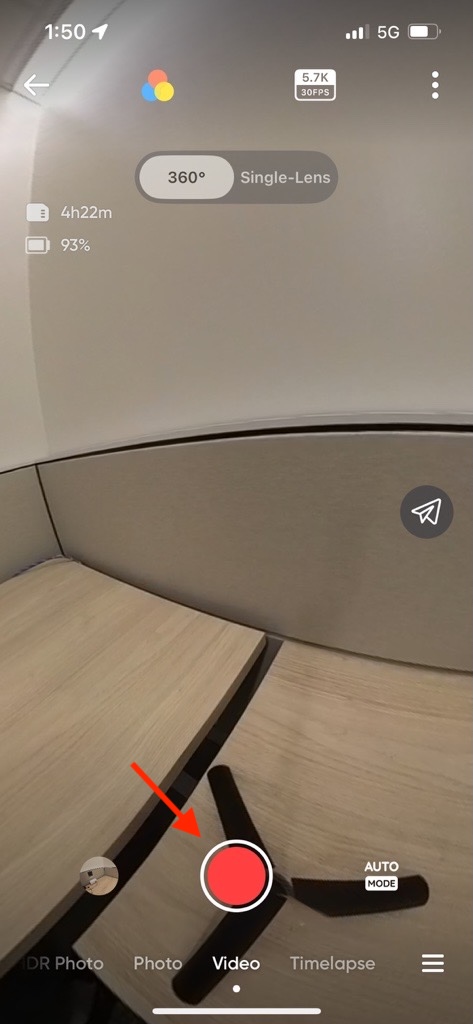
| 6. Confirm your settings: |
|
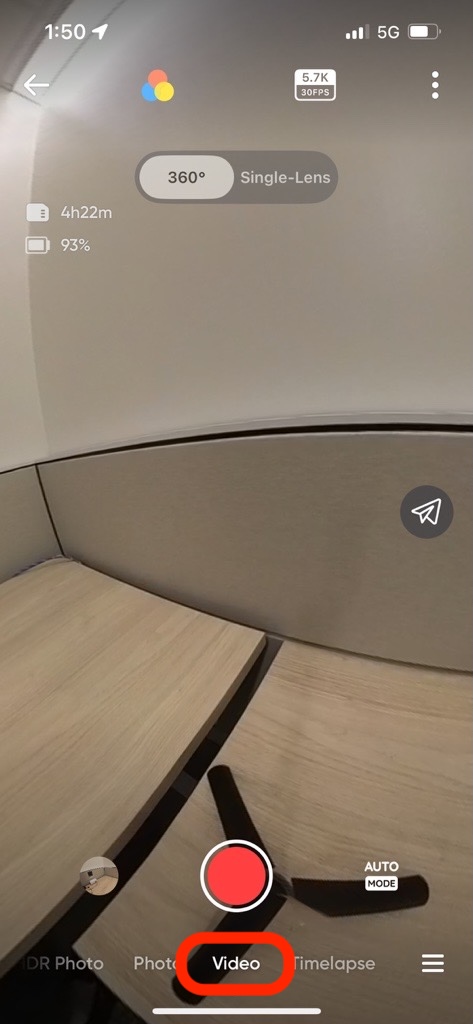
| 6a. Make sure Video is selected |
|
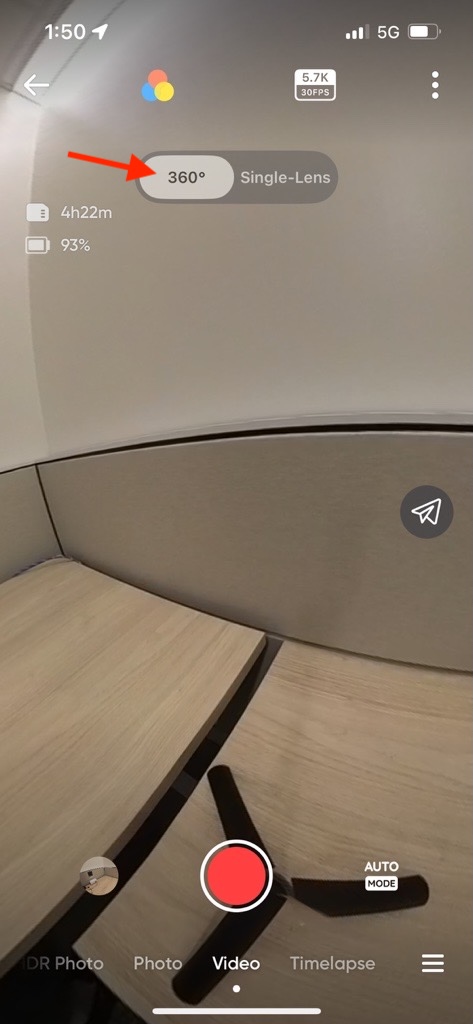
| 6b. Select 360 |
|
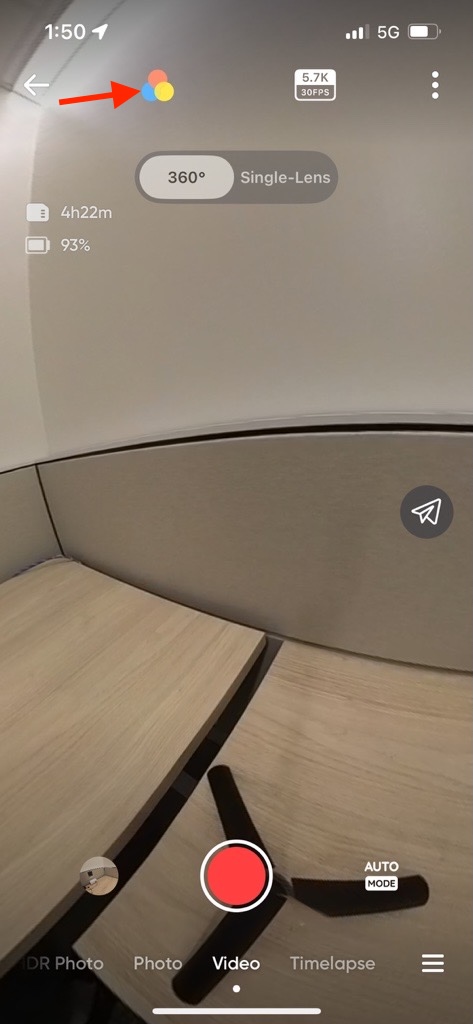
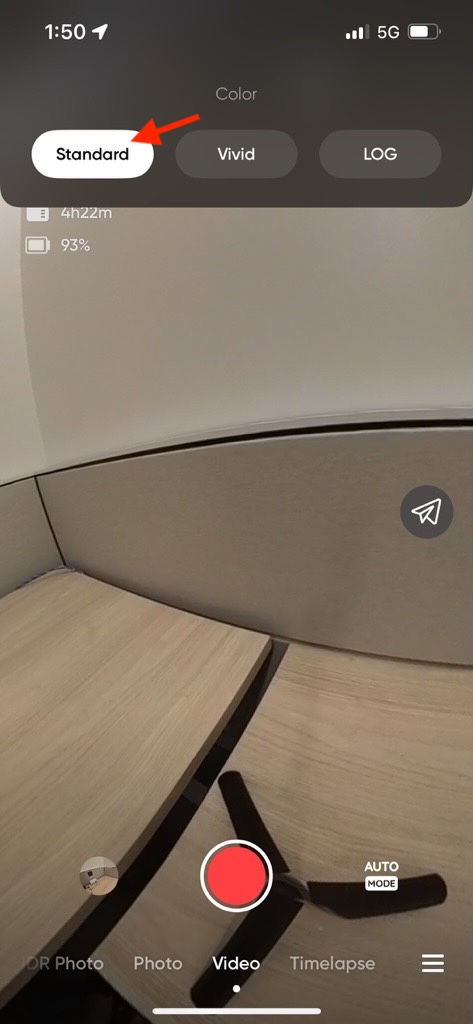
| 6c. Tap the color icon and select Standard |
|
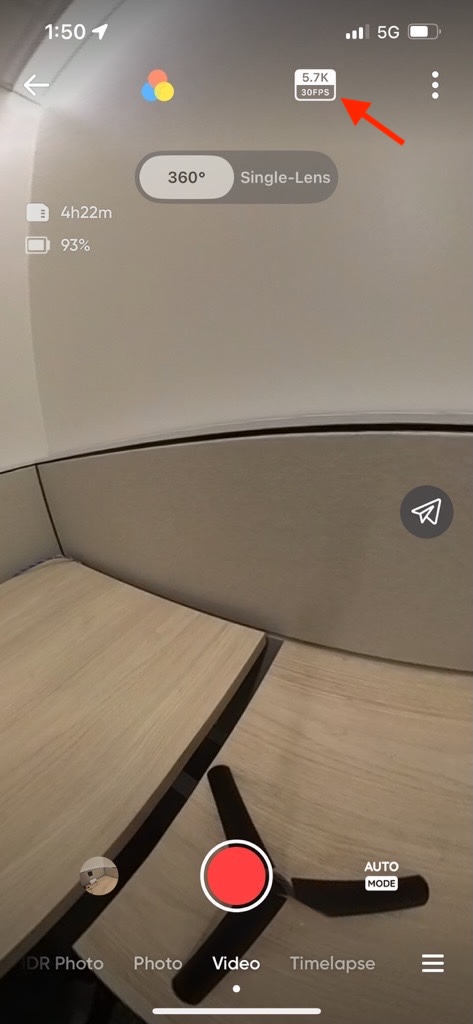
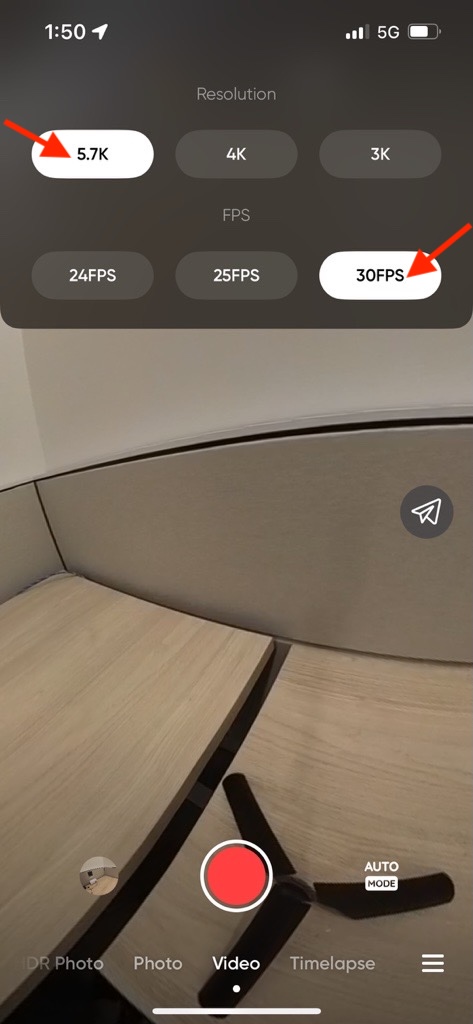
| 6d. Tap the Resolution and FPS button and select 5.7k and 30 FPS |
|
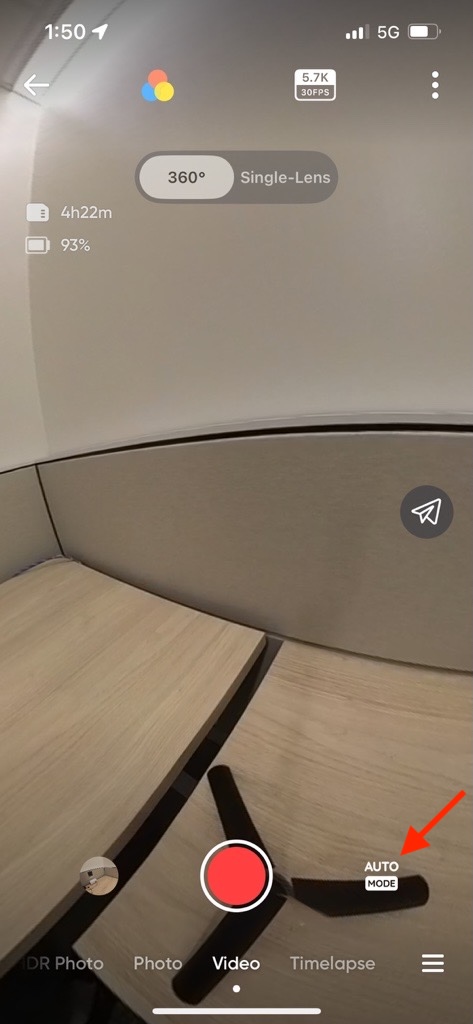
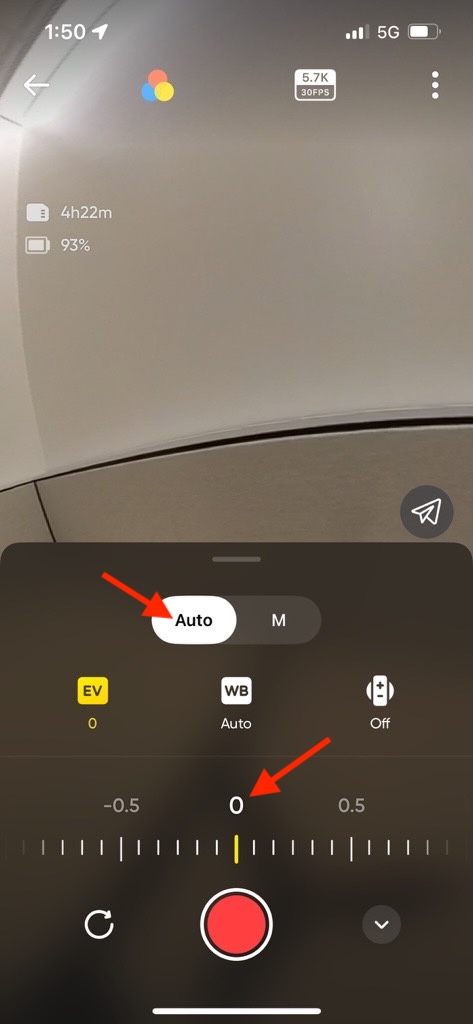
| 6e. Tap the mode button and make sure Auto is selected and EV is set to 0 |
|
| 7. After the settings are correctly selected, press the red button to begin recording. Note that the screen on the camera itself will go dark when using the app. |
|
Exporting Videos from Insta360 App