
Dashboard

Once you log in to Exxat PRISM at https://login.exxat.com

As of mid-2026, the Dashboard page for Prism looks like the following
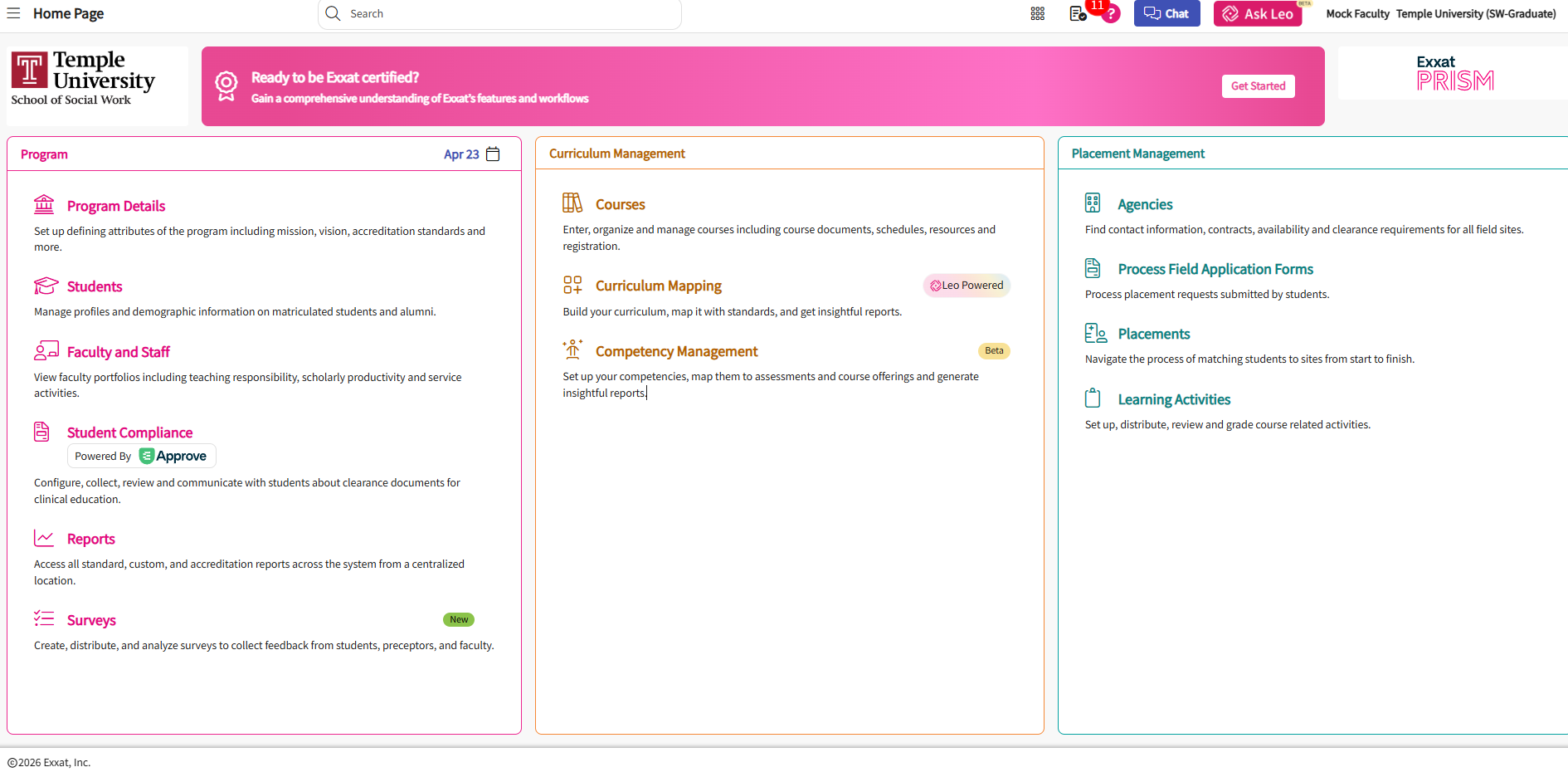
image.png

image of Exxat PRISM dashboard - https://login.exxat.com 

You'll notice three sections from left to right- Program, Curriculum Management, and Placement Management. You will need access to pages listed under each section; however, there are many sections and functionality of  Exxat that you will not need to utilize due to program and institutional configuration.

 

image.png

image of the top menu items in Exxat PRISM - https://login.exxat.com 
  1. Side menu - also called a "hamburger menu" in Exxat directions, this can be accessed for navigation from any page
  2. Name of current page
  3. Main Dashboard link - if you have access to just one program, you will link to it from here. If you have access to more than one program instance (e.g. MSW and BSW, BSN and ABSN), this will link to a landing page where you can switch between programs
  4. Resource Center - this gives you a range of icons
  5. Chat - chat with Exxat support
  6. Release notes - this is now linked under the Resource Center icon
  7. Ask Leo - this opens an AI chat bot
  8. User profile - this displays your name and program. Clicking the down arrow to the right will bring up configuration settings


Screenshot 2026-04-23 153657.png

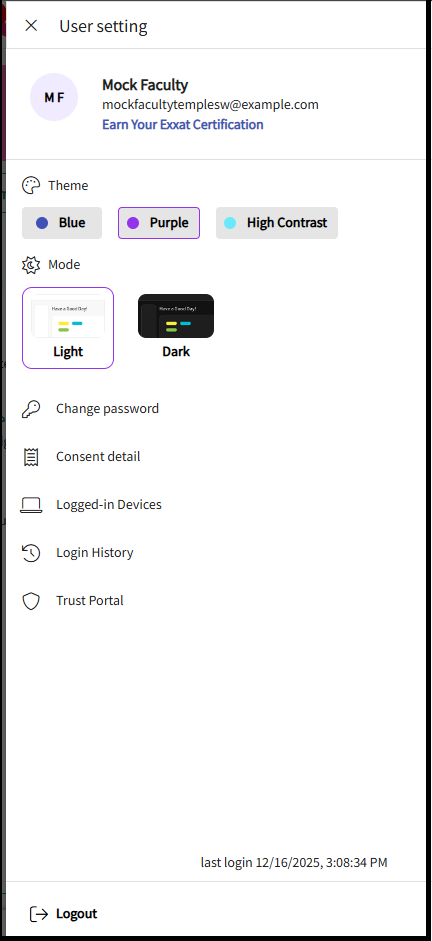
User profile settings

From this page you can change the background theme, light settings, consent detail, Please note - you cannot change your password as we utilize single sign on (SSO)