Advanced Security Proctorio Settings- Draft
As you may be aware, there are AI cheating applications that students may be using to get around browser-based proctoring tools. The current version of Proctorio at Temple uses the Google Chrome browser plug-in.
Proctorio has a new version that addresses these issues. It can be enabled on a course by course basis this summer. This updated tool runs as an application. This is designed to block any outside applications trying to allow students to cheat during the exam.
We just recently received access to this new version and are currently testing it.
Faculty now have the option to pilot the new version of the Proctorio tool
-
The current version, which is browser based and prone to AI cheating tools circumventing Proctorio in the browser plug-in version. If giving in-class exams, faculty are advised to walk around the room.
-
Use the newest version, which we are still testing, but by design is now run as an application, which blocks these AI and other tools from interfering with the Proctorio application. This version I am told was beta tested in the spring in a courseat Temple, outside of BCPH. Feedback was that it worked well.
To enable the new version, please follow these steps:
Step 1: Submit Your Proctorio Request
Request Proctorio for your course by emailing cphithelp@temple.edu and provide the course ID. In your request, indicate that you would like to use the new version of Proctorio.
Step 2: Enable Plugin
After you have received confirmation that Proctorio has been enabled in your exam, follow these steps:
-
- Click on Secure Exam Proctor on the left side course menu in your course
- Follow the steps to enable the plugin
Step 3: Add Advanced Security Settings to Quiz
After adding the plugin, go to your existing quiz or create a new quiz and follow these steps:
-
- Enable Proctorio in your quiz and go to the Proctorio Settings area
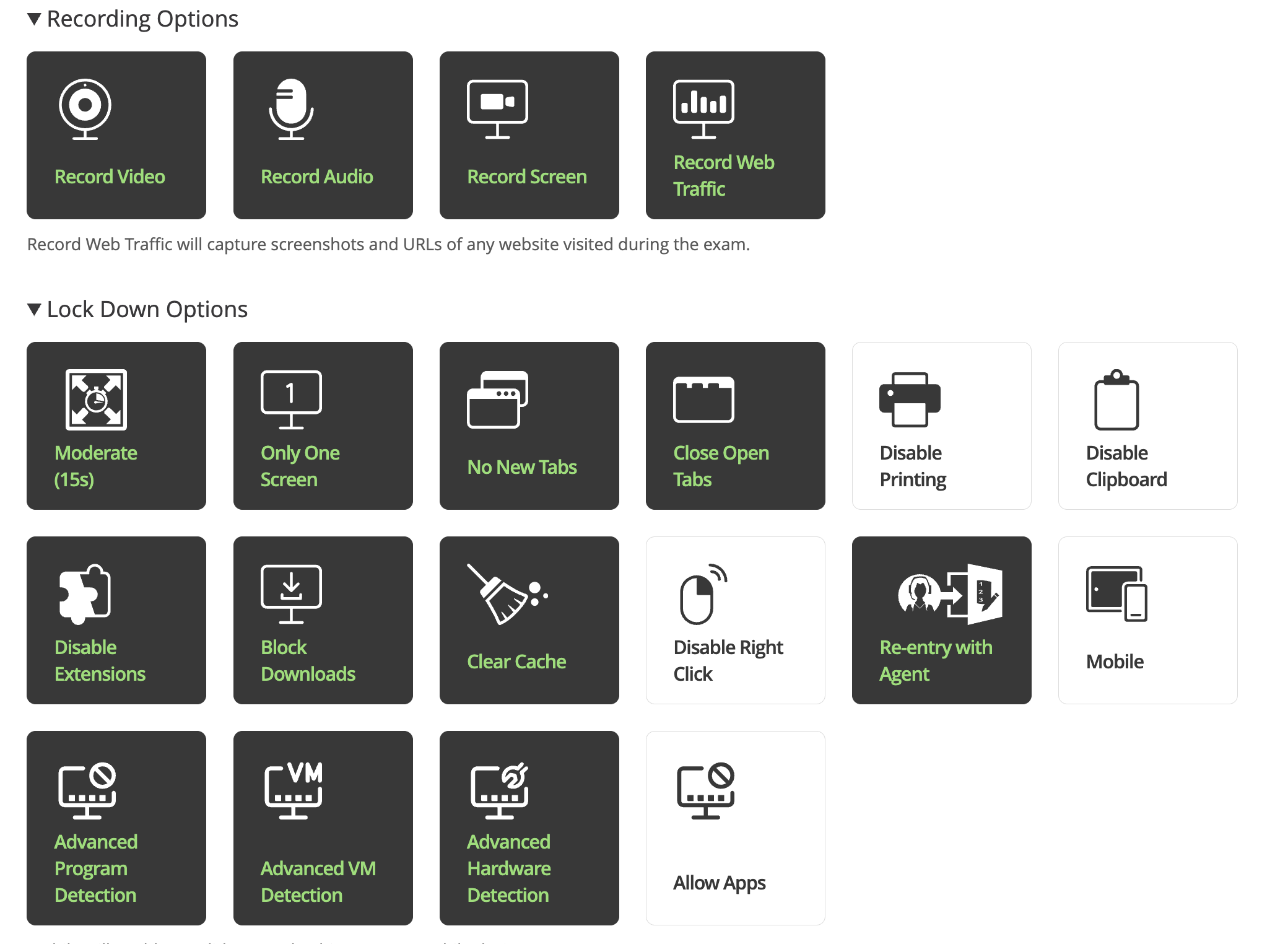
- The three new advanced security settings are: Advanced Program Detection, Advanced VM Detection, Advanced Hardware Detection
- Below are the Exam settings we recommend if students are taking exams remotely.
Please note that due to accessibility restrictions, we do not recommend enabling Disable Printing, Disable Clipboard, and Disable Right Click. At this time, we also do not recommend enabling Mobile or Allow Apps.
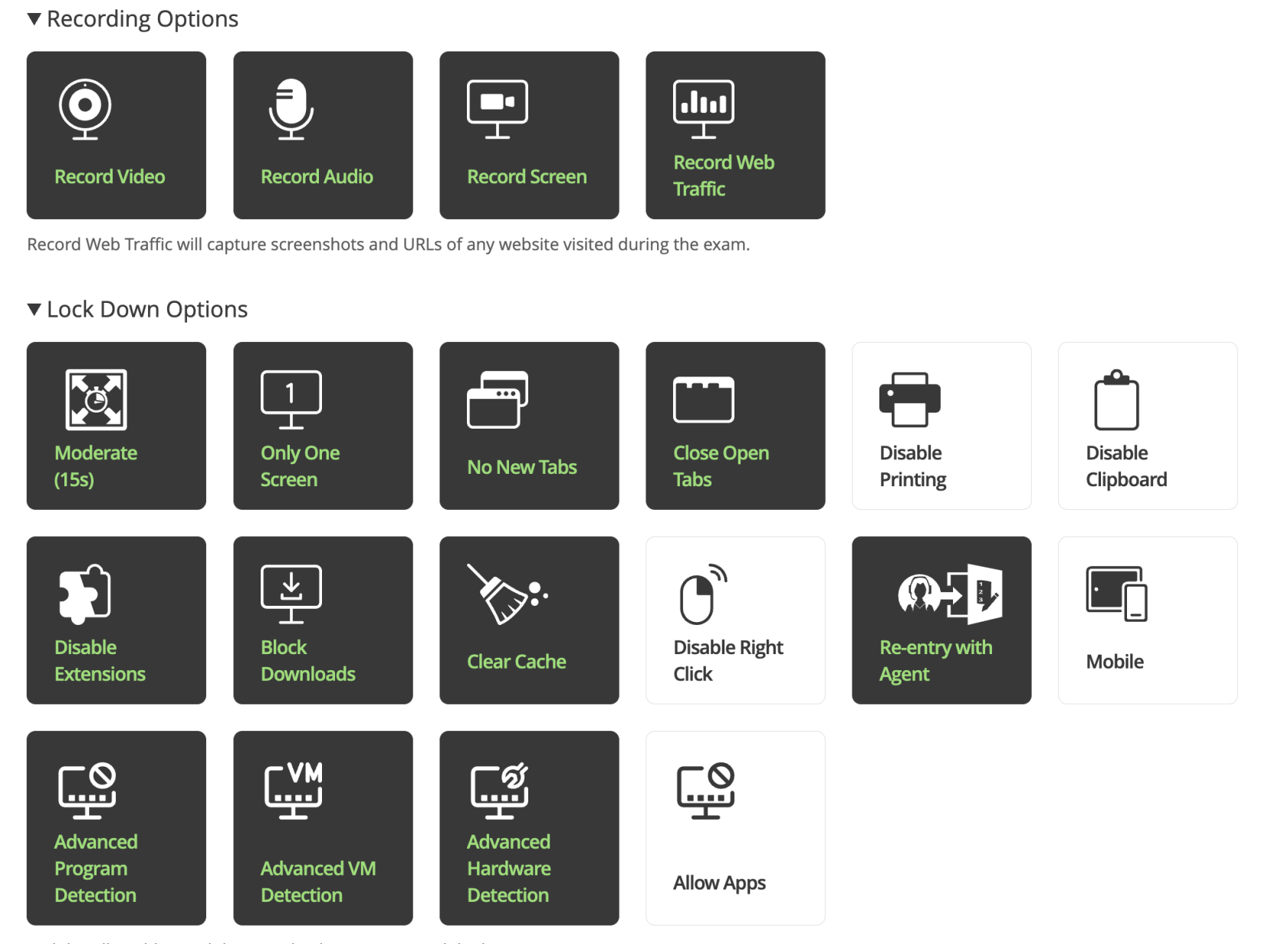
- Below are the Exam Settings we recommend if students are taking exams in the classroom.